Viewing search results
The List page provides a view of your search results that can be quickly scanned and sorted, allowing you to view and compare key properties of the records returned by your search.
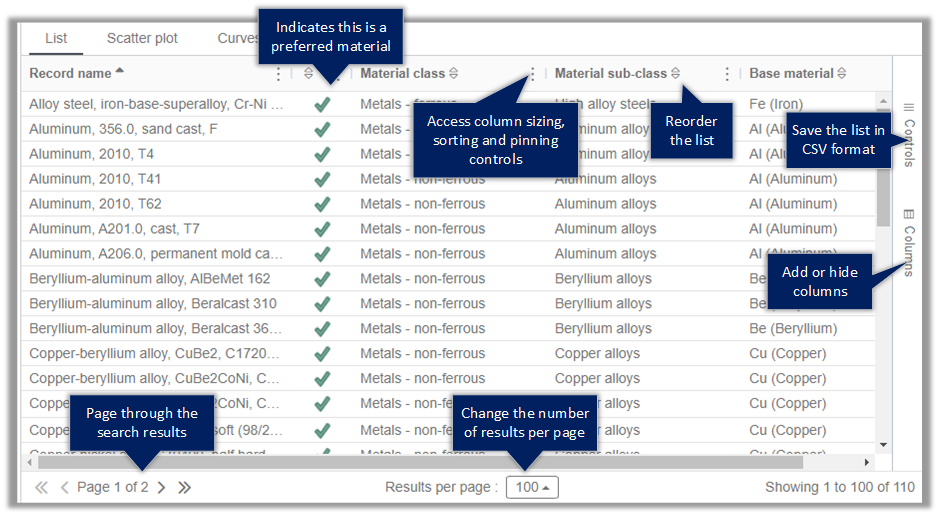
- By default, you can see the first 100 records returned by the search. Use the pagination controls at the bottom of the page to page through more results.
- To re-sort the list, click a column header. To reset to the default sorting, click .
- To add or remove a column, click Columns and choose the Attributes you want to see.
- To move a column, drag the column header to the new position. To resize a column, drag the divider between the column headers. Right-click the column header for additional autosize and pinning options.
- To save the current page of results to a CSV file, click . Data for all visible columns, for all of the records in the current page, are exported.
- Double-click a record to open the datasheet.
- Optional:
Right-click for additional record actions:
- Show datasheet - open the record datasheet.
- Add to Favorites list - add the selected record to a personal Favorites List.
- Compare records - compare the selected records.
- Export material cards - export data from the selected records as material cards for use in CAD, CAE, or PLM applications.
Example: