The Part Cost Estimator is a Synthesizer model that calculates the total cost of a
component based on the material and processing costs.
Note: You will need to use an advanced Level 3 database for
this exercise
-
Use the Part Cost Estimator to compare the cost of a component when
manufactured as an injection-molded polymer, or a rolled and pressed metal
-
Click
 Synthesizer on the toolbar. In the dialog,
select Cost – Part cost estimator.
Synthesizer on the toolbar. In the dialog,
select Cost – Part cost estimator.
-
Enter the Component Details for the first
component
- Material
- PP (copolymer, 20% talc)
- Value of scrap material
- 10%
- Part mass
- 6.4
- Part length
- 10
- Batch size
- 1000 - 1E6
- Number of values
- 10
For this exercise, the units of part mass and part length do not matter.
-
Enter the Primary Shaping Process values
- Primary process
- Injection molding (thermoplastics)
- Availability
- Custom form
- Part complexity
- Standard
Use the default values for Load factor,
Overhead rate, and Capital write-off
time.
-
Set the Record Naming values
- Material
- PP
- Primary process
- molded
-
Create the new records
-
Click Create. Keep the Part Cost
Estimator dialog open.
-
Enter Component Details for the second component
-
In the Part Cost Estimator dialog, click
Previous and change the Component
Details:
- Material
- YS170 hot rolled (a high strength, drawing quality
steel)
- Part mass
- 10
Use the existing values for scrap material value,
part length, batch size, and
number of values (these are retained from the first
material processing chain input).
-
Enter Primary Shaping Process values
- Primary process
- Hot shape rolling
Use the existing values for the remaining properties.
-
Enter details for the Secondary Shaping Process
-
Select Include secondary process, and enter the
following value:
- Secondary process
- Press forming
Use the default values for Part complexity,
Amount of scrap, and Scrap
recycled.
-
Enter the Record Naming values:
- Material
- Steel
- Primary process
- rolled
- Secondary process
- pressed
-
Click Create and then Finish to
create the records and close the Part Cost Estimator
Synthesized records created using Part Cost Estimator are appended to
the MaterialUniverse browse tree under .
-
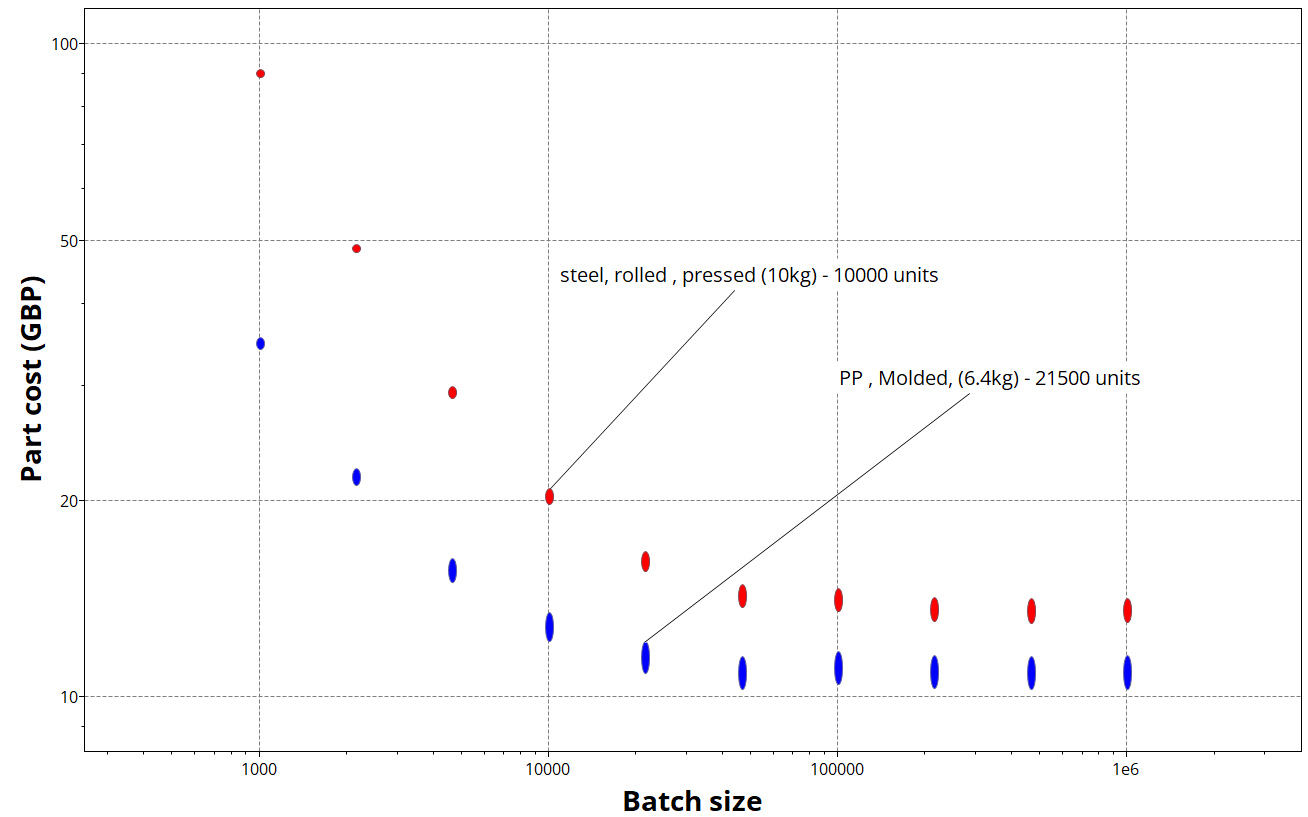
Create a bubble chart to compare the two material processing chains
-
Select MaterialUniverse: All bulk materials,
click Chart/Index, and set the following x- and
y-axis values:
- Category
- Part cost estimator
- X-Axis Attribute
- Batch size
- Y-Axis Attribute
- Part cost
-
Change the Record color for easy comparison of the two
processing chains
-
Navigate to . Right-click the PP, molded subfolder,
click Record color, and click a color to change
the record color for all records in that folder.
-
Delete the Chart Stage