Exercise 25: Battery Designer

Battery Designer is a Synthesizer model that estimates the performance of battery module and pack designs based on the materials, battery cell type, and thermal management system used.

Note: You will need to use an advanced Level 3 database for this exercise
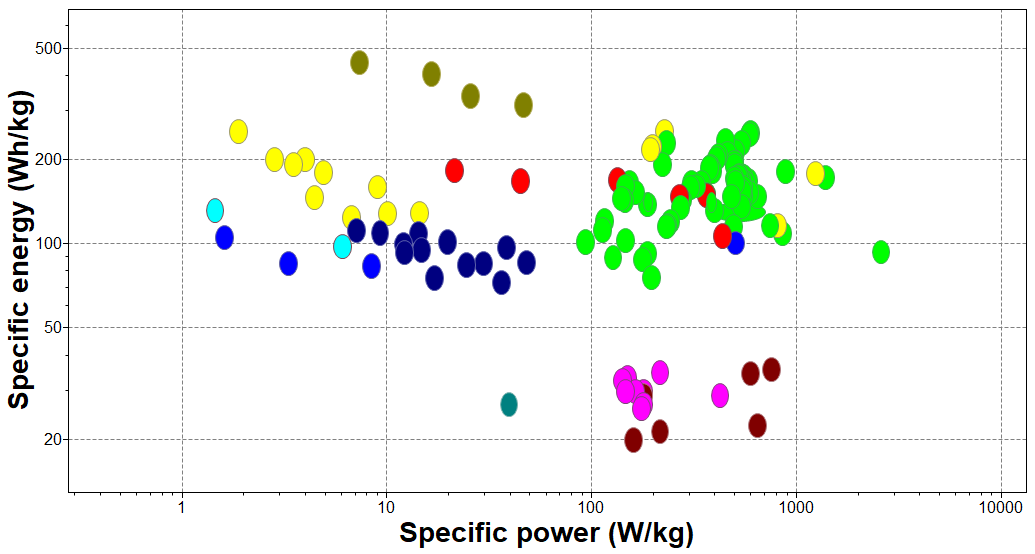
  1. Create a bubble chart to compare individual battery cells.
    1. On the Chart/Select panel, Select from: Battery Cells: All Cells.
    2. Click Chart/Index and set the following x- and y-axis values:
      Category
      General
      X-Axis Attribute
      Specific power
      Y-Axis Attribute
      Specific energy

      Charts of Specific energy against Specific power are also known as Ragone plots.

      By default, this will display all cells in the Battery Cells table, as well as any synthesized Module and Pack records in the Selection Project.

  2. Use the Battery Designer to estimate the performance of an example multi-cell module configuration
    1. Click Synthesizer on the toolbar. In the dialog, select Battery Designer - Cell to Module (by number of cells).
  3. Under Module, enter the name and battery cell type
    Name
    Test Module 1
    Battery Cell
    Lithium-ion (NCA) Cylindrical 3500 mAh
  4. Set the Number of cells and target Discharge Current
    Number of cells in series
    10
    Number of cells in parallel
    2
    Discharge current
    7A
  5. Select a custom Configuration
    1. Check the Custom configuration check box.
    2. Make sure the Or pre-defined module check box is not selected.
  6. Set Packaging materials and dimensions:
    Casing material
    PC (high viscosity, molding and extrusion)
    Wall thickness
    3 mm
    Insulation material
    PC foam (rigid, closed cell, 0.65)
    Insulation thickness
    3 mm
    Cell spacing
    1 mm
  7. Select a Thermal management system (TMS)
    Cooling system type
    Passive air cooling
  8. Click Create and then Finish to create the synthesized record and close the Battery Designer

    Synthesized records created using Battery Designer are appended to the Battery Cells table under My records > Synthesized > Modules.

  9. Go back to the bubble chart
    The new Module record is now displayed on the Ragone plot.
  10. Now create some Module records based on desired performance, and compare them to the existing Module
    1. Click Synthesizer and in the dialog, select Battery Designer - Cell to Module (by performance).
  11. Enter the Module details:
    Name
    Test Module 2
    Battery Cell
    Lithium-ion (NCA) Cylindrical 3500 mAh
  12. Set the target Performance:
    Should last for at least
    60-240 min
    Number of values
    10
    with Current
    7 A
    and Voltage
    36 V
  13. Select custom Configuration
  14. Set the Packaging materials and dimensions:
    Casing material
    PC (high viscosity, molding and extrusion)
    Wall thickness
    3 mm
    Insulation material
    PC foam (rigid, closed cell, 0.65)
    Insulation thickness
    3 mm
    Cell spacing
    1 mm
  15. Set the Thermal management system (TMS)
    Cooling system type
    Passive air cooling
  16. Create Module records
    1. Click Create and then Finish.
  17. Compare Module records using the bubble chart

    All the synthesized Modules can now be compared with each other and with individual cells.

    You can also open Module datasheets to view other calculated properties associated with that module, for example predicted operating temperature and discharge time.
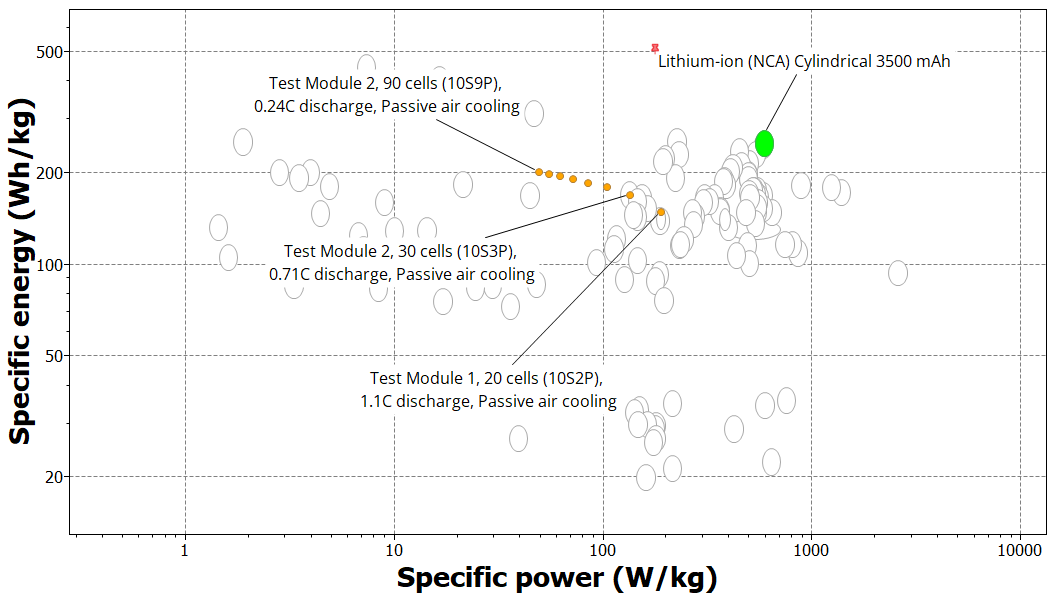
    To reproduce this chart:

    • Set Lithium-ion (NCA) Cylindrical 3500 mAh as the Reference record.
    • Select Highlight Synthesized Records and Highlight Reference Record on the Chart toolbar.