


Exercise 13: Advanced selection with Comparison Tables
Comparison Tables allow you to compare several different records at once, and highlight differences between them.
Note: Comparison Tables are only enabled in
the advanced Level 3 databases. The option will be grayed out or not appear at all
if you have opened any of the databases available in Granta EduPack Introductory,
including Level 3.
In industry, materials selection projects are often required to find a replacement for an existing material, due to changes in the design or manufacture of the component, or because of supply chain issues. Comparison Tables allow you to compare several different records at once, and highlight differences between them.
-
Change the database to one where Comparison Tables are
enabled.
- Change the database and table to Level 3 Polymer, MaterialUniverse: All materials.
-
Add an unfilled PP (Polypropylene) and an unfilled PVC record to a
Comparison Table.
- Find an example of each in the Browse tree, then right-click and select Add to Comparison Table.
-
Set the PVC record as the Reference record.
-
Hover over the record name in the comparison table header and click
 Set as Reference .
Note: Reference record is another feature enabled in the advanced Level 3 databases. Setting a
Reference record allows you to easily
identify it in the browse tree and on charts, and compare other
records to it using Comparison Tables and
Find Similar (see the next exercise and the
software Help for more information).
Set as Reference .
Note: Reference record is another feature enabled in the advanced Level 3 databases. Setting a
Reference record allows you to easily
identify it in the browse tree and on charts, and compare other
records to it using Comparison Tables and
Find Similar (see the next exercise and the
software Help for more information).
-
Hover over the record name in the comparison table header and click
-
Show the differences relative to the Reference record as
percentages.
-
Click
 Change in the Comparison
Table toolbar.
Note: These are differences in the range values, not the averages.
Change in the Comparison
Table toolbar.
Note: These are differences in the range values, not the averages.
-
Click
-
Clear the Comparison Table and Reference
record.
-
Click Tools on the main toolbar, then select . Repeat for the Reference record.
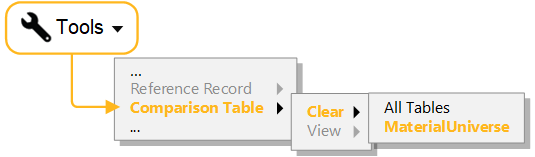
-
Click Tools on the main toolbar, then select . Repeat for the Reference record.