Exercise 12: Advanced selection using the Performance Index Finder
The Performance Index Finder lets you plot a performance index on a chart as a combined property.
Note: The Performance Index Finder is only enabled in Level 3
databases.
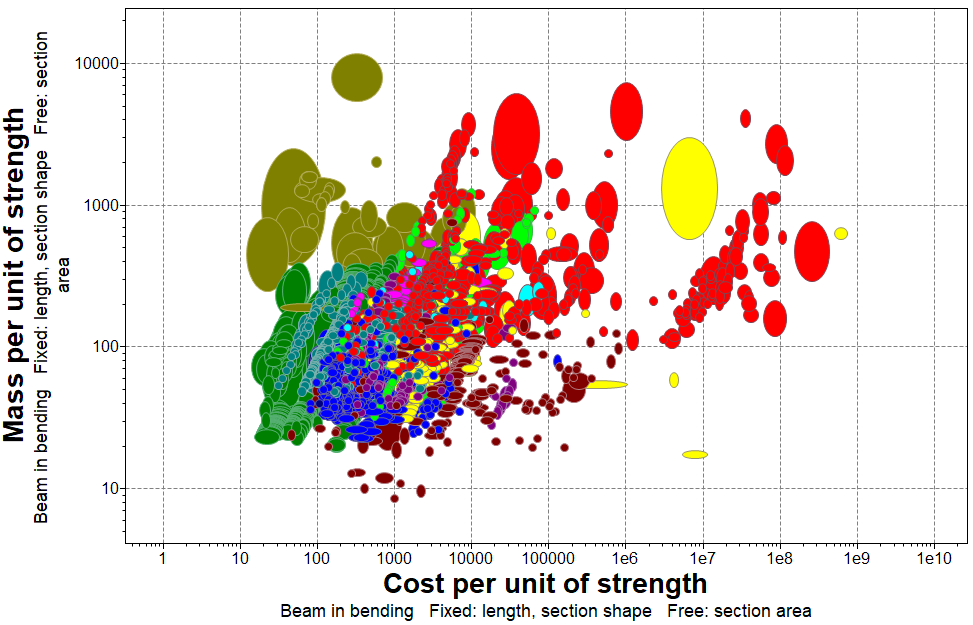
In this exercise, you will use the Performance Index Finder to find the materials best suited for a beam, loaded in bending, that is part of a low cost, lightweight, strength-limited design.
- Create a chart using the Performance Index Finder
-
Click
 Chart/Index, then select the
Performance Index Finder radio button.
Chart/Index, then select the
Performance Index Finder radio button.
-
Click
-
View the chart
- Click OK to view the chart.
Materials in the bottom-left corner are best suited for a lightweight, low cost, strength-limited design.