


Exercise 2: Adding user-defined records
In addition to using records supplied in the Granta Selector databases, you can also add your own data by creating a user-defined record.
New materials are continuously being developed and introduced onto the market. These materials can be added and compared with other materials in the database using the User-Defined Record feature.
When you add user-defined records in Granta Selector, they appear in the Browse tree, under My records. User-defined records are saved in the selection project file, not the database.
-
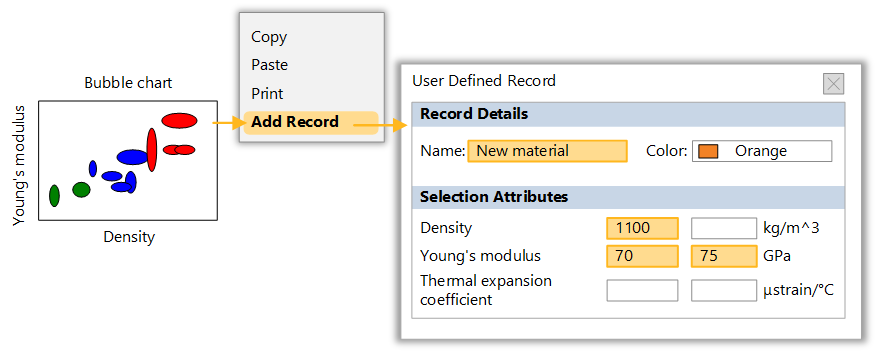
Set the following values for the new record:
- Name:
- New material
- Density:
- Min. 1100 kg/m^3
- Young’s Modulus:
- 70 - 75 GPa
Click OK when finished. The new record will be shown on the Chart Stage in the default color (orange).
-
View the new record on the chart
On the Chart toolbar, click
 Highlight user defined
records. All the materials that are not user-defined are grayed
out.
Highlight user defined
records. All the materials that are not user-defined are grayed
out.When a record is added from a chart, only the selection attributes are shown for data entry. User-defined records do not fail stages when no value has been entered for a specified constraint (thermal expansion coefficient, in this example).
To edit or delete a user-defined record, right-click the record in the Browse tree and select the option on the shortcut menu.