


Exercise 2: Comparing materials and process costs
The Part Cost Estimator is a synthesizer model that calculates the total cost of a component based on the material and processing costs.
-
Use the Part Cost Estimator to compare the cost of a component
manufactured in two different ways: as an injection molded polymer, and as a
rolled and pressed metal.
Start the Synthesizer Tool by clicking
 Synthesizer on the toolbar and in the
dialog, select Cost – Part cost estimator.
Synthesizer on the toolbar and in the
dialog, select Cost – Part cost estimator. -
Set the Component Details:
- Material
- PP (copolymer, 20% talc)
- Value of scrap material
- 10%
- Part mass
- 6.4
- Part length
- 10
- Batch size
- 1000 - 1E6
- Number of values
- 10
Note: For this exercise, the units of part mass and part length do not matter. -
Set the Primary Shaping Process values:
- Primary process
- Injection molding (thermoplastics)
- Availability
- Custom form
- Part complexity
- Standard
Use the default values for Load factor, Overhead rate, and Capital write-off time.
-
Set the Record Naming values
- Material
- PP
- Primary process
- molded
-
Create the new records
Click Create. Keep the Part Cost Estimator dialog open.
The new synthesized records will be shown in the Browse tree and on the Chart Stage.
-
Add another material process.
In the Part Cost Estimator window, click Previous and set the Component Details for another material processing chain:
- Material
- YS170 (hot rolled) high strength steel
- Part mass
- 10
Use the default values for scrap material value, part length, batch size, and number of values (retained from the first material processing chain input).
-
Set the Primary Shaping Process values:
- Primary process
- Hot shape rolling
Use the default values for the other properties.
-
Set the Secondary Shaping Process.
Select Include secondary process, and enter the following value:
- Secondary process
- Press forming
Use the default values for Part complexity, Amount of scrap, and Scrap recycled.
-
Set the Record Naming values:
- Material
- Steel
- Primary process
- rolled
- Secondary process
- pressed
-
Click Create and then Finish to
create the synthesized records and close the Part Cost Estimator.
Synthesized records created using Part Cost Estimator are appended to the MaterialUniverse browse tree under My records > Synthesized > Part cost estimator.
-
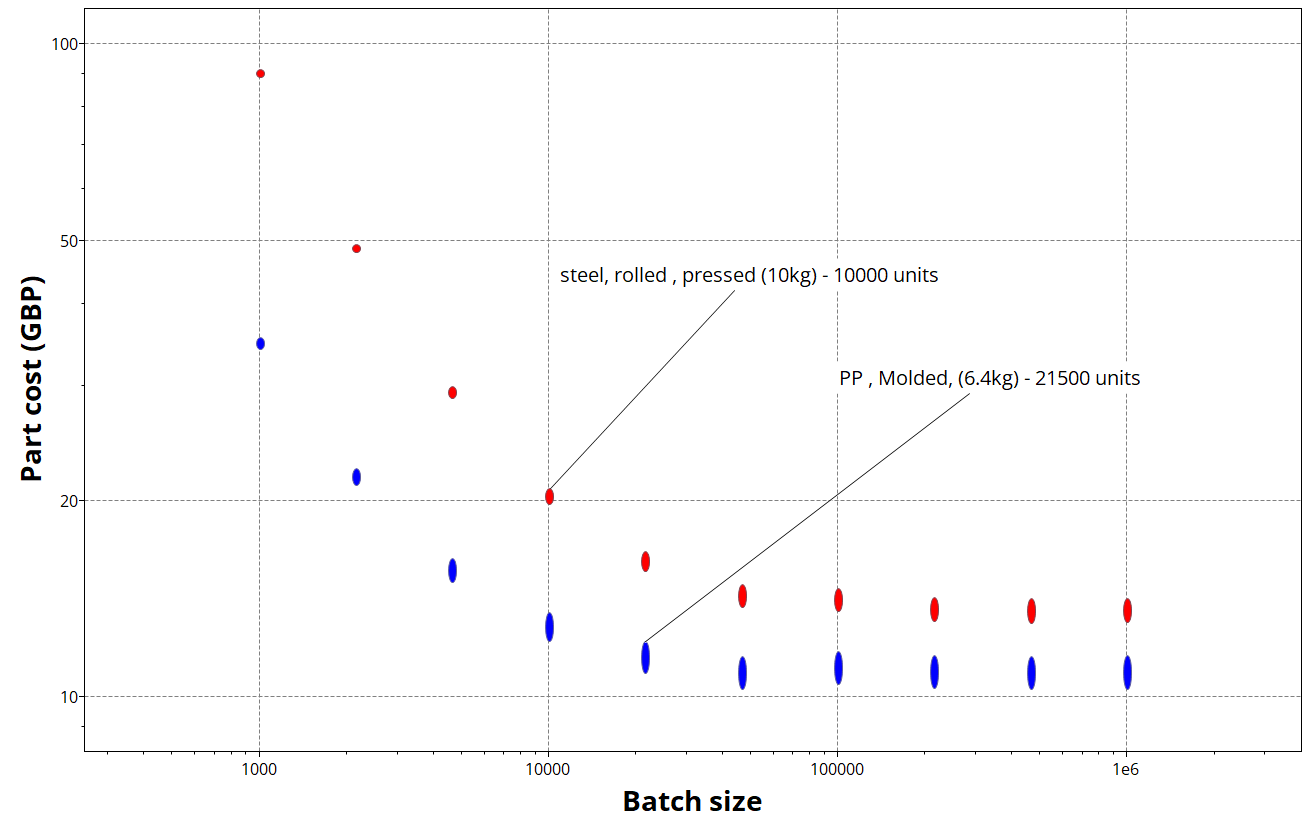
Create a bubble chart to compare the two material processing chains
Delete any existing selection stages, if there are any. In the Selection Project panel, click Chart/Index and set the following x- and y-axis values:
- Category
- Part cost estimator
- X-Axis Attribute
- Batch size
- Y-Axis Attribute
- Part cost
-
Change the Record color for easy comparison of the two
processing chains
On the MaterialUniverse browse tree, navigate to My records > Synthesized > Part cost estimator.
Right-click the PP, molded subfolder, click Record color, and select a color to change the record color for all records in that folder.
- Delete the Chart Stage