
Adding Security to a 2.0 Component
The Security tab of the Component 2.0 window is used to encrypt the component. In contrast to the Encryption tab in the Create 2.0 Representation window, this encryption applies to the entire 2.0 component, not to an individual representation.
If No Edits Allowed is selected, the user will not be able to add or delete representations in the component file. If With User Password is selected, the user can add or delete if the password is provided.
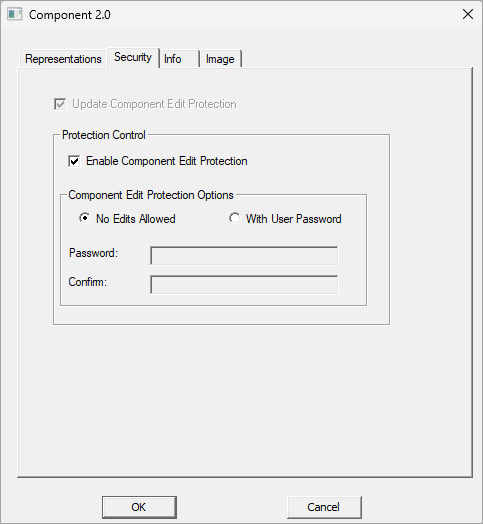
To add edit controls to the file, check the Enable Component Edit Protection option so the edit controls become active. If the 2.0 component already exists and you would like to change the security, first check the Update Component Edit Protection option, which will not be grayed out for an existing component.
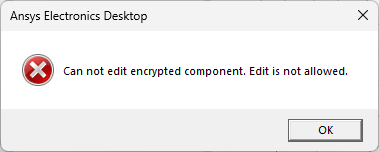
When the No Edits Allowed option is selected and saved with the component file, if the file is selected from the Edit Component 2.0 menu, Desktop will display the following message:
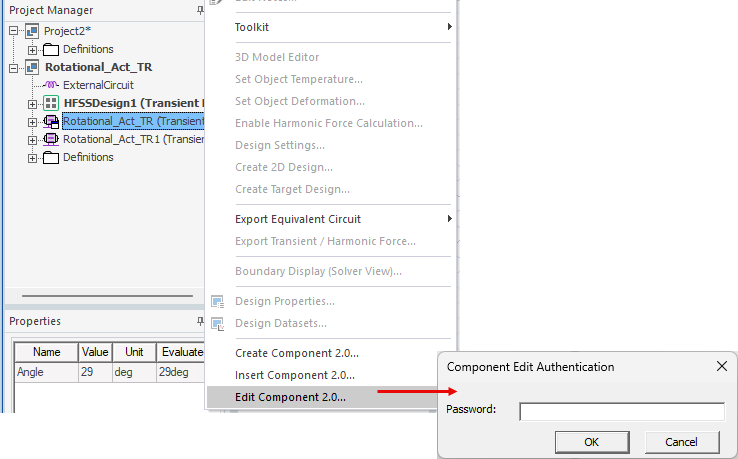
If the With User Password is selected for the Component Edit Protect Options, when you select the encrypted component file from the Edit Component 2.0 option, you will be prompted for the password:
The component itself and its associated files will always be stored in an encrypted format.