
Importing the AMI Receiver
To import an IBIS AMI receiver model from an IBIS library file (.ibs):
- Click Import Models on the Symbols
tab of the Component Libraries group box. Select the IBIS icon.
This opens the Import Components window:
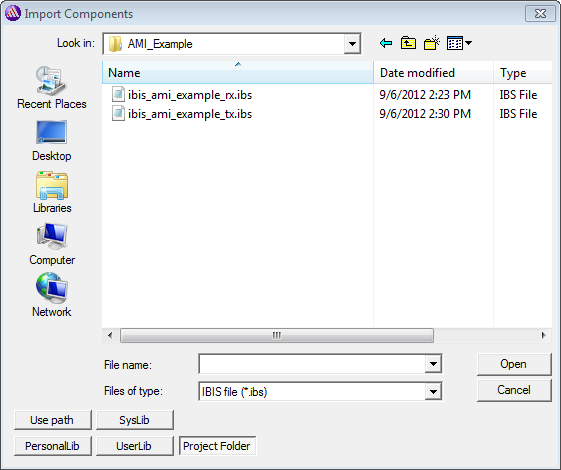
- Locate and select the IBIS file that references the AMI receiver.
- Click Open to open the Import
IBIS window.
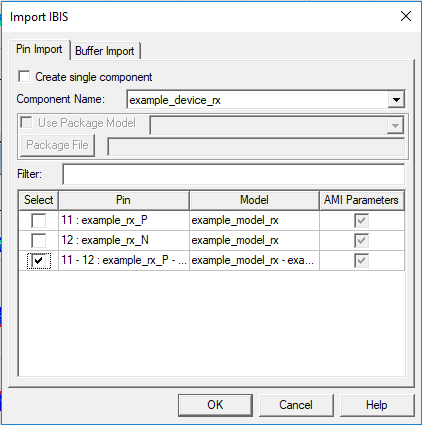
- The Pin Import tab displays the pins defined for the component in the IBIS file, the model or model selector associated with each pin, and whether the model is an AMI model. Single pins are listed first, then differential pin pairs. On this tab:
- To import the receiver as a single component with multiple pins wherein each pin retains its own model and buffer type, check Create single component. See Import IBIS Single Component or Pin or Buffer Element for details.
- The Component Name field lists all the IBIS components contained in the selected IBIS library. Scroll the list and select the name of the component to be imported.
- Click the Select check boxes to designate the differential pair of pins to import.Note: If an attempt is made to import a single pin that is part of a differential pin pair, a warning appears in the Message Manager. The import can still proceed.
- Click OK to import the transmitter model. An instance of the receiver is attached to the cursor. Drag and drop it into the schematic.
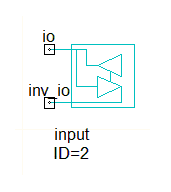
The next step is to edit the properties on the receiver component.
Setting AMI Receiver Properties
To view or set the properties on the AMI receiver, select the component and click Edit
Properties on the menu. Here are the basic buffer properties for an imported differential pair AMI receiver example: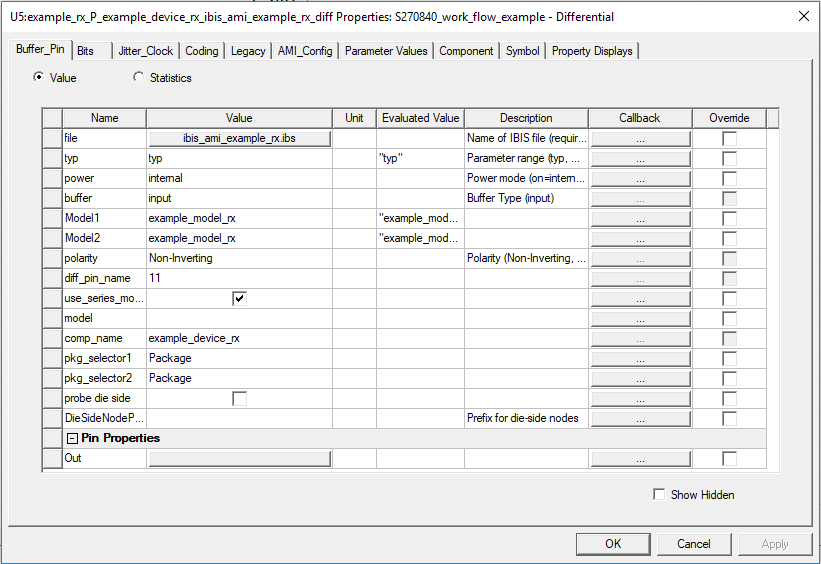
An AMI receiver model is imported as an input or I/O buffer type with internal power source and other basic parameters set as shown. See IBIS Library Support for additional information.
- The Out property under the Pin Properties row, is set using a net name, selected from a drop-down menu populated automatically on the completed circuit.The Out pin is not relevant to AMI analysis. See for IBIS Library Support for additional information.
- The diff_pin_name property shows the Pin Import selection.
- See for IBIS Library Support for additional information on the use_series_model, package_selector, and probe die side properties.
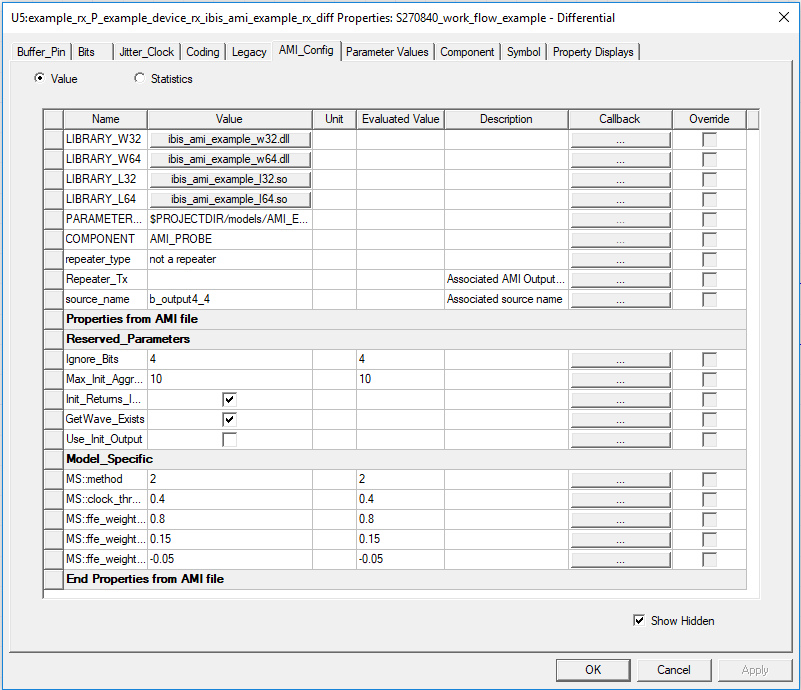
This is the AMI Parameters Tab information:
- The LIBRARY properties show the executable files on the [Model] in the .ibs file.
- The COMPONENT property has been set to AMI_PROBE automatically.
- See AMI Repeater Properties for details on the repeater_type and Repeater_Tx properties.
- The AMI Receiver properties list includes a property source_name which lists the available AMI Transmitters in the design. Then choose a transmitter on the drop-down menu.
- The source_name field is automatically filled in with the name of the AMI Transmitter when the AMI Transmitter and AMI Receiver are paired on the GUI. See Pairing an AMI Source and an AMI Probe in the Schematic.
Finally, the AMI_Config tab includes listings of the parameters on the AMI parameters file. The reserved and model specific AMI parameters are broken out in separate groups.
If your system includes AMI Repeaters or Retimers, the steps for setting them up are in AMI Repeater Properties.
You complete the circuit by adding a channel and wiring the connections. If the circuit is complete, you are ready to run the AMI Analysis.