
Diagram Editor Settings
Follow this procedure to set Modelica Diagram Editor options in Twin Builder:
- Select Tools > Options > General Options, and expand Model Editor > Modelica. If the Editor is open, click Modelica Model Editor > Diagram Editor Settings.
- Select General to display these settings.
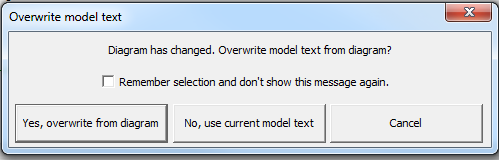
- Warn user if diagram has changed – When you select this check box, the Overwrite model text dialog box appears after you make changes to a diagram. You can choose to overwrite from the diagram, or to use the current model text and not overwrite from the diagram. You also can cancel. Select the Remember selection and don't show this message again check box if you always want the same action when you change a diagram.
- Show diagram tab as default – Select this check box to display the Diagram tab when you start the Editor.
- Show model interfaces dialog during compilation – Select this check box to display the Model Interfaces dialog box. Use this dialog box to select which interfaces to expose in Twin Builder.
- Show update component dialog after compilation – Select this check box to display an update component dialog box after compilation. Use this dialog box to make SDB selections if required.
- Load packages automatically after editor startup – Select this check box to start loading all packages when the Editor starts. If you clear this check box, you must expand each library to load individually.
- Select Text Editor to access the standard Twin Builder text editor settings.
- Select Diagram Editor to display these settings.
- Show pin names – Determine whether pin names appear on the diagram.
- Rotate property displays on component rotation – The property display, such as Instance Name, rotates when you rotate the component.
- Zoom with mouse wheel – See Zooming and Panning the View for details on zooming in the Diagram Editor.
- Refresh component on parameter change – If you select this check box, changing a parameter refreshes the component icon (add/remove ports) and properties (enable/disable). If you clear this check box, you can refresh whenever you choose (that is, you can right-click a component and select Refresh).
- Select Packages to load installed libraries, MODELICAPATH libraries, and user libraries. Only packages selected to load appear in the package browser.
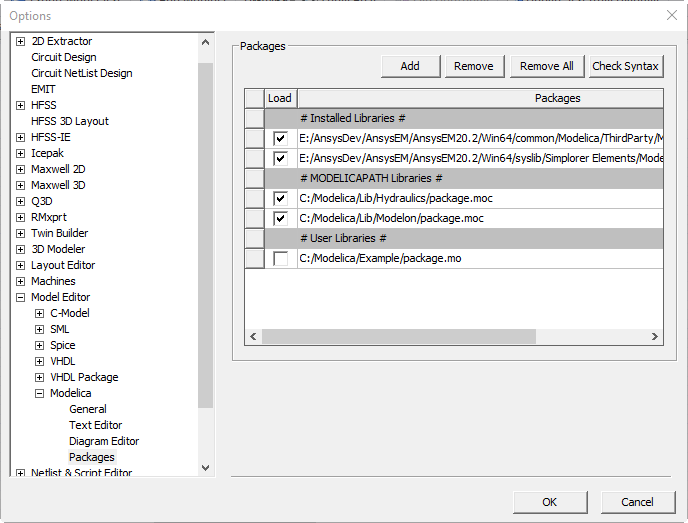
- The following libraries are provided with installation:
- Installed Libraries – The libraries included in the installation.
- MODELICAPATH Libraries – Set the system environment variable MODELICAPATH and indicate its location. In the example above, the MODELICAPATH environment variable is set to add the PowerSystems library. Select the Load check box to load the libraries, or clear the check box if you do not want to load them.
- User Libraries – Click Add and find package.mo or package.moc libraries. Click Remove to remove a user library.
- When checking the syntax of a package, keep in mind:
- The system checks any package being added to the list for syntactical correctness before it is loaded in the package browser. If the syntax check fails, the package is still added to the list, but the check box in the Load column is cleared. This way the package is registered in the list and can later easily be turned on after the errors have been fixed.
- When the Load check box is selected, its associated package is checked for syntactical correctness.
- Click Check Syntax to execute a syntax check for a selected package.
Note:
This check is only a syntax check which allows the package to be scanned correctly by the Modelica compiler. This check does not flag semantic errors in the package.
- When finished configuring settings, click OK.