
Equations
Use the Equations option under Modelica Model Editor to add, edit, or remove language-specific equations.
Adding an Equation
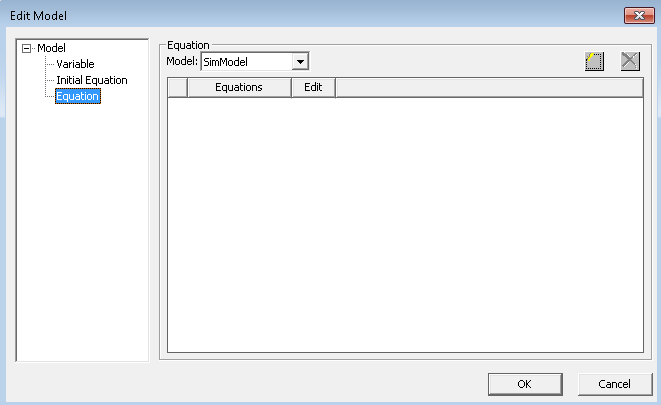
- Click Modelica Model Editor > Equations. The Edit Model dialog box opens.
- Click
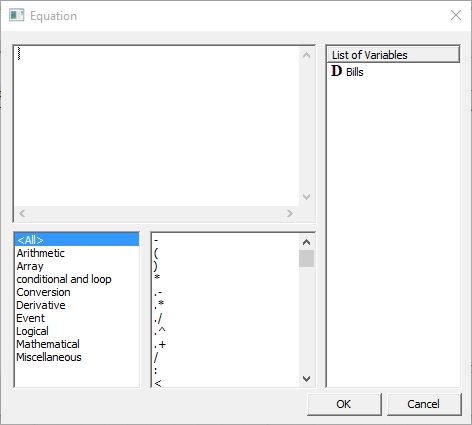
 to add a row. The Equation dialog box opens.
 - Use the options to create the equation. Select from the language constructs and functions. On the right is a list of available local variables and component names.
-
After you create the equation, click OK. The equation is added to the Equations list.
-
Click OK.
- To add this equation to the model text, click Modelica Model Editor > Update Text from Diagram.
Note:
You can also access this panel from Modelica Model Editor > Variables & Declarations > Equation.
Editing an Equation
Click  in the Edit column on the Equation panel
  to edit an equation. Make your changes in the Equation dialog box and click OK.
Removing an Equation
Highlight an equation row in the Equation panel and click  to remove it.