
Add Modifiers
Use Add Modifiers in the Modelica Diagram Editor to add or edit modifiers for components. Modifier text is a comma-separated list of names (attribute/parameter) and associated values, such as a(start = 100, fixed = true). Use this option to change attribute values such as start or fixed. You can also use it to change parameters in a hierarchy.
To add a modifier in Modelica Diagram Editor
- In the Diagram Editor, right-click a component and select Add Modifier, or select Modelica Model Editor > Add Modifier. The Add Modifier dialog box appears.
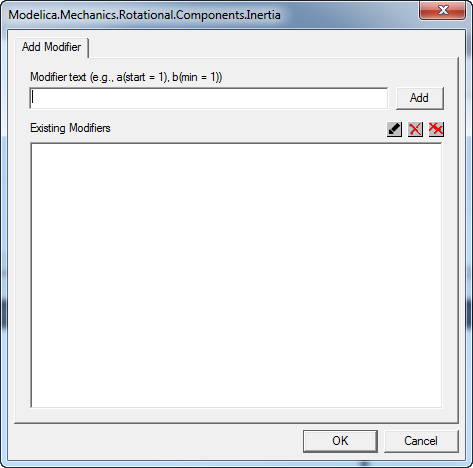
- Enter the modifier text in the Modifier text box and click Add.
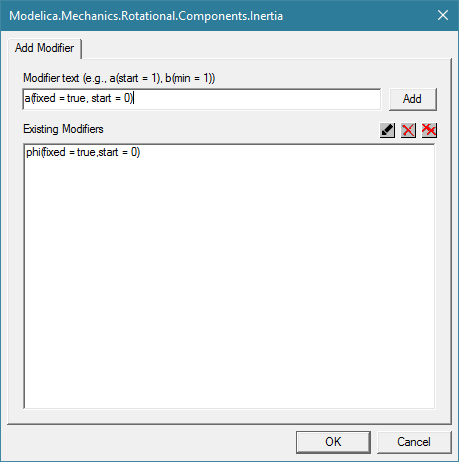
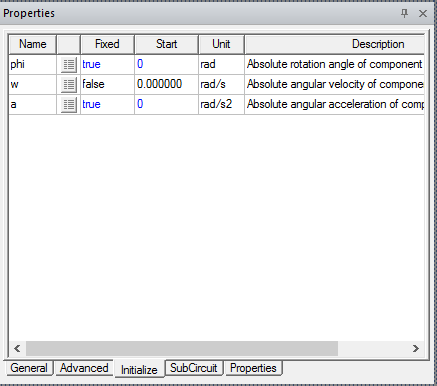
- Click OK to add your changes to the component. The added modifiers also appear in the parameter properties for the component.
To edit a modifier in Modelica Diagram Editor
- In the Diagram Editor, right-click a component and select Add Modifier or click Modelica Model Editor > Add Modifier. The Add Modifier dialog box appears.
- Double-click the existing modifier you want to edit, or select the existing modifier and click
 to open the Edit Modifier dialog box.
 - You can perform the following actions.
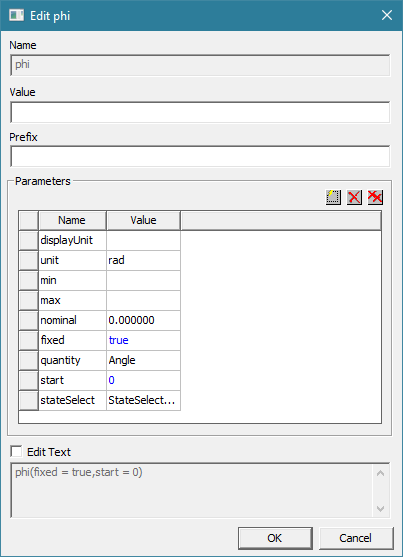
- Edit the name or value directly.
- Click the Edit box and make the edits to the modifier.
- Click
 to add a new name and value to the modifier.
 - Click
 to remove a modifier.
 - Click
 to remove all modifiers.
- Click OK to accept the changes.