
Array/Record Element Values Dialog Box
A component properties dialog box may include array or record properties, generically called composite properties, for parameters, quantities, or signals.
- A composite property is an array or record property (parameter, quantity or signal), generally based on a model property, that represents a combination of elements.
- An array is a group of the same type of element, such as an array of real quantities, or of std_logic signals. The elements in an array may be composites themselves, but all are the same type.
- A record is a group of the same or different types of element. A record may contain a std_logic signal and a real array.
- These concepts are generally based on the VHDL-AMS array and record types, and these types of properties can only be created from models at this time.
The following image contains four composite properties.
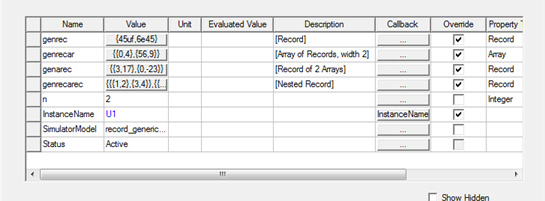
Note that the Value
field for each composite property contains a button labeled with the
values of the elements in the respective array or record. Click a
Value button to open an Array/Record Element Values
dialog box, in which you can assign element values for array and record
 properties. For
example:
properties. For
example:
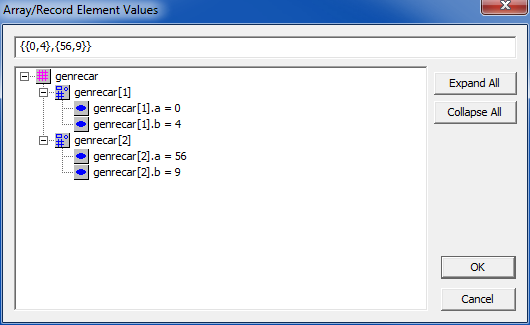
The edit field at the top shows the current composite value, represented as a comma-separated set of numbers, variables, functions, or expressions enclosed in curly braces. Nested arrays or records (an array of records where the record has an array and various other values) are also enclosed in curly braces. Such a value could look like {1,3,{{22,55},44},7e12}. Modify the current value in the edit field to set the array or record value. The updated values will be shown in the tree when focus is changed.
Click Expand All and Collapse All to expand and collapse the entire tree at one time.
Click a leaf element to open the Edit Element Value dialog box:
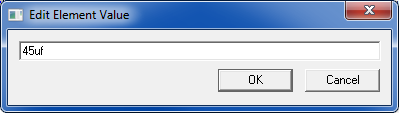
Enter a value then click OK. The value is validated and updated in both the tree and composite view. Entries that fail the validation check produce messages similar to the following in the Message Manager pane:

Related Topics
Parameter Values Tab (Properties Dialog Box)
Quantities Tab (Properties Dialog Box)
Signals Tab (Properties Dialog Box)
Param Values Tab (Properties Window)