
Parameter Values Tab (Properties Dialog Box)
The Parameter Values tab lists the simulation parameters of selected components.
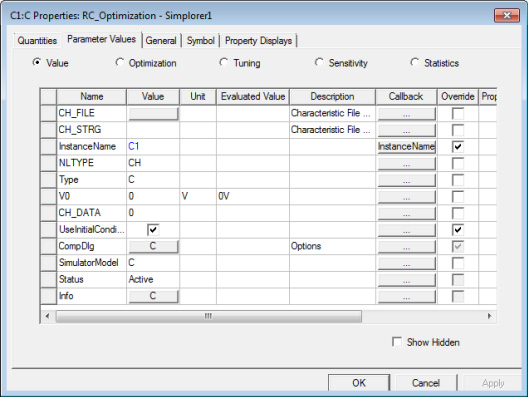
- Click a cell in the Value or Unit columns to change the value of a component parameter. If the value requires a multiplier unit (such as kOhm for “´1000”) click a cell in the Unit column to select the multiplier unit. The Evaluated Value column shows the resulting number.
- Click the button in the Value field for CompDlg to open the component special dialog box for entering parameter values.
- Click the button in the Value field for Info to launch the help topic for the component.
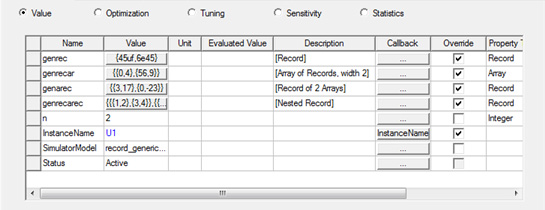
- Component parameters that have composite properties
have buttons in the Value field.
A composite property is an array or record property
(parameter, quantity, or signal), generally based on a model property,
that represents a combination of elements. An array is a group of the
same type of element, such as an array of real quantities, or of std_logic
signals. The elements in an array may be composites themselves, but
all are the same type. A record is a group of the same, or different,
types of element. A record may contain a std_logic signal and a real
array. These concepts are generally based on the VHDL-AMS array and record
types, and these types of properties currently can only be created from
models. Click the button to view details and edit these properties in
the Array/Record Element Values dialog
box.
- Specify a parameter value using an expression
that evaluates to a constant (shown above). The expression
appears in the Value field, while the Evaluated Value
field shows the constant resulting from evaluating the expression. You can then identify and modify the expression in the future. Use the Property Displays tab to display the
expression, the evaluated value, or both.
Note:
Select the Show Hidden check box to view hidden properties of the component. Hidden properties contain system-defined values and rules for interpreting predefined component parameters. Modifying hidden properties requires specialized knowledge of the component, and is not needed for normal operation.
The box in the Override column is selected when any of the parameter’s default values change. Property Type shows the type (for example, Real) for generic properties. Show Pin displays a pin for the property on the component’s symbol. Sweep enables the value for sweep. SDB enables the value to be stored in the project SDB.
When you open the Properties dialog box for a design (Design Properties), the Parameter Values tab is initially empty. Click Addto add properties to the design. See Defining a Project Variables for details.
The Add button does not appear on the Properties dialog box for a component.