
Adding Two-Way Coupling to an Icepak Design
If your Icepak design has an EM Loss thermal boundary condition or a PCB component linked to an HFSS, HFSS 3D Layout, Maxwell, or Q3D design, you can perform two-way coupling to produce more accurate results. Loss data calculated by the source HFSS, HFSS 3D Layout, Maxwell, or Q3D design is consumed by Icepak when calculating thermal data in the current coupling iteration. The thermal data is then consumed by the source design in the next coupling iteration's calculation.
The following design types' solution types and solution setup are supported:
- HFSS: Driven Modal, Driven Terminal, and Eigenmode
- HFSS 3D Layout: SIwave DCIR solution setup and HFSS solution setup (AC and DC)
- Maxwell: Magnetostatic , Eddy Current, Transient, and DC Conduction
- Q3D: Harmonic, DC, and AC
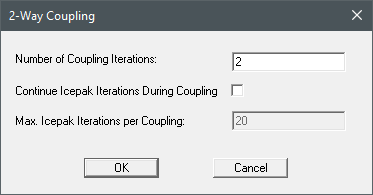
|
Number of Coupling Iterations |
The Number of Coupling Iterations specifies the numbers of times Icepak and the source design will both run an analysis. |
| Continue Icepak Iterations During Coupling | Continue Icepak Iteration During Coupling enables the Icepak solver to resume the analysis using the latest loss data reusing the solution results from the previous coupling iteration for solution initialization. The solution continues from the last iteration of the previous solution run. |
|
Max. Icepak Iterations per Coupling |
The Max. Icepak Iterations per Coupling specifies how many iterations the Icepak solver runs during each coupling iteration. This setting is applied when Continue Icepak Iteration During Coupling is enabled. |
To add two-way coupling to a solution setup:
In the HFSS, Maxwell, or Q3D design, you must enable Include Temperature Dependence and Enable Feedback in the Temperature of Objects dialog box, which you can open by right-clicking the design and selecting Set Object Temperature. In HFSS 3D Layout, you must enable Include Temperature Dependence and Enable Feedback in the Set Temperature dialog box, which you can open by right-clicking the design and selecting Set Temperature. For an HFSS 3D Layout HFSS solution setup, you must enable Save Fields.
- Add a solution setup to the Icepak design.
- In the Project Manager under Analysis, right-click the solution setup and select Add 2-way Coupling.
- In the 2-Way Coupling dialog box, enter the Number of Coupling Iterations.
- If desired, select Continue Icepak Iteration During Coupling and enter the Max. Icepak Iterations per Coupling.Note:
For transient simulations, after each coupling iteration from the source design, loss data is imported into the target Icepak design for a full transient simulation before the next coupling iteration begins.
- Click OK. The two-way coupling appears under the solution setup in the Project Manager.
Right-click on a two-way coupling and select Delete to remove it. Removing two-way coupling from a solution setup results in one-way coupled designs.