
The Icepak Solve Setup Dialog
A solution setup includes the settings you need to define for the Icepak simulation. The Icepak Solve Setup dialog box contains the following tabs:
- General
- Convergence
- Solver Settings
- Radiation
- Solar Radiation
- Defaults
The Solve Setup Defaults drop-down list contains the following options that automatically configure settings based on your selection. See Icepak Solve Setup Defaults for more information.
- Solve Setup Defaults
- Forced Convection Defaults
- Natural Convection Defaults
- Mixed Convection Defaults
- Conduction Only Defaults
Some settings are enabled or disabled based on other setting selections. For example, the Radiation tab is only displayed if radiation is enabled by setting the Radiation Model to Discrete Ordinates or Ray Tracing.
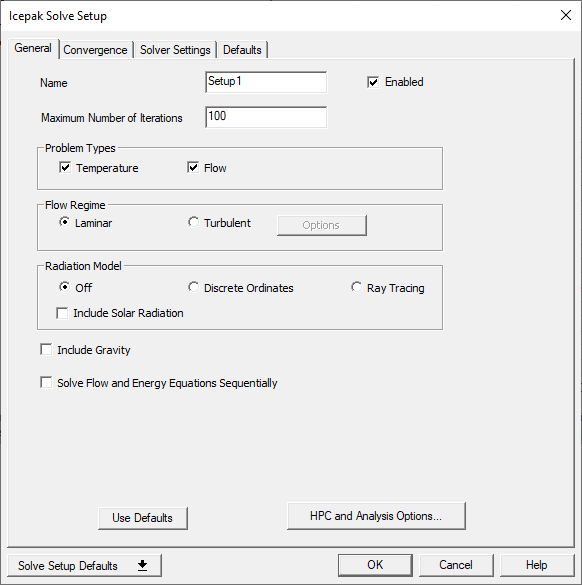
|
Name |
The Name of the setup appears in the Project Manager window. |
| Enabled | The Enabled check box disables/enables a setup. Only enabled setups are run when you select Analyze All. |
| Maximum Number of Iterations | Maximum Number of Iterations is the number of solution iterations to be performed in a simulation. The simulation will stop when these iterations have been performed or the Convergence Criteria are satisfied, whichever happens first. For relatively simple models, the default of 100 should be sufficient for the solution to converge, but for more complex models you may need to increase this value. |
| Problem Types | |
|---|---|
| Temperature | When enabled, the Temperature check box instructs the solver to include thermal calculations in the analysis. |
| Flow | When enabled, the Flow check box instructs the solver to include fluid calculations in the analysis. |
| Flow Regime | |
| Note: For detailed information regarding turbulence theory, see the Icepak Technical Notes Turbulence section. | |
| Laminar | Laminar flow is smooth, regular, deterministic, and steady. In laminar flow, fluid mixing and heat transfer take place on a molecular level. The molecular (or dynamic) viscosity and the thermal conductivity are the quantities that measure the amount of mixing and heat transfer. Laminar is the default flow regime. |
| Turbulent | Turbulent flows are characterized by fluctuating velocity fields. In turbulent flow, the degree of fluid mixing and heat transfer is much greater than in laminar flow, and takes place on a global, or macroscopic, level rather than on a molecular level. The amount of fluid mixing is measured by an effective viscosity, which is the sum of the dynamic viscosity and the turbulent eddy viscosity. If you select Turbulent, click Options to open the Turbulent Flow Model dialog and select a model. The default turbulent flow model is Zero Equation. |
| Radiation Model | |
| Note: In addition to enabling radiation in a solution setup, it might be necessary to define radiation settings for boundary conditions that require it (for example, network face nodes). See Assigning Thermal Boundary Conditions for more information. | |
| Off | Off disables radiation for the solution. Off is the default setting. |
| Discrete Ordinates | The Discrete Ordinates (DO) radiation model solves the radiative transfer equation (RTE) for a finite
number of discrete solid angles, each associated with a vector direction  fixed in the global Cartesian
system (x, y, z). The DO model solves for as many transport equations as there are directions fixed in the global Cartesian
system (x, y, z). The DO model solves for as many transport equations as there are directions  . The
solution method is identical to that used for the fluid flow and energy equations. . The
solution method is identical to that used for the fluid flow and energy equations. |
| Ray Tracing | With the Ray Tracing radiation model, the ray paths are calculated and stored prior to the fluid flow calculation. At each radiating face, rays
are fired at discrete values of the polar and azimuthal angles. To cover the radiating hemisphere,  is
varied from 0 to is
varied from 0 to  and and  from 0 to from 0 to  . Each ray is then traced to determine the control volumes it
intercepts as well as its length within each control volume. This information is then stored in the radiation
file (.s2s.gz), which is then read in before the fluid flow calculations begin. . Each ray is then traced to determine the control volumes it
intercepts as well as its length within each control volume. This information is then stored in the radiation
file (.s2s.gz), which is then read in before the fluid flow calculations begin. |
| Include Solar Radiation | To include the effect of solar radiation in the simulation, select Include Solar Radiation. Define the solar radiation settings on the Solar Radiation tab. |
| Include Gravity | To include the effect of gravity in the simulation for natural convection models, select Include Gravity. Define the gravity vector settings in the Icepak Design Settings. Natural convection models require Include Gravity to be enabled. |
| Solve Energy and Flow Equations Sequentially | Solve Energy and Flow Equations Sequentially instructs the solver to solve the flow equations first and then solve the energy equation. This is suitable for cases where there is no coupling between the flow and energy equations (for example, forced convection problems with no gravity). This option may reduce the time required to obtain a solution. |
| HPC and Analysis Options | High performance computing (HPC) enables a range of different technologies in Icepak that allows efficient simulation of extremely large and complex problems. See High Performance Computing for more information. |
Ray tracing radiation is not calculated on the faces of mesh regions that touch other objects.
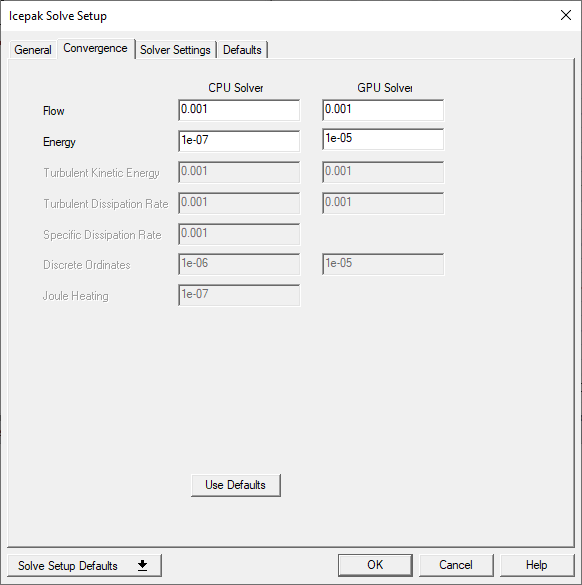
| Flow | These settings are the solution-residual values used to determine convergence for simulations run on the CPU or GPU (beta). Solution residuals measure the error or imbalance in the conservation equations that Icepak solves. When all solution residuals are less than or equal to their specified convergence criteria, the solution will be considered converged. Turbulent Kinetic Energy, Turbulent Dissipation, and Specific Dissipation Rate are enabled by the selection of certain turbulent flow models. Discrete Ordinates is enabled if the Radiation Model is set to Discrete Ordinates. Joule Heating is enabled if the power for a block boundary condition is defined as joule heating. |
| Energy | |
| Turbulent Kinetic Energy | |
| Turbulent Dissipation | |
| Specific Dissipation Rate | |
| Discrete Ordinates | |
| Joule Heating (CPU Only) |
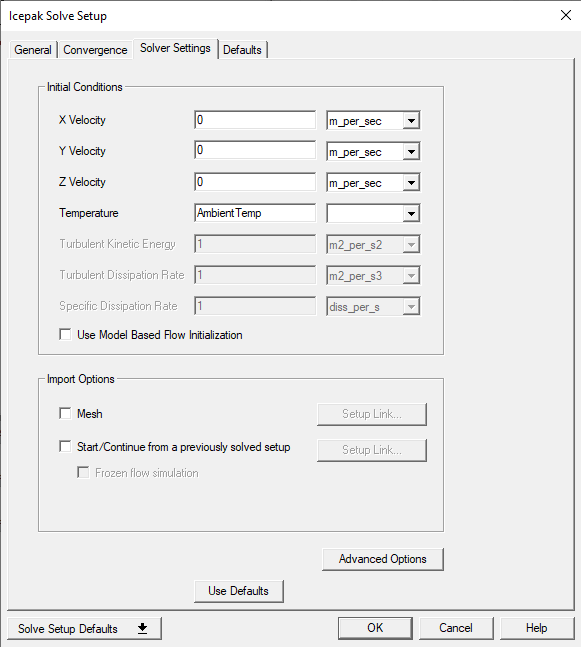
| Initial Conditions | |
|---|---|
| X, Y, Z Velocity | These settings specify the initial conditions for the fluid in the flow region. The initial conditions are the initial guess for the various solution fields used by the solution procedure. Turbulent Kinetic Energy, Turbulent Dissipation, and Specific Dissipation Rate are enabled by the selection of certain turbulent flow models. |
| Temperature | |
| Turbulent Kinetic Energy | |
| Turbulent Dissipation | |
| Specific Dissipation Rate | |
| Use Model Based Flow Initialization | Use Model Based Flow Initialization instructs the Electronics Desktop to automatically evaluate inlet and outlet conditions to use optimal values for solution variables. |
| Import Options | |
| Mesh | Mesh allows to import mesh from an existing Icepak design and is automatically enabled after using the Add a Mesh Linked Solution Setup option. Mesh from the selected design is imported and used in the simulation. The mesh from the source design must conform to the target design's model geometry. Seeing Importing Mesh for more information. |
| Start/Continue... | Start/Continue from a previously solved setup allows you to begin or resume a simulation from a design you have previously solved. |
| Note: If the design has a mesh link and solve setup link, if you remove the solve setup link, the mesh link is not automatically removed. | |
| Frozen flow simulation | Frozen flow simulation allows you to disable the flow of the linked steady-state or transient design. If enabled, only the energy equation is solved during the analysis. If the linked solution did not solve for flow, this option is not active. |
| Advanced Options | Click Advanced Options to display the Advanced Solver Settings dialog. |
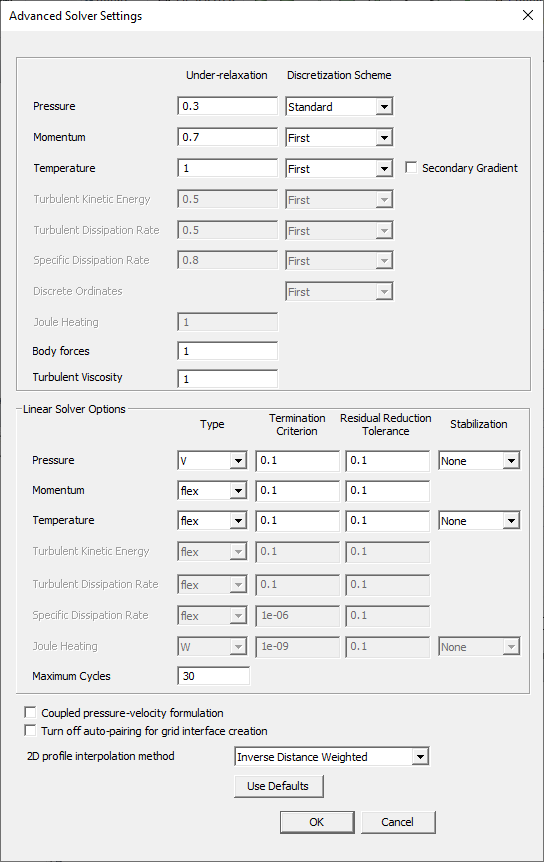
| Under-relaxation | Under-relaxation settings control the update of computed variables at each iteration. This means that all equations solved using Icepak will have under-relaxation factors associated with them. |
| Discretization Scheme | Discretization Scheme specifies the discretization scheme for the convection terms of each governing equation. For the Temperature equation, the Secondary gradient option is used to include or exclude temperature gradients in the discretization scheme. |
| Linear Solver Options | |
|---|---|
| Icepak uses a multigrid scheme to accelerate solution convergence. You can set the parameters related to the multigrid solver under Linear Solver Options. | |
| Type | Type specifies the multigrid cycle type for each equation that Ansys Icepak solves. By default, the V cycle is used for the pressure equation, the F cycle for temperature and joule heating potential, and the flex cycle is used for all other equations. You should generally not need to modify these settings. |
| Termination Criterion | Termination Criterion controls the multigrid solver in different ways for different cycles. For the flex cycle, the Termination criterion governs when the solver should return to a finer grid level (i.e., when the residuals have improved sufficiently on the current level). For the V, W and F cycles, the Termination criterion determines whether or not another cycle should be performed on the finest (original) grid level. If the current residual on the finest level does not satisfy the Termination criterion, Icepak will perform another multigrid cycle. For most cases, you should not need to modify the settings for the Termination Criterion. |
| Residual Reduction Tolerance | Residual Reduction Tolerance dictates when a coarser grid level must be visited (due to insufficient improvement in the solution on the current level). This parameter is used only by the flex cycle. With a larger value of the Residual reduction tolerance, coarse levels will be visited less often (and vice versa). For most cases, you should not need to modify the settings for the Residual Reduction Tolerance. |
| Stablilization | Stabilization If desired, you can choose the bi-conjugate gradient stabilized method (BCGSTAB) for the pressure and temperature equations. This option can be used in situations involving high temperature and/or pressure gradients to improve the convergence of the linear solver. |
| Maximum cycles | Maximum cycles sets the maximum number of levels cells are recursively grouped to coarsen the grid. When there are significant variations in the solution variables (such are temperature, velocity, etc.) across the entire domain, a larger maximum cycles value will help speed up the iterative linear solver. For models where solution variations are localized, a smaller maximum cycles value can speed up the solve time by reducing unnecessary coarsening. The default value is 30. For the latter scenario, a value of 10 is recommended. |
| Coupled velocity-pressure formulation | Coupled velocity-pressure formulation enables the pressure-based coupled algorithm which offers some advantages over the default segregated pressure-velocity formulation using the SIMPLE algorithm. The pressure-based coupled algorithm obtains a more robust and efficient single phase implementation for steady-state flows. |
| Turn off auto-pairing for grid interface creation | By default, the automatic pairing of mesh region boundaries (or interfaces) is done based on proximity of interfaces with each other. Turn off auto-pairing for grid interface creation disables auto-pairing (i.e., the mesh region interfaces are paired explicitly per region). Note that auto-pairing requires additional setup time during solve. In a few rare cases, the auto-pairing method might result in the divergence of the solver. In such instances, auto-pairing can be disabled to aid in the convergence of the solver. |
| 2D profile interpolation method | 2D profile interpolation method enables you to specify the interpolation method for point profiles. Select one of the three choices from the drop-down list. Constant is a zeroth-order interpolation. For each cell face at the boundary, the solver uses the value from the profile file closest to the cell. Therefore, the accuracy of the interpolated profile will be affected by the density of the data points in your profile file. Inverse distance weighted assigns a value to each cell face at the boundary, based on weighted contributions from the values in the profile file. The weighted factor is inversely proportional to the distance between the profile point and the cell face center. This is the default interpolation method for point profiles. Least Squares assigns values to the cell faces at the boundary through a first-order interpolation method that tries to minimize the sum of the squares of the offsets. |
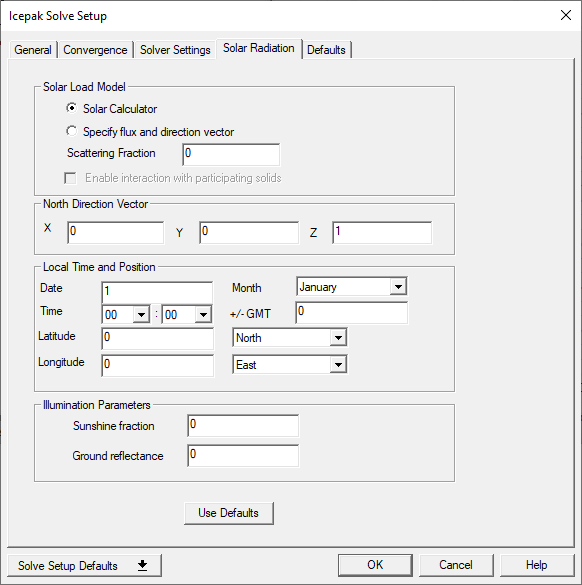
| Solar Load Model | |
|---|---|
| Solar Load Model | Select Solar Calculator to compute the solar radiation based on time and geographic parameters or Specify flux and direction vector to specify solar radiation values and a solar radiation direction vector. |
| Scattering Fraction | Scattering Fraction specifies the amount of direct solar radiation that is reflected from opaque objects in your model. The reflected radiation is evenly distributed among all objects that participate in solar loading. |
| Enable interaction with participating solids | When Discrete Ordinates is defined as the radiation model, select Enable interaction with participating solids to model the solar irradiation as discrete ordinate fluxes at the global region boundaries. This allows semi-transparent walls and participating solids to absorb, refract and scatter the incident solar irradiation. |
| North Direction Vector | |
| North Direction Vector | The North Direction Vector specifies the northward direction relative to the model. Enter the appropriate values in the X, Y, and Z fields. The default northward direction is in the Z direction. |
| Local Time and Position (Solar Calculator) | |
| Date and Month | Specify a Date and Month. |
| Time | Time specifies the local time at the desired location. Select the hour and minute from the drop-down lists. The time is based on a 24-hour clock, therefore acceptable values range from 0 h 0 min (12:00 a.m.) to 23 h 59 min (11:59 p.m.). |
| +/- GMT |
+/- GMT specifies the local time zone of the desired location. If the time you enter is a local time, specify the current time zone by providing the offset in the +/- GMT entry. If the time you enter is already in GMT, then +/- GMT should be set to 0 (zero). For example, enter -5 to specify Eastern Standard Time (EST). |
| Latitude | Specify the Latitude of the desired location. Values can range from -90° (the South Pole) to 90° (the North Pole), with 0° defined as the equator. Select the hemisphere (N or S) from the menu to the right of the Local Longitude entry field. |
| Longitude | Specify the Longitude of the desired location. The longitude is approximated if you specify the local time zone, but you can enter a more precise value if you know it. Any value you enter here will take precedence over the time zone. Values may range from 0° to 180°. Select the hemisphere (W or E) from the menu to the right of the Local Longitude entry field. |
| Illumination Parameters (Solar Calculator) | |
| Sunshine fraction | Sunshine fraction is a factor between 0 and 1 used to account for the effects of clouds that may reduce the direct solar irradiation. Clear sky is modeled by setting the value equal to 1 and complete cloud cover is modeled by setting the value equal to 0. Partial cloud cover is modeled by setting the value to be between 0 and 1. The default value is 1.0. |
| Ground reflectance | Ground reflectance is a parameter that is used in determining the contributions of reflected solar radiation from ground surfaces. Reflected solar radiation from ground surfaces is a function of the direct normal irradiation, the time of the year, the tilt angle of the surface, and the ground reflectance. If is treated as part of the total diffuse solar irradiation. Ground reflectance values can vary depending on the ground surface (that is, concrete, grass, rock, gravel, asphalt). The default value is 0.2. |
| Solar Flux and Direction Vector | |
| Direct solar irradiation | Direct solar irradiation specifies the amount of energy per unit area due to direct solar irradiation. This value may depend on the time of the year and the clearness of the sky. |
| Diffuse solar irradiation | Diffuse solar irradiation specifies the amount of energy per unit area due to diffuse solar irradiation. This value may depend on the time of year, the clearness of the sky, and also on ground reflectivity. |
| Solar Direction | Solar Direction specifies the direction of solar irradiation relative to the model. Enter the appropriate values in the X, Y, and Z fields. |
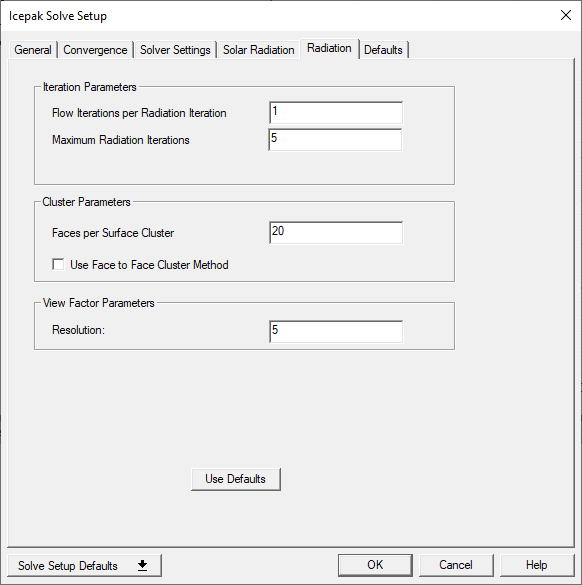
| Iteration Parameters | |
|---|---|
| Flow Iterations per Radiation Iteration | The Flow Iterations per Radiation Iteration parameter is set to 1 by default. This implies that the radiation calculation is performed once every iteration of the solution process. Increasing the number can speed the calculation process, but may slow overall convergence. |
| Maximum Radiation Iterations (Ray Tracing only) | The Maximum Radiation Iterations controls the maximum number of iterations of the radiation calculation during each global iteration. |
| Angular Discretization (Discrete Ordinates only) | |
| Theta and Phi Divisions | Theta Divisions ( )
and Phi Divisions ( )
and Phi Divisions ( ) will define the number of control angles used to discretize each octant of the
angular space. A finer angular discretization can be specified to better resolve the influence of small
geometric features or strong spatial variations in temperature, but larger numbers of Theta Divisions
and Phi Divisions will add to the cost of the computation. ) will define the number of control angles used to discretize each octant of the
angular space. A finer angular discretization can be specified to better resolve the influence of small
geometric features or strong spatial variations in temperature, but larger numbers of Theta Divisions
and Phi Divisions will add to the cost of the computation. |
| Theta and Phi Pixels | Theta Pixels and Phi Pixels are used to control the pixelation that accounts for any control volume overhang. For problems involving gray-diffuse radiation, the default pixelation of 1 × 1 is usually sufficient. The computational effort, as a result of increasing the pixelation, is less than the computational effort caused by increasing the divisions. However, increasing the pixelation does add to the cost of computation. |
| Cluster Parameters (Ray Tracing only) | |
| Faces per Surface Cluster | Faces per Surface Cluster controls the number of radiating surfaces. By default, each is set to 20, so the number of surface clusters (radiating surfaces) will be equal to the total number of surface mesh elements divided by 20. For larger problems, you may want to reduce the number of surface clusters by increasing the faces per surface cluster to reduce both the size of the view factor file and the memory requirement. Such a reduction in the number of clusters, however, comes at the cost of some accuracy. The surfaces that are not adjacent to fluid regions will not participate in radiation. |
| View Factor Parameters (Ray Tracing only) | |
| Resolution | Increasing Resolution helps reduce the numerical errors caused by the finite-resolution approach used to compute the projected areas of the surface clusters and the resulting view factors. By default, it is set to 5. In most cases, however, the default settings will be sufficient. |