HFSS Meshing Method Tab
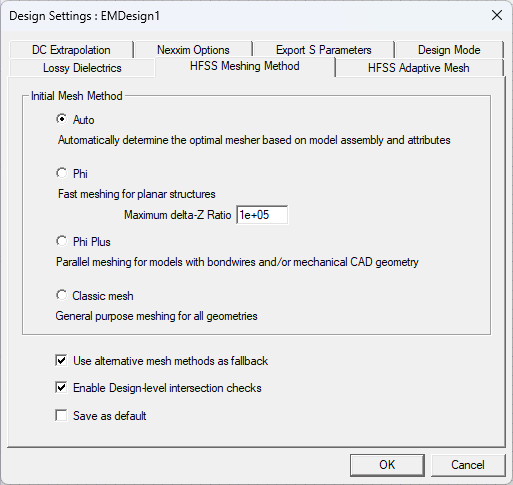
From the Project Manager window, right-click on a design and select Design Settings to open the Design Settings window and click the HFSS Meshing Method tab. Change the following settings, as necessary.
-
From the Initial Mesh Method area, select one of the following mesh methods:
-
Auto — automatically selects a suitable mesh method for the design based on geometry characteristics (e.g., if the design contains bondwires, Phi Plus is selected).
-
Phi — a layout-based meshing technology, available in the HFSS 3D Layout interface. This advanced meshing technology is capable of rapidly generating an initial mesh ensuring faster simulations that can be further accelerated and enhanced by using high performance computing.
-
Phi Plus — works with all types of layout models, particularly those containing bondwires, solder balls, or 3D Components (MCAD). Phi Plus generates an initial mesh using high performance computing (HPC).
-
Classic mesh — uses a Bowyer algorithm to create compact meshes for the model with very large length scales. It represents the model very accurately.
-
- Check the Use alternative methods as fallback box to allow the solver to use an alternative mesh method if the selected mesh method (e.g., Phi) fails to generate an initial mesh. Enabled by default.
- Check the Enable Design-level intersection checks box and the Ansys Electronics Desktop (AEDT)TM electronics systems design platform automatically searches for and notifies the user when a design has intersecting geometries.
- Check the Save as default box and click OK to save the causal material setting to the registry.
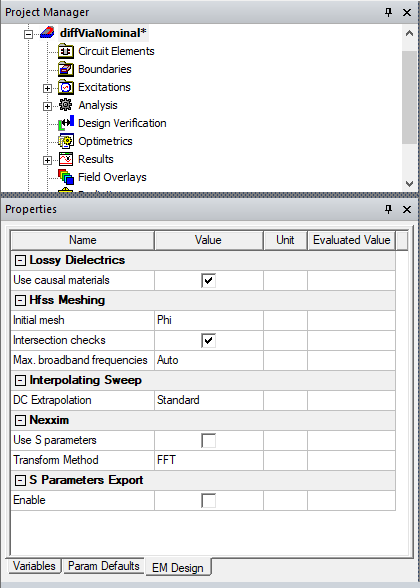
Also view and edit design settings by selecting a design using the EM Design tab of the Properties window.