Computing Near Field Solutions in HFSS 3D Layout (General Mode Only)
To analyze the radiated fields associated with a design, first define a radiation surface. The values of the fields calculated over this surface are used to compute the fields in the space surrounding the device. This space is typically split in two regions: near field and far field. The near field region exists at less than a wavelength from an energy source.
Setting Up a Near Field Simulation
Complete these steps to add a Near Field solution setup to an active design.
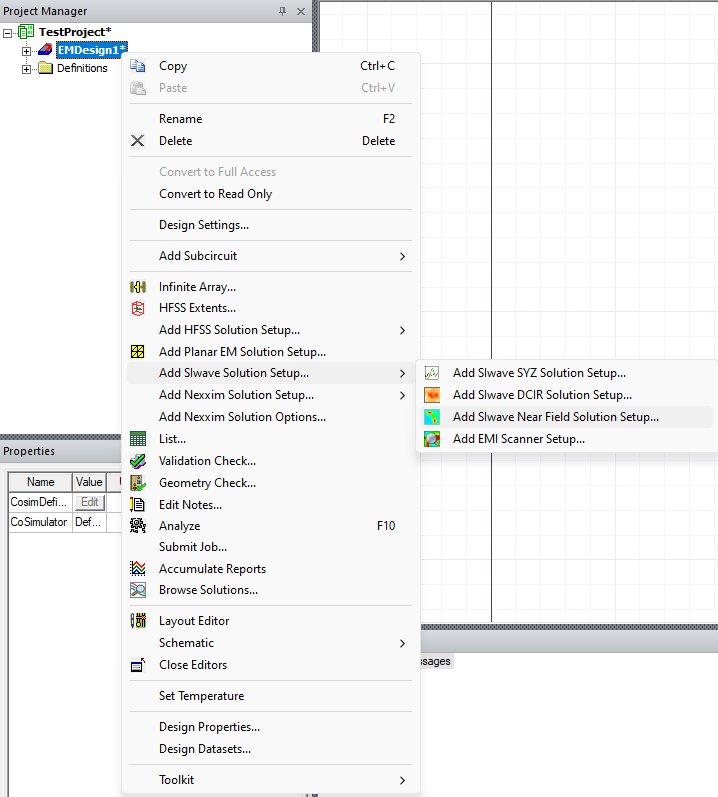
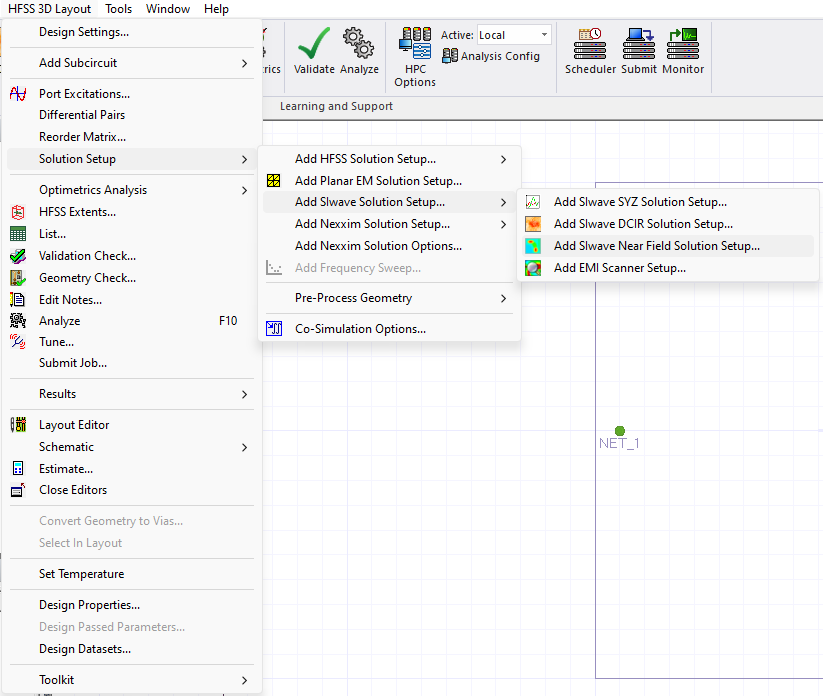
- Open the Near Field Solution Setup window by doing one of the following:
- From the Project Manager window, expand the Project Tree (e.g., TestProject). Then right-click the active design folder (e.g., EMDesign1) and select Add SIwave Solution Setup > Add Near Field Solution Setup.
- From HFSS 3D Layout, select Solution Setup > Add SIwave Solution Setup > Add SIwave Near Field Solution Setup.
- From the Project Manager window, expand the Project Tree (e.g., TestProject). Then right-click the active design folder (e.g., EMDesign1) and select Add SIwave Solution Setup > Add Near Field Solution Setup.
-
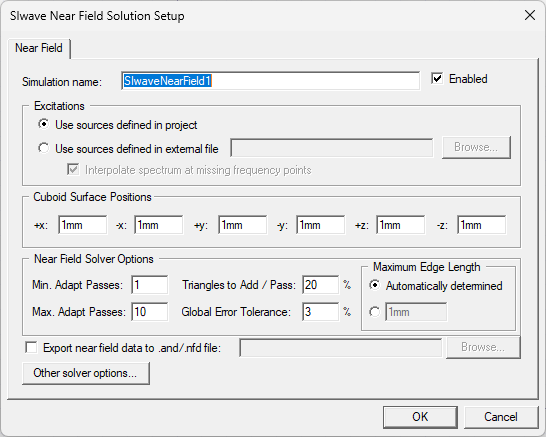
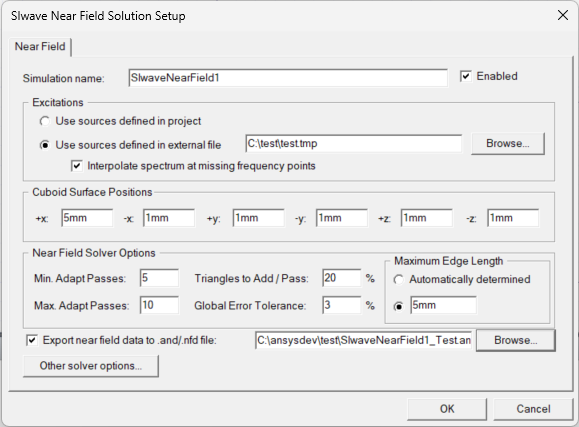
From the Near Field Solution Setup window, make selections from the following default values.
-
Simulation Name — enter a name in the field or accept the default (i.e., SIwaveNearField1).
-
From the Excitations area, select a source of excitations (i.e., Use sources defined in the project or Use sources defined in external file). If users select Use source defined in external file, Browse to an appropriate file and select it (e.g., test.tmp).
Note:A transient excitation source from either Circuit or HFSS 3D Layout sources can be assigned after setup is complete. Refer to Assigning a Transient Excitation.
-
If appropriate, uncheck the Interpolate spectrum at missing frequency points box.
- From the Cuboid Surface Positions area, enter values for +x, -x, +y, -y, +z, and -z offset (e.g., 5mm). These values define a cuboid that completely encloses the design by specifying the cuboid face offset values from the design bounding box. The near field is evaluated on the surface of this cuboid, as shown in the following example:
- From the Near Field Solver Options area, enter values for the following:
- Min. Adapt Passes — an adaptive analysis will not stop unless the minimum number of passes specified is completed (e.g., 5), even if convergence criteria are met.
- Max. Adapt Passes — the maximum number of mesh refinement cycles Ansys SIwave™ printed circuit board (PCB) and package electromagnetics simulation software will perform. Default is 10. This value is a stopping criterion for the adaptive
solution; if the maximum number of passes has been completed, the adaptive
analysis stops; otherwise, the adaptive analysis will continue unless
the convergence criteria are reached.
Note:
The size of the finite element mesh and the amount of memory required to generate a solution increases with each adaptive refinement of the mesh. Setting the maximum number of passes too high can result in Ansys SIwave requesting more memory than is available or taking excessive time to compute the solutions.
- Triangles to Add/Pass — default is 20.
- Global Error Tolerance — maximum relative difference allowed between two successive passes. Default is 3.
- From the Maximum Edge Length area, select Automatically determined or enter a value in mils (e.g., 5mm). Ansys SIwave generates a surface triangular mesh such that the triangle edge lengths are equal to or less than the specified value.
- If appropriate, check the Export near field data to .and/.nfd file box, then click Browse. Navigate to an appropriate directory to Save the file (e.g., C:\ansysdev\test\). Near field data is exported in Ansys Nearfield Data (i.e., *.and) format, and can be used as external incident field data in Ansys HFSS simulations.
- If appropriate, click Other solver options to open the SIwave Solution Setup window. Otherwise, click OK to add the new Near Field solution setup to the active design.
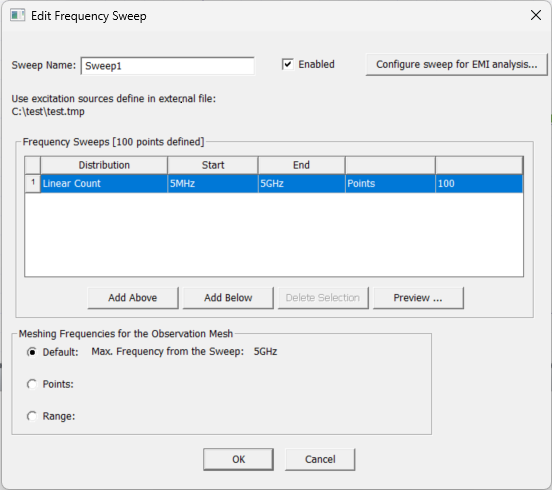
The Edit Frequency Sweep appears.
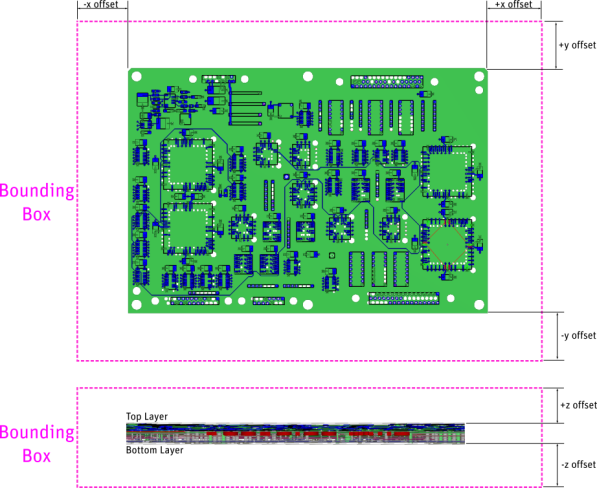
Offsets that are very small may increase simulation time.
Setting Up a Frequency Sweep
Complete these steps to add a frequency sweep to a Near Field solution setup.
- From the Edit Frequency Setup window, make selections from the following default values:
- Sweep Name — enter a name in the field or accept the default (i.e., Sweep1).
- Enabled — checked by default to enable the sweep.
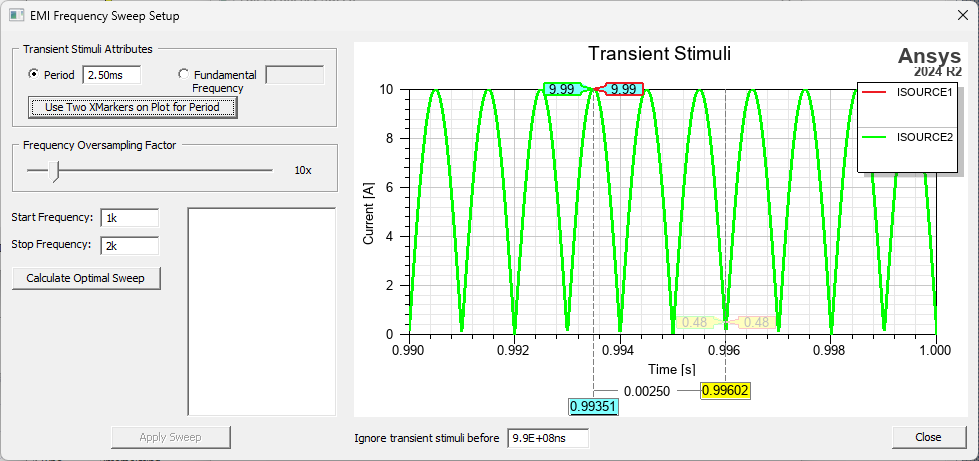
- Configure sweep for EMI analysis — click to access the EMI Frequency Sweep Setup window.
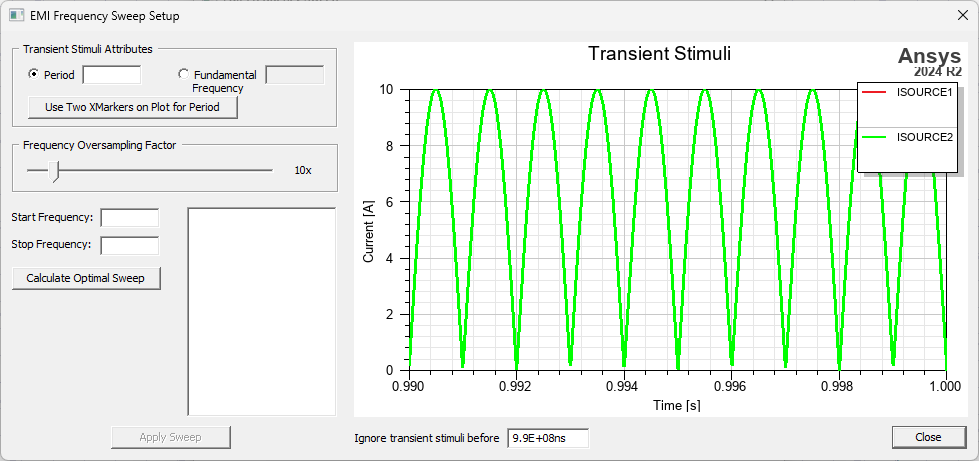
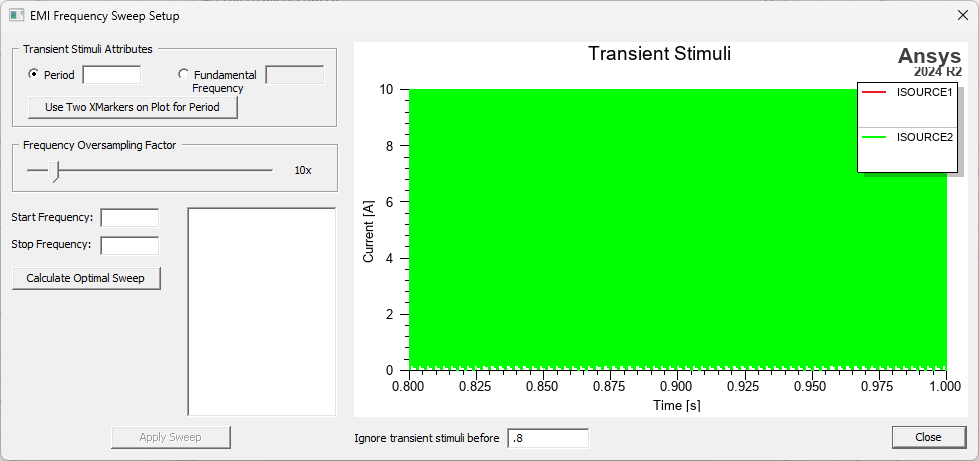
- From the EMI Frequency Sweep Setup window, make selections from the following default values:
- From the Transient Stimuli Attributes area, select Period or Fundamental Frequency and enter an appropriate value in the field (e.g., 0.01). The period is
the measured length of information (T).
The Fundamental Frequency is defined as f0 = 1/T where T is the period information.Note:
To use the Use Two X Markers on Plot for Period function to automatically determine the period, refer to Using Two X Markers.
- Frequency Oversampling Factor – move the slider to select the frequency range sampling density (e.g., 1x). A higher oversampling factor results in more frequency points being introduced between the selected sweep start and stop frequencies, and may result in longer simulation time.
- Start Frequency — enter a value for the minimum frequency to sweep (e.g., 1k).
- Stop Frequency — enter a value for the maximum frequency to sweep (e.g., 2k).
- Calculate Optimal Sweep — generates the sweeps. They appear as a list in the field.
- Ignore transient stimuli before — enter a value to filter out any non-periodic start-up transient ripple when computing the Fourier transform during simulation (i.e., .8).Note:
Setting a value in the Ignore transient stimuli before box resets the X minimal to the entered value. The ignored time period is represented by a shaded rectangle on the plot.
- From the Transient Stimuli Attributes area, select Period or Fundamental Frequency and enter an appropriate value in the field (e.g., 0.01). The period is
the measured length of information (T).
The Fundamental Frequency is defined as f0 = 1/T where T is the period information.
- From the EMI Frequency Sweep Setup window, make selections from the following default values:
-
Click Apply Sweep to add a new sweep row to the table in the Frequency Sweeps area in the Edit Frequency Sweeps window.
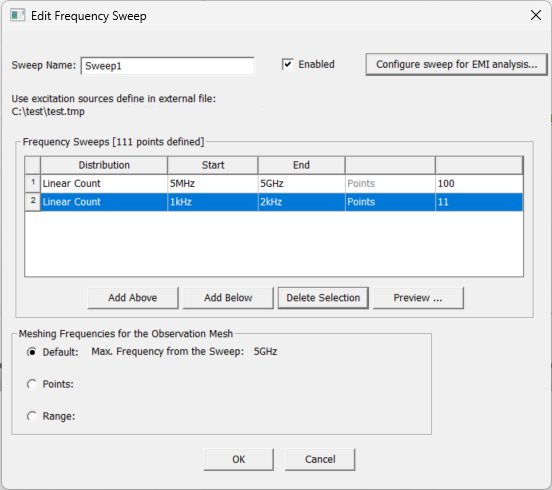
- Click Close to return to the Edit Frequency Sweeps window. From the following example, a second row has been added with the default parameters. Add more sweeps, as appropriate.
- Back at the Edit Frequency Sweep window, make selections from the following default values in the Frequency Sweeps area:
- Distribution — select Linear or By Decade from the drop-down menu.
- Linear — the difference between start frequency and stop frequency is calculated and divided by the number of solution points.
- By Decade — distributes the number of points specified logarithmically, over each decade.
- Enter values in the Start, End, and Points fields, as appropriate.
- If appropriate, click Add Above or Add Below to add additional frequency sweeps, including mixed sweep types.
If appropriate, click Delete to remove any sweeps.
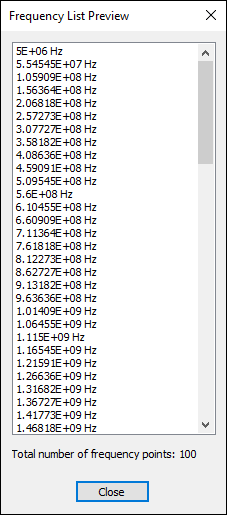
- Click Preview to open the Frequency List Preview window. Then click Close.
- Distribution — select Linear or By Decade from the drop-down menu.
- From the Meshing Frequencies for the Observation Mesh area, select Default, Points, or Range.
- Default — uses the default maximum frequency from the sweep (i.e., 5Ghz).
- Points — enter one or more specific frequencies to mesh.
- Range — enter Start/Stop values to create a range to mesh.
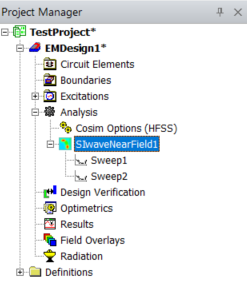
- Click OK and the sweep(s) will appear in the Project Manager window > Project Tree (e.g., TestProject)> [Active Design Folder] > Analysis directory.
Assigning a Transient Excitation
Complete these steps to select a Circuit or HFSS 3D Layout transient excitation source to use as an external source for simulation. These instructions assume the user has already set up and solved a Transient Analysis on the design with all appropriate drivers and receivers attached to ports. Transient currents flowing into each port are captured and converted to frequency-domain sources during execution of near field simulations.
Users can also record these steps using the Record Script function on the Automation tab, then run the resulting Python script to set the specified excitation source. Refer to Using a Python Script to Configure an SIwave Solution Setup.
-
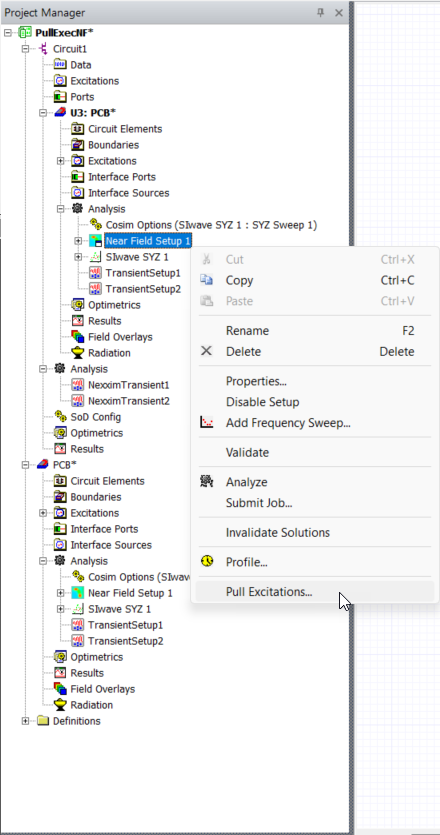
From the Project Manager window, expand the active design folder (e.g., PullExecNF) > subdesign (e.g., U3:PCB) > Analysis. Then right-click the Near Field solution setup (e.g., Near Field Setup 1) and select Pull Excitations to open the Pull Excitation Options window.
-
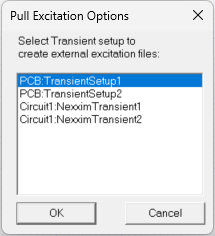
From the Pull Excitation Options window, select a design to use its excitations as an external source (e.g., PCB:TransientSetup1).
-
Click OK to close the Pull Excitation Options window. If the excitation is accepted, a confirmation message appears in the Message Manager window.

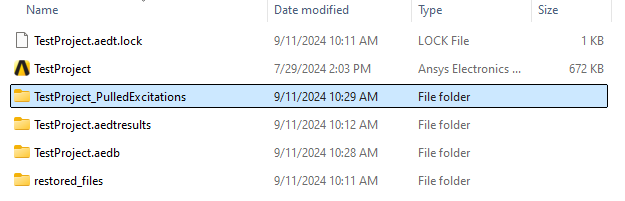
Within the same directory where the project is saved, a folder is created called <ProjectName>_PulledExcitations, which contains the newly created excitation files referred to in the Message Manager window.
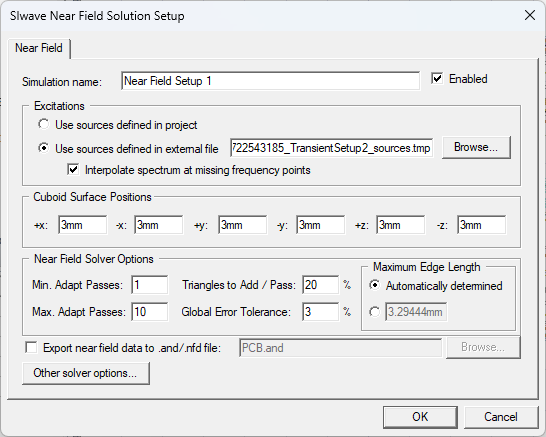
From the SIwave Near Field Solution Setup window, Use sources defined in external file is now selected and the adjacent field is populated with the path to the excitations source file.
Analyzing the Design and Post-Processing
Complete these steps to analyze the new Near Field solution setup, then create an overlay, mesh, and generate a report.
-
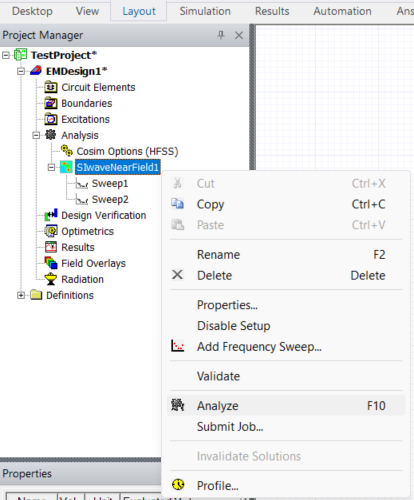
From the Project Manager window, right-click the new simulation (e.g., SIwaveNearField1) and select Analyze to run the simulation. Refer to Running Simulations.
View progress in the Progress window.

-
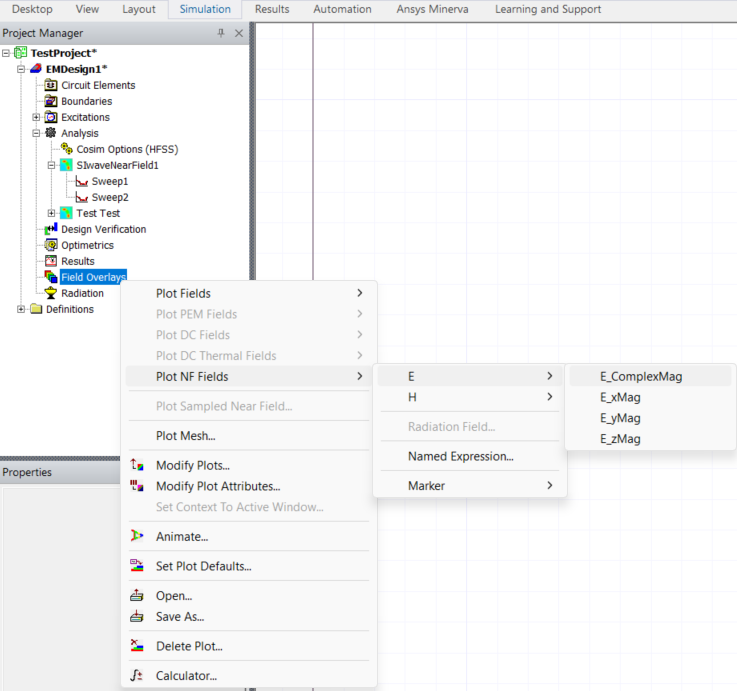
To create a field plot, navigate to the Project Manager window and right-click Field Overlays. Then select Plot NF Fields and any of the eight overlays available through E or H (e.g., E > E_ComplexMag) to open the Create Field Plot window.
-
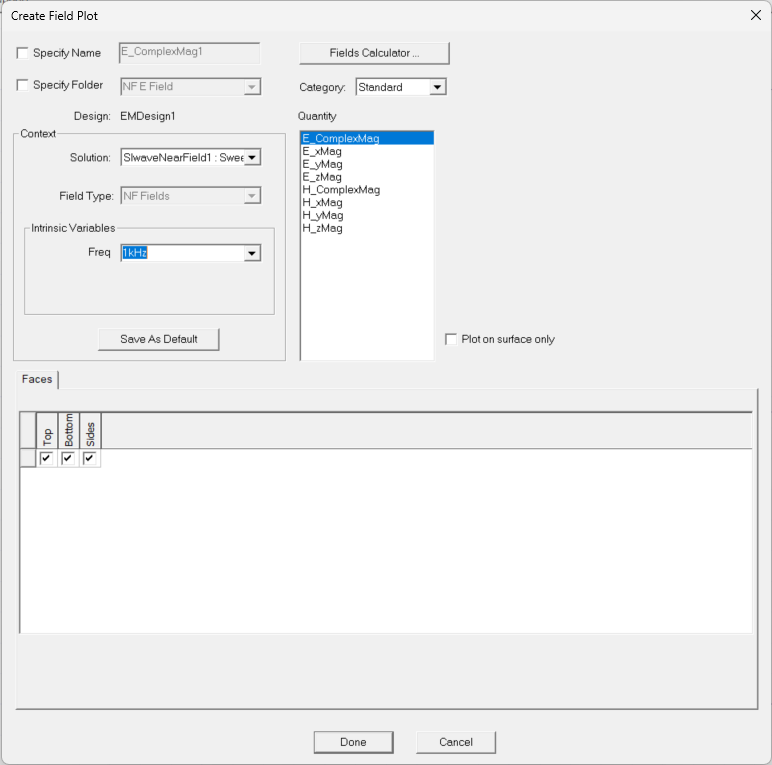
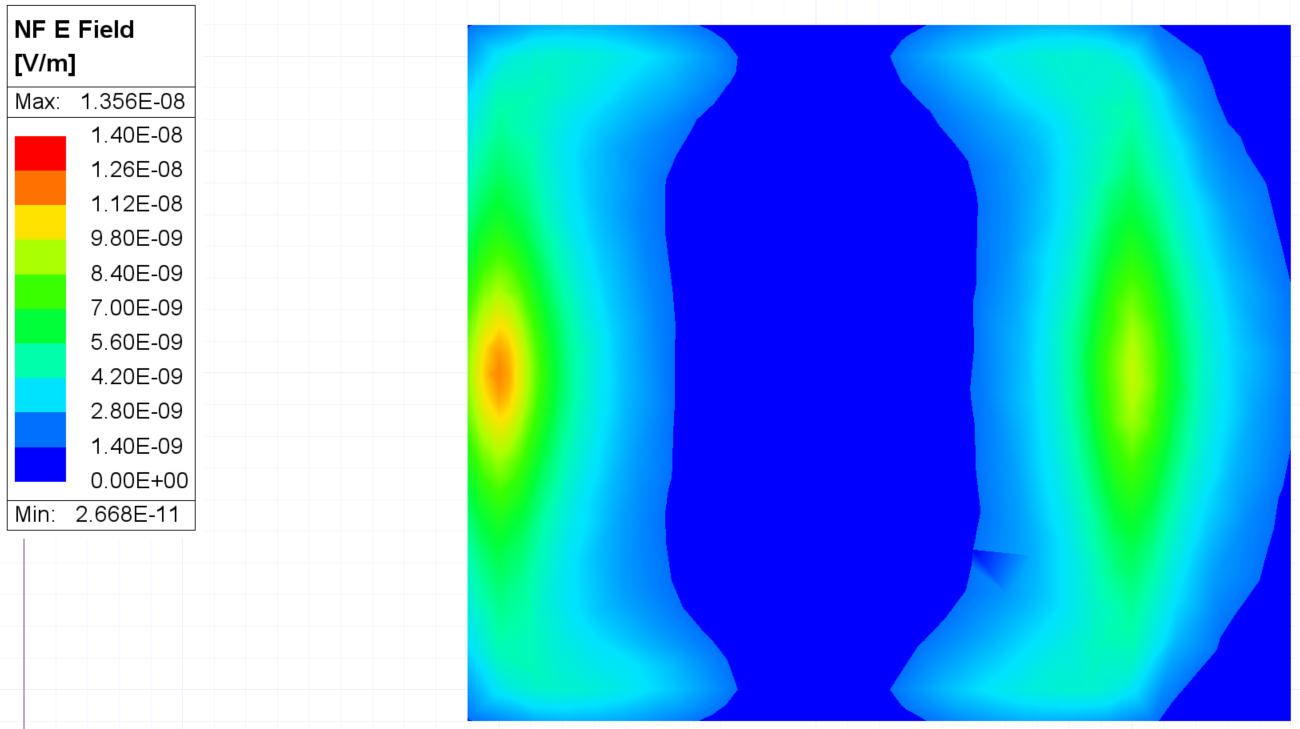
Select a Quantity, Faces, and any other appropriate options, then click Done to generate the field overlay. Refer to Plotting Field Overlays.
-
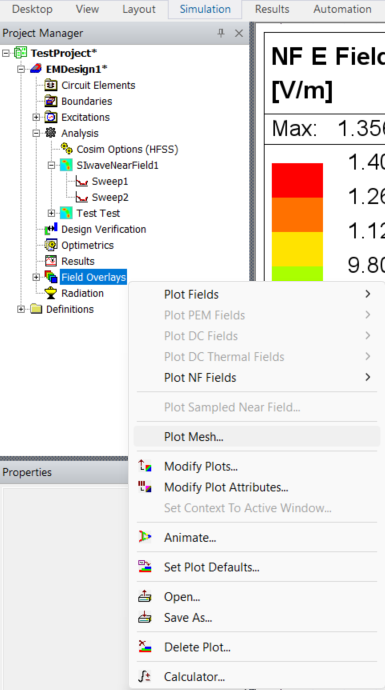
To create a mesh, navigate to the Project Manager window and right-click Field Overlays again. Then select Plot Mesh to open the Create Mesh Plot window.
-
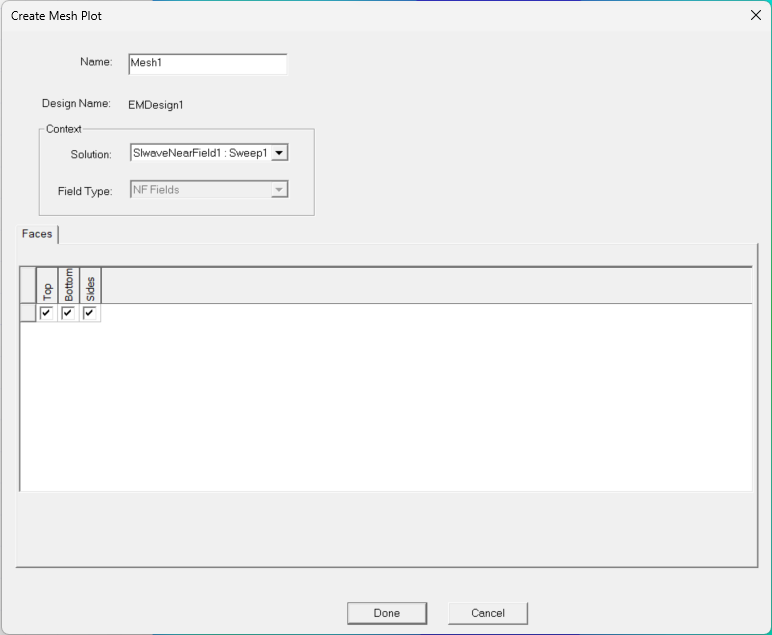
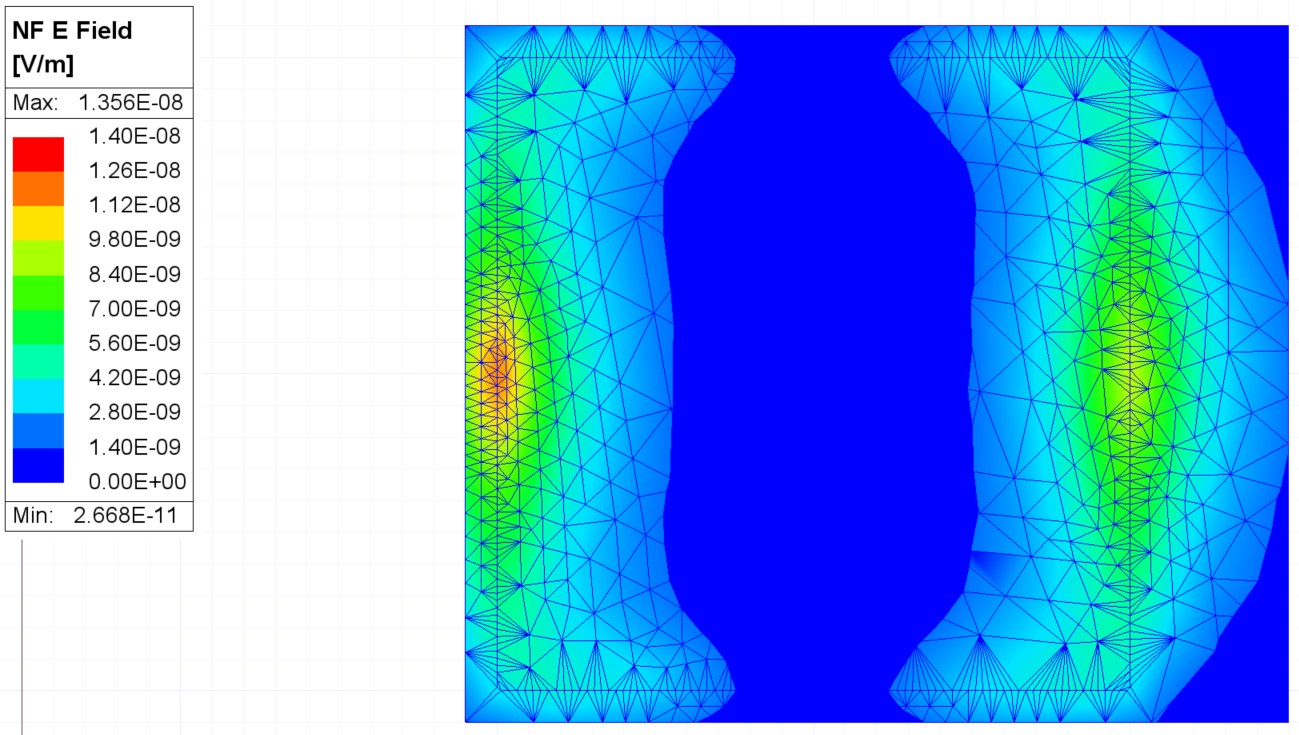
Select any/all Faces and any other appropriate options, then click Done to generate the mesh. Refer to Create Mesh Plot.
-
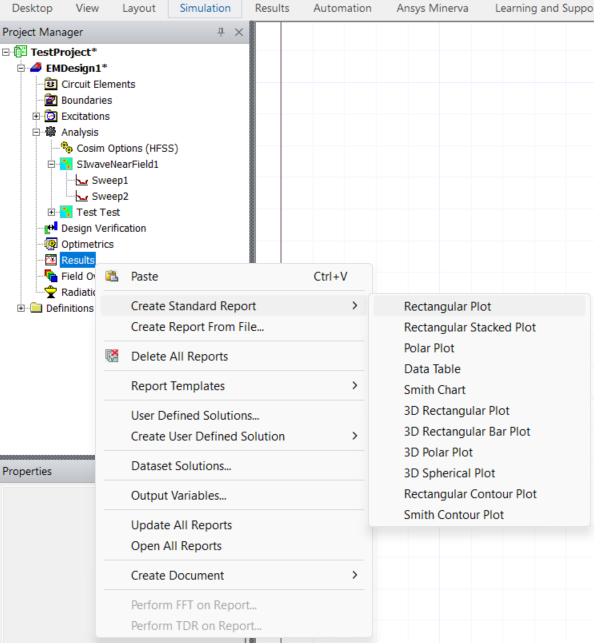
To create a report, navigate to the Project Manager window and right-click Results. Then select Create Standard Report > Rectangular Plot to open the Report window.
-
Select a Category, any/all Quantities, and any other appropriate options (e.g., ensure SIwaveNearField1 is selected from the drop-down menu) and click Done to generate the report. Refer to Creating a New Report.
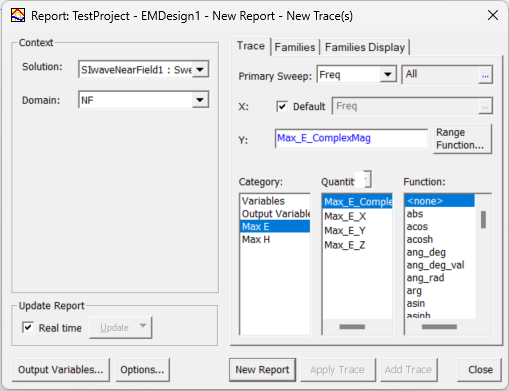
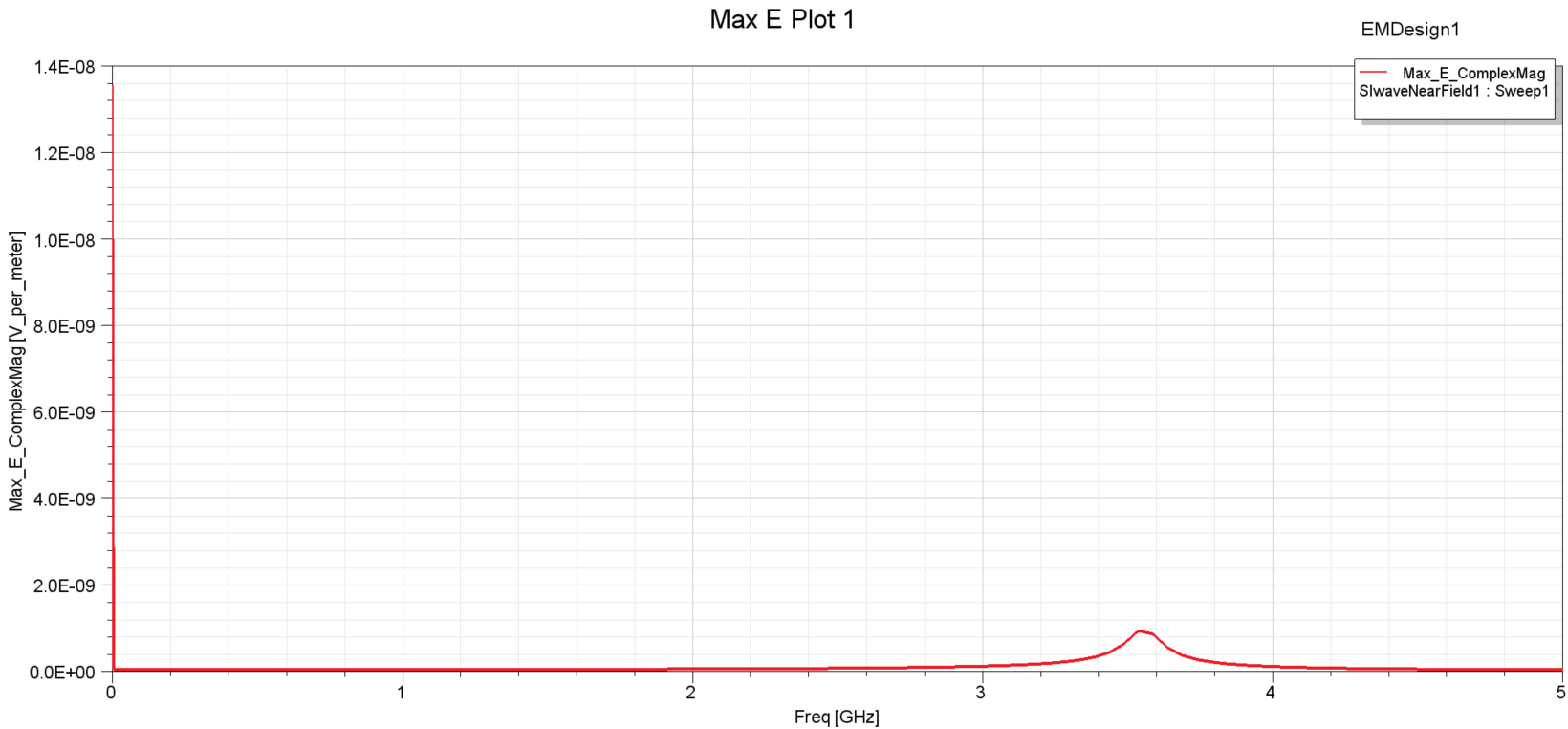
The procedure is complete.
Using Two X Markers
Complete these steps to mark two frequency points, then automatically determine the period between the frequency points.
-
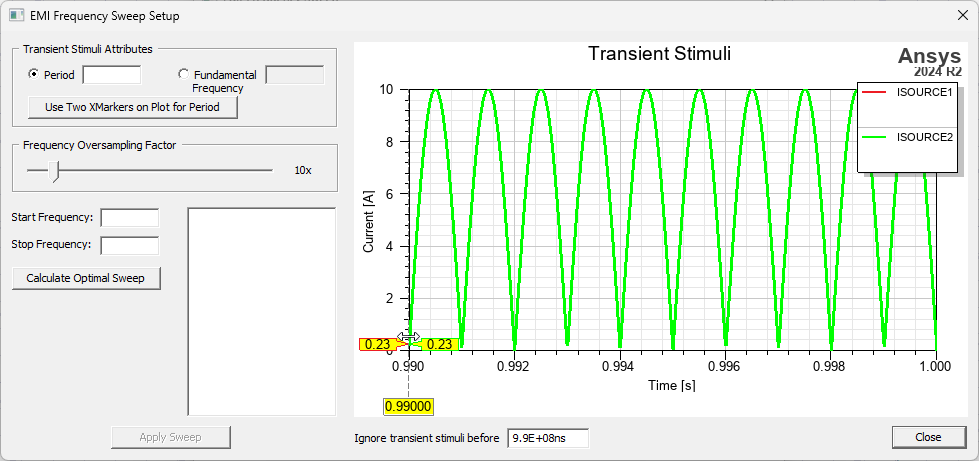
Right-click within the graph and select Add X Marker.
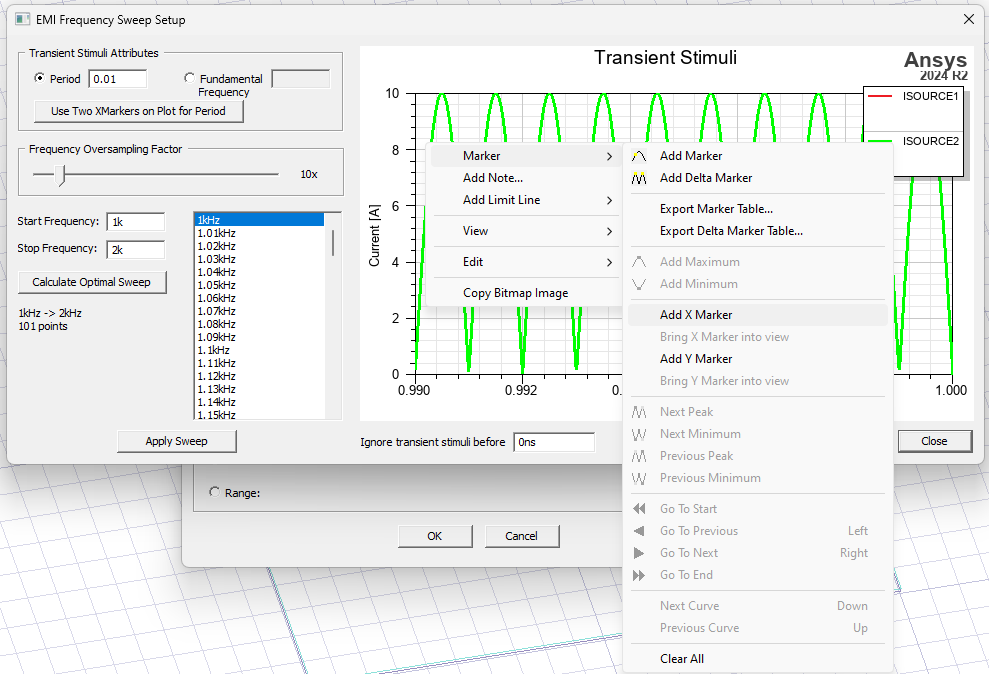
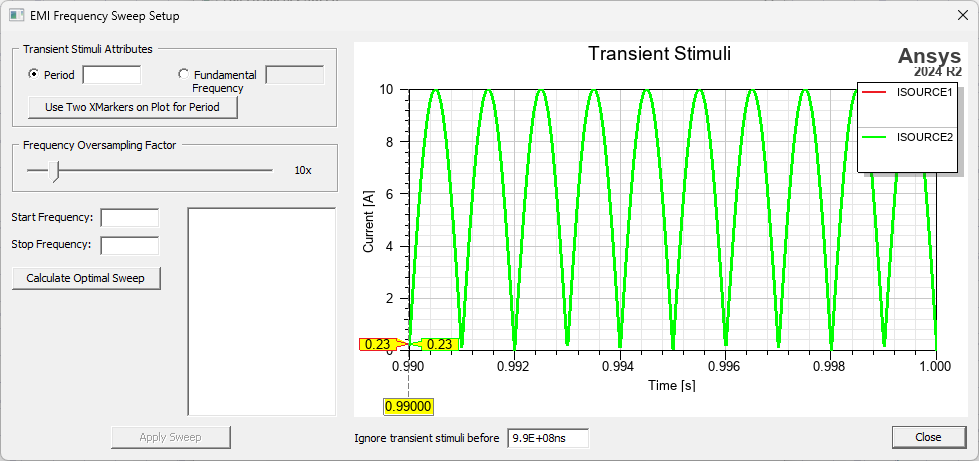
This creates the first X marker point (i.e., at X minimal, by default).
-
Hover directly over the X marker until the cursor becomes a line with two arrows. Then click+drag the X marker to the required frequency point.
-
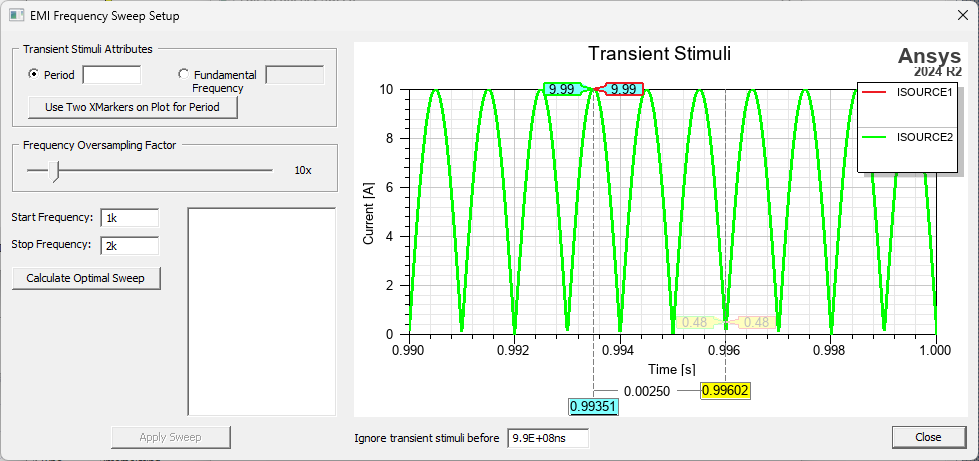
Right-click within the graph and select Add X Marker again to add a second X marker on the graphic.
-
Click+drag the second X marker to the required frequency point.
-
From the Transient Stimuli Attributes area, click Use Two XMarkers on Plot for Period. The Period box populates with the length between the user-selected frequency points (e.g., 2.50ms).