
Using a Python Script to Configure an Ansys SIwave™ Solution Setup
Complete the steps in the following sections to start/stop recording a Python script (i.e., a *.py file), or to generate an Ansys ECAD database file (i.e., a *.def file) via Python script. Then import the newly created custom settings into an Ansys SIwave™ solution setup.
Recording a Python Script
-
Do either of the following to open an explorer window:
-
Navigate to the Automation tab and click Record Script > Record Script To File/Record Script To Project.
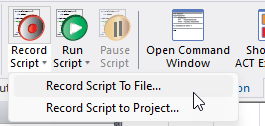
-
From Tools, select Record Script To File/Record Script To Project.
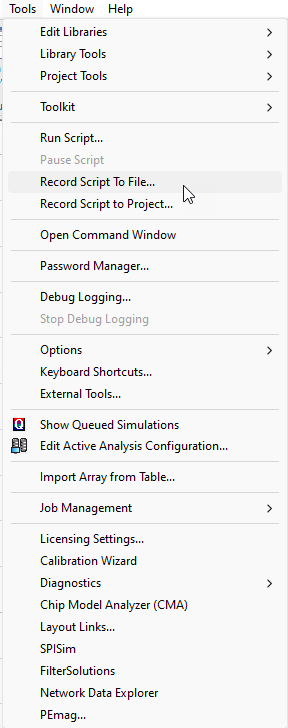
-
Navigate to an appropriate directory to save the Python file. Then enter a File name and click Save.
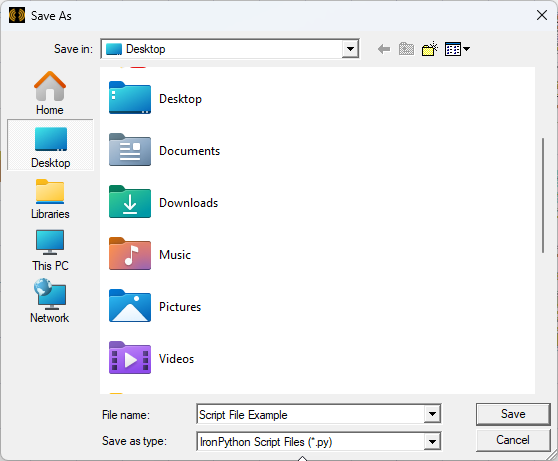
-
Complete any/all functions required. All actions taken within the Ansys Electronics Desktop (AEDT)TM electronics systems design platform that have a matching script are recorded and saved to the Python file.
-
To complete the Python and script and stop recording, do either of the following:
-
Navigate to the Automation tab and click Stop Recording.
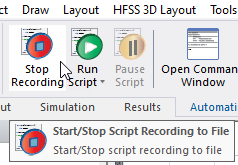
-
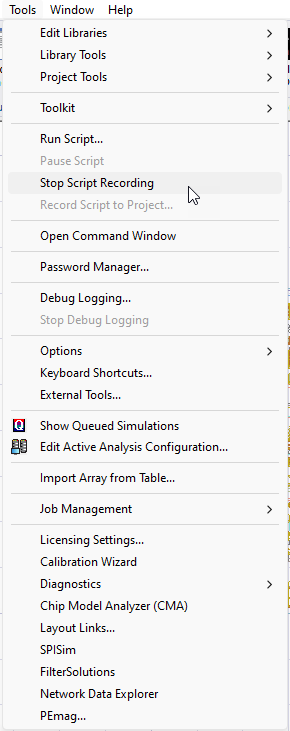
From Tools, select Stop Script Recording.
-
Running a Python Script
-
Do either of the following:
-
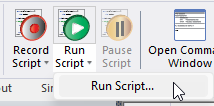
Navigate to the Automation tab and click Run Script > Run Script.
-
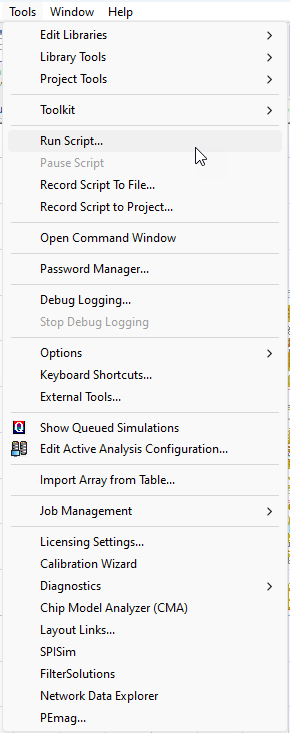
From Tools, select Run Script.
-
- Navigate to the chosen directory and select the IronPython Script File (e.g., EDB_script_example.py).
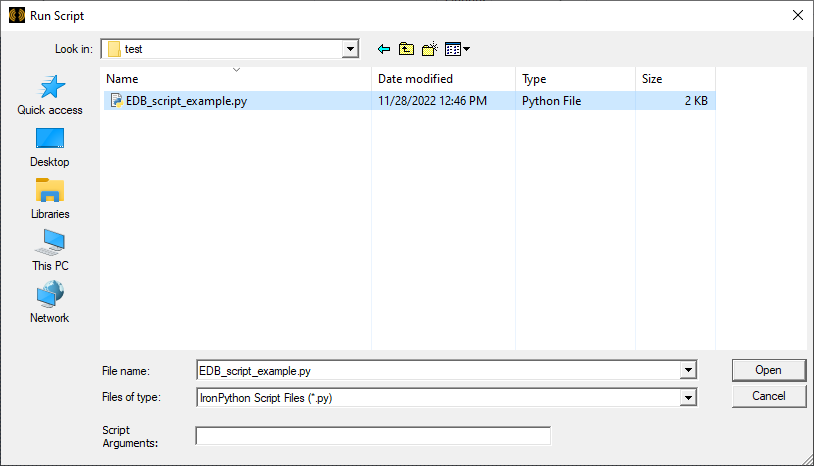
- Click Open. The script generates a new Ansys ECAD database file at the location specified in the script (e.g., temporaryDirectory = "C:\\testDir").
-
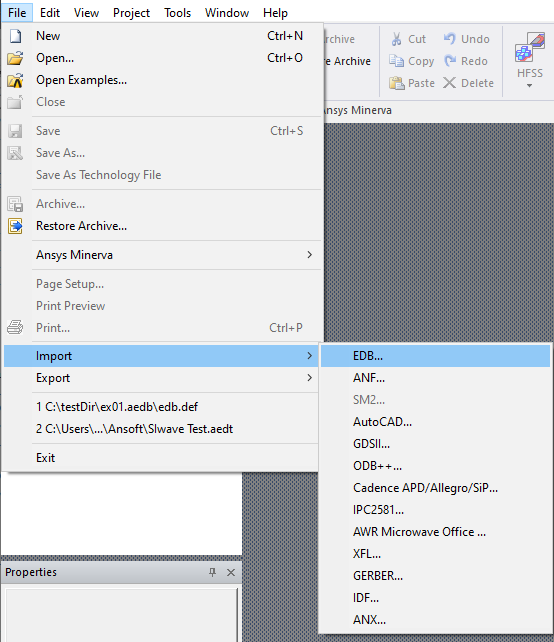
From File, select Import > EDB to open an explorer window.
-
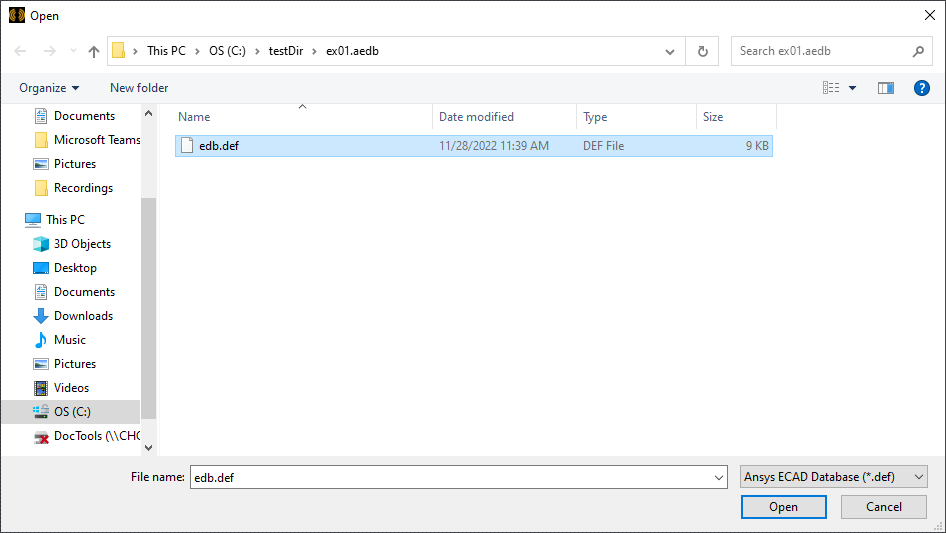
Navigate to the directory specified in the script file. Then select the Ansys ECAD database file (i.e., edb.def) and click Open.
-
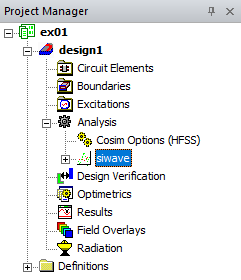
From the Project Manager window, expand the Project Tree > [active design folder] > Analysis and double-click the Ansys SIwave™ setup (e.g., siwave) to open the SIwave Solution Setup window.
-
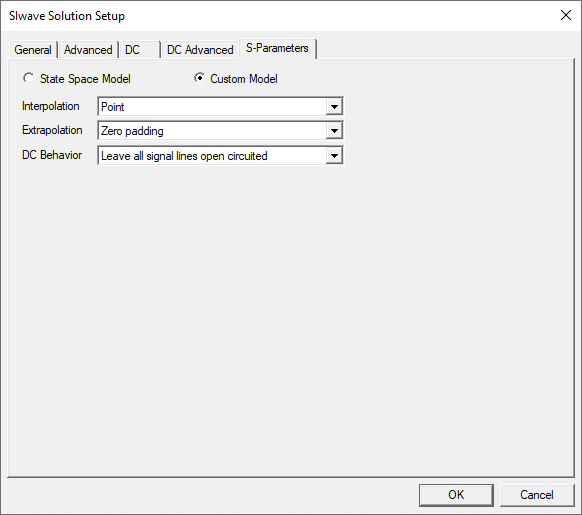
Navigate to the S-Parameters tab to view the newly imported custom model settings.
Copying and Pasting Script Commands
-
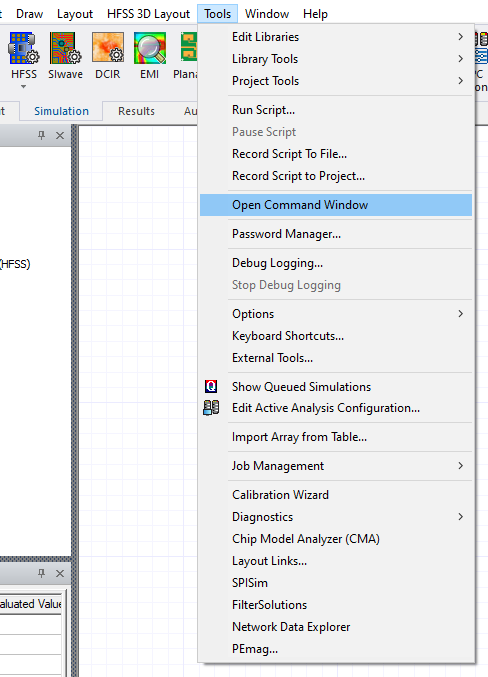
From Tools, select Open Command Window to open the Iron Python Command Window.
-
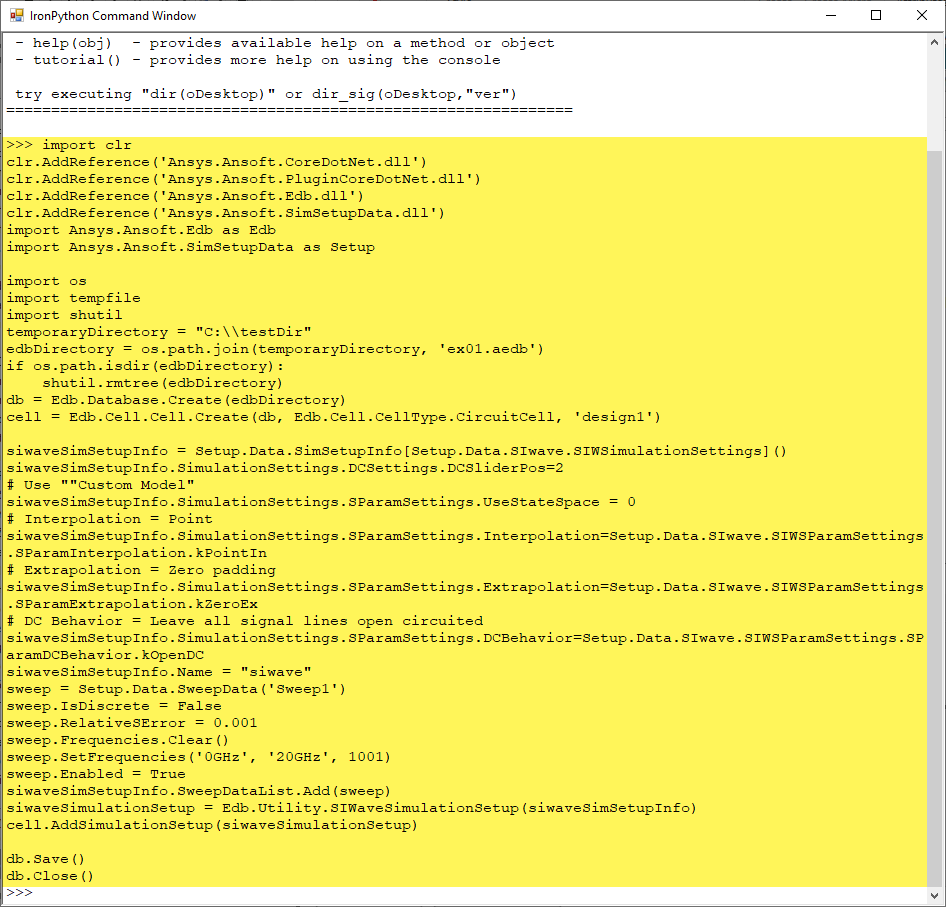
Copy and paste (e.g., Ctrl+C, Ctrl+V) the script text at the command line. Then press Enter.
-
The script commands generate a new Ansys ECAD database file at the location specified in the script (e.g., temporaryDirectory = "C:\\testDir").
-
From File, select Import > EDB to open an explorer window.
-
Navigate to the directory specified in the script text. Then select the Ansys ECAD database file (i.e., edb.def) and click Open.
-
From the Project Manager window, expand the Project Tree > [active design folder] > Analysis and double-click siwave to open the SIwave Solution Setup window.
-
Navigate to the S-Parameters tab to view the newly imported custom model settings.