Using the Capacitor Library Browser
SIwave allows users to define VRM parameters and impedance requirements, automatically select and mount capacitors that meet those requirements, then plot the impedance of various vendor or imported capacitor components versus frequency. Capacitors are mounted within previously defined capacitor regions. Complete the following steps to open and set up the capacitor library.
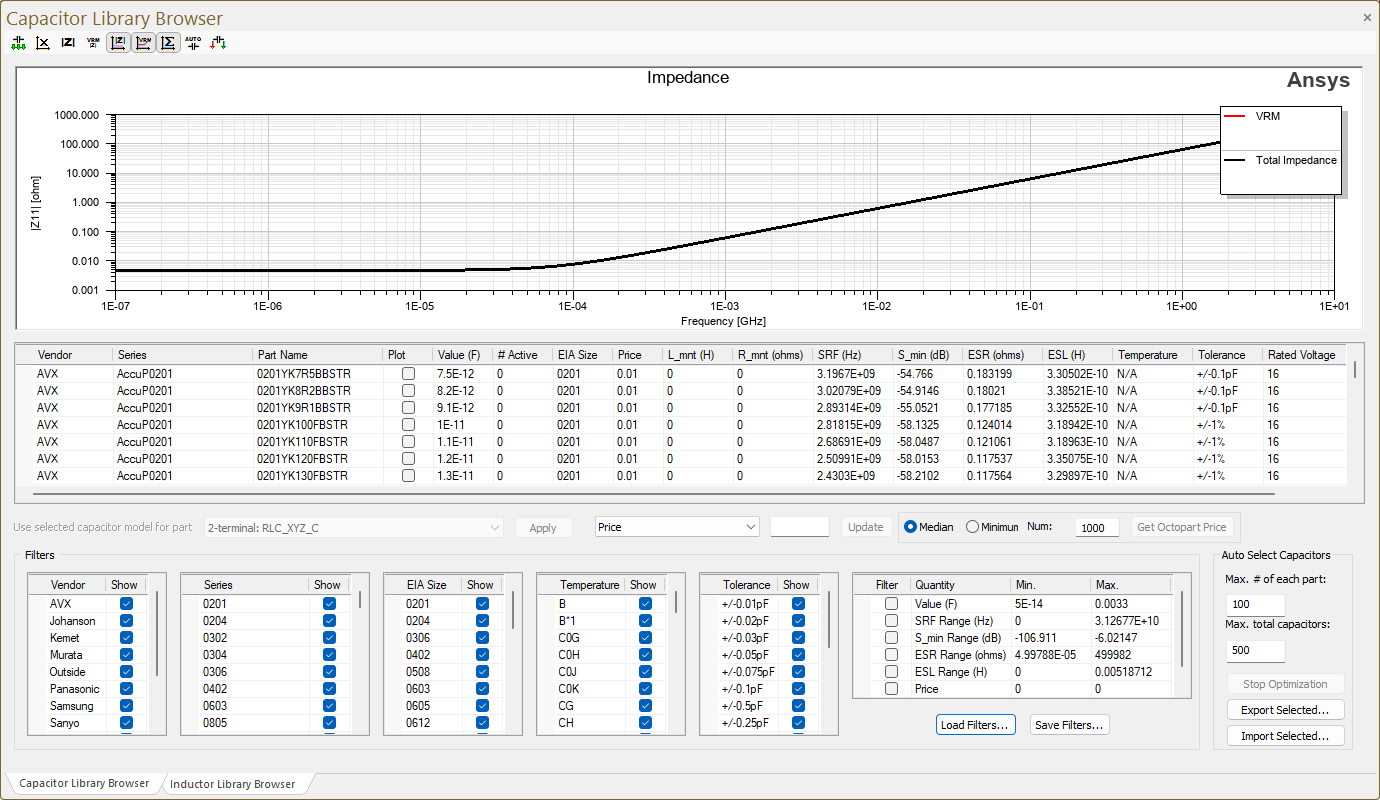
These instructions are written assuming users make selections from the Capacitor Library Browser tab. The Inductor Library Browser is available at any time by selecting the Inductor Library Browser tab at the bottom-left of the window. Differences are noted in the following text, aside from the most obvious (i.e., assume "inductor" in place of "capacitor").
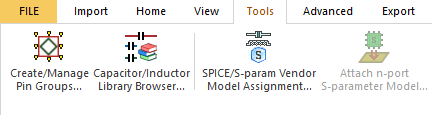
- From the Tools ribbon, select Capacitor/Inductor
Library Browser
to open the Capacitor Library
Browser window.
Sort the values in the central table by clicking a column title.
- To automatically select capacitors
that match the defined impedance profile, navigate to the row of buttons in the top-left corner and click Auto Select (
 ).
).
- To manually select a capacitor from the central table, check the Plot box. To plot a capacitor's impedance curve, click the Plot column heading.
- Specify filters to dynamically update visible options. Filter by any combination of parameters and across several ranges. Note:
Filters vary between the Capacitor Library Browser tab and the Inductor Library Browser tab.
Inductor Library Browser Tab
Filter by Vendor, Series, and EIA Size, as well as across most of the available ranges (i.e.Value, SRF Range, S_min Range, ESR Range, ESL Range, Price.
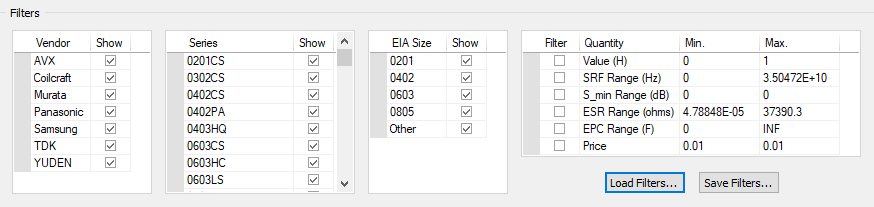
Capacitor Library Browser Tab
All of the same filters and ranges are available, as well as additional filters for Temperature and Tolerance, and an additional value range (i.e., Rated Voltage).

- If appropriate, do either of the following:
- To import filter settings click Load Filters. Then navigate to an appropriate Capacitor filter criteria (i.e., .cff) file and click Open.
- To save the current filter settings, click Save Filters. Then navigate to an appropriate directory, name the output .cff file, and click Save.
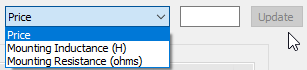
- To update a value for multiple capacitors, select a value from the drop-down menu above the Filters area. Then enter a value in the text field and click Update.
- To import a capacitor model from a Touchstone file, do the following:
- Navigate to the row of buttons in the top-left corner and click Import (
 )
to open the Import S-parameter Component window.
)
to open the Import S-parameter Component window.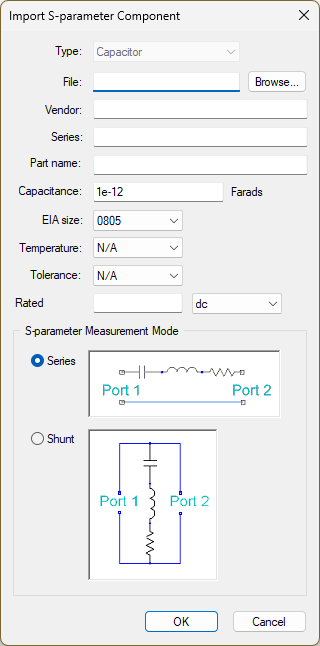
- Specify the component details then click OK.
- To remove all capacitor impedance curves
that have been selected, navigate to the row of buttons in the top-left corner and click Remove all impedance curves from plot (
 ).
).
- To define impedance requirements,
do the following:
- Navigate to the row of buttons in the top-left corner and click Define Impedance Requirements (
 ) to open the Define Impedance Mask window. Note:
The Define Impedance Mask window and Define VRM Parameters window (i.e., step 10 are functionally similar to options available at the PI Advisor Wizard - Step 1 window.
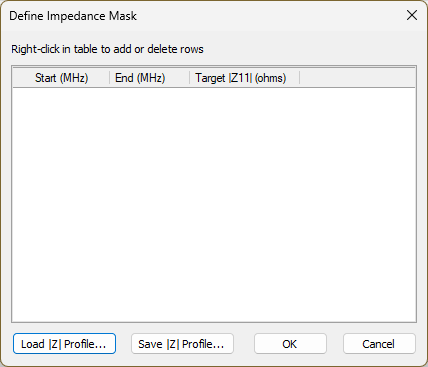
- From the Define Impedance Mask window, right-click in the table and click Add Row to begin creating an impedance profile.
- Click OK.
- Navigate to the row of buttons in the top-left corner and click Define Impedance Requirements (
- To define VRM parameters, do the following:
- Navigate to the row of buttons in the top-left corner and click VRM (
 ) to open the Define
VRM Parameters window.
) to open the Define
VRM Parameters window.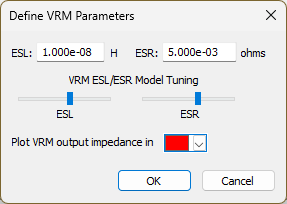
- Specify ESL and ESR by either entering new parameters in the appropriate fields or click+dragging the slides.
- Select the plot color from the Plot VRM output impedance in drop-down menu.
- Click OK.
- Navigate to the row of buttons in the top-left corner and click VRM (
- To change the display options, navigate to the row of buttons in the top-left corner and click
display impedance mask (
 ), VRM output impedance curve (
 ), or aggregate
output impedance curve (
), or aggregate
output impedance curve ( ), as appropriate.
 - To mount the active capacitors, do the following:Note:
At least one capacitor must be selected in the Capacitor Library Browser.

- Navigate to the row of buttons in the top-left corner and click
Mount Active Capacitors (
 ) to open the
Capacitor Mounting window.
) to open the
Capacitor Mounting window.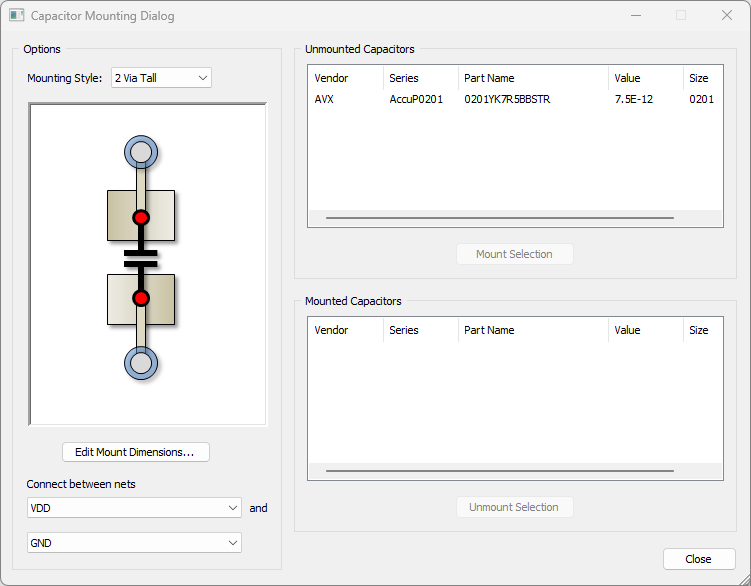
- Select one of the capacitor regions.
- Click Mount Selection.
- If appropriate, unmount a capacitor by selecting it in the Mounted Capacitor list, and then clicking Unmount Selection.
- Click Close.
- Navigate to the row of buttons in the top-left corner and click
Mount Active Capacitors (
- Select a value from the Use selected
capacitor model for part drop-down menu to reassign it as a vendor
capacitor part.
- To update the value for multiple capacitors, do the following:
- Select an appropriate value from the drop-down menu.
- Enter a new value for all the selected capacitors in the text box.
- Click Update.