
Plotting Magnitude
Following SYZ, PSI SYZ, or HFSS 3D Layout simulation, SIwave can generate S-, Y-, and Z-parameter magnitude plots. After running multiple simulations, complete these steps to pool the SYZ simulation results, plot multiple curves from different datasets, and compare the results.
- From the Results window, right-click the simulation and select Plot Magnitude to open the S-parameter Plot window.
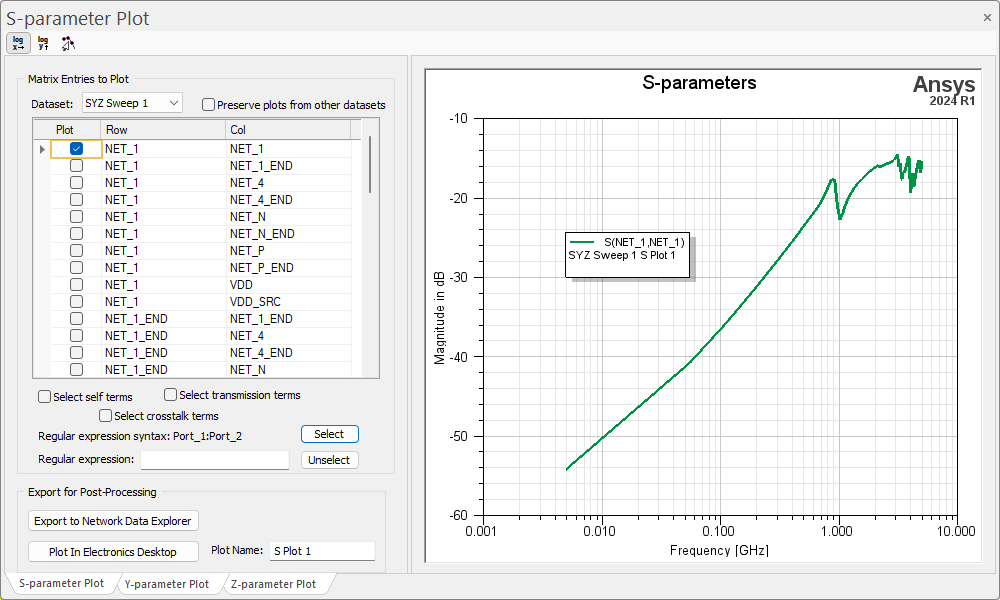
- Check/uncheck boxes in the Matrix Entries to Plot area (i.e., the Plot table, Select self terms, Select transmission terms, and Select crosstalk terms boxes) to select/deselect data to plot.
-
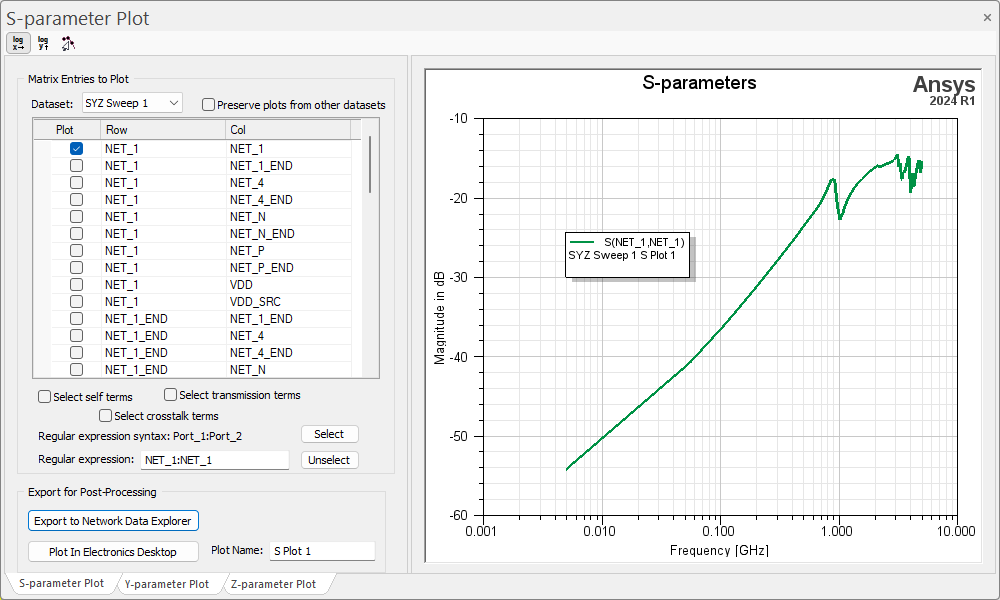
If appropriate, enter a Regular expression in the field (i.e., NET_1:NET_1). Then click Select to automatically check all the rows in the Plot table specified by the expression and simultaneously populate the graph.
-
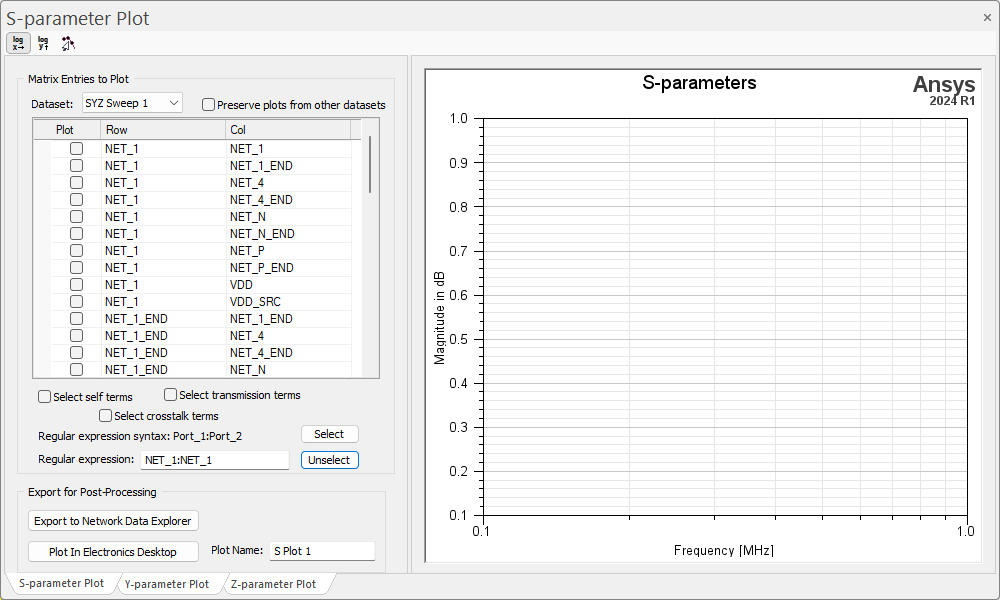
Click Unselect to uncheck all of the boxes activated by a Regular Expression and clear the graph.
Log X and Log Y allow users to select the plot's scale.
Note:Log X and Log Y only work if the values on the specified axis are greater than 0. Otherwise, the plot is cleared.
Show Marker allows users to choose between displaying data points or lines.
Note:Selecting a curve in the plot highlights the ports and connected nets, and zooms the Modeling workspace to fit.
-
- Click the Y-parameter Plot or Z-parameter Plot tab to switch to an appropriate information. The options available on these tabs are the same.
Comparing Datasets
Complete these steps to compare datasets.
- The Dataset drop-down menu preselects the simulation from which users navigated to the S-parameter Plot window. If there are multiple complete SYZ simulations (e.g., SYZ, PSI SYZ, or HFSS SYZ) in the Results window, all of the simulation results will be pooled together. Select any dataset and the results of that simulation populate the graph, making it inappropriate to relaunch the SYZ Parameter Plot window from the Results window to load new datasets.
- Select Preserve plots from other datasets and then select a new dataset from the Dataset drop-down menu. Checking the Preserve plots from other datasets box maintains the curves in the graph when a new data set is loaded, so multiple simulation results can be compared at once.
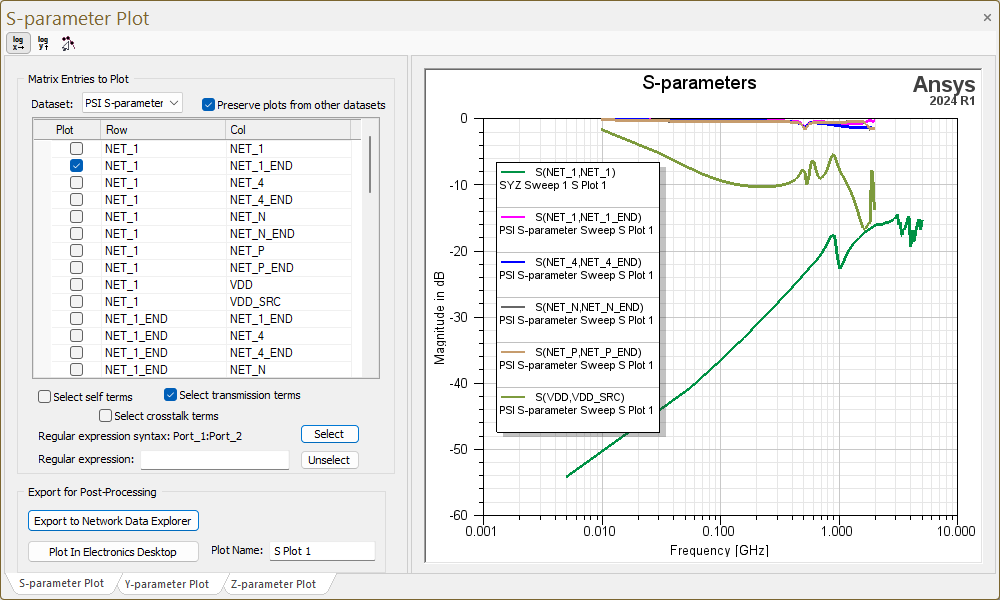
If boxes are deselected, the curves are cleared when a new dataset is loaded.
Note:Click+drag the plot legend to an appropriate location. Right-click in the plot to select from additional actions.
Exporting a Plot
Complete these steps to export a plot.
- Enter a Plot Name.
- Click either Plot In Electronics Desktop or Export to ndExplorer, as appropriate.