
Importing CPM/PLOC/Voltus Files
CPM, PLOC, or Voltus files (*.sp, *.ploc, *.isrc) contain the IC die power model. The Chip Package Protocol (CPP) header on the CPM file supplies the coordinates and groupings for the IC die pin locations. This information, which other SPICE files generally do not include, enables SIwave to automatically align and connect the IC die pins and the package pins.
To import a CPM/PLOC/Voltus file into SIwave:
- Click Import > CPM/PLOC/Voltus File.
The CPM/PLOC/Voltus Import window appears.
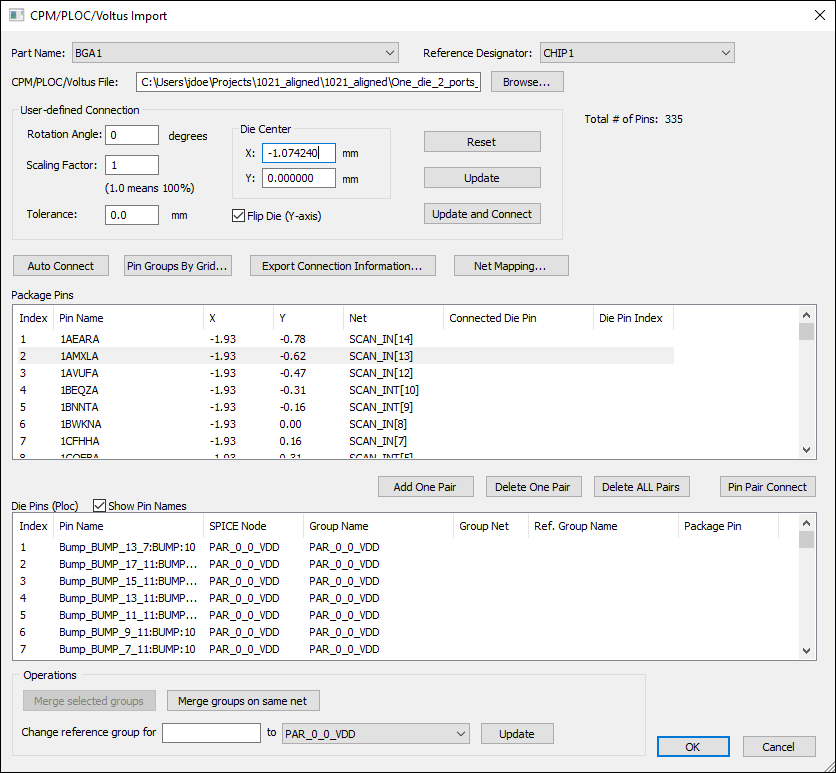
- Use the Part Name and Reference Designator drop-down menus to select the package that will receive the IC die.
The Package Pins list populates.
- To fill the CPM/PLOC/Voltus File field, click Browse.
An alert window appears, advising you to select Foster CPMs for best performance.
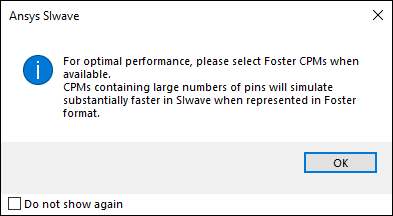
- Click OK to close the alert.
- From the file browser, locate and select a CPM/PLOC/Voltus file for import.
Then click OK.
The Die Pins list populates. The values and check box under User-defined Connection populate based on the information in the file. To define your own connection parameters, specify the Rotation Angle, Scaling Factor, Tolerance, Die Center, and whether or not to Flip Die. Then click Update and Connect.
- Map package pins to die pins one of the following ways:
- Click Auto Connect to update the Package Pins and Die Pins lists to show connections.
- Click Pin Groups by Grid.
- Click Net Mapping to open a window summarizing connections. From this window, you can easily identify P/G shorts or nets not connected to their proper domains as well as disconnect any unwanted net mappings.
The lists of Package Pins and Die Pins update to show connections.
The upper-right area of the window displays the number of Pins mapped and the number of Pins unmapped.
- If appropriate, click Export Connection Information.
- Click OK.
A prompt appears with two options.
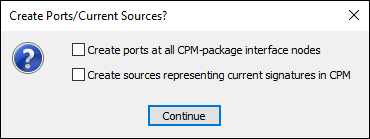
If you'd like to create ports at all CPM-package interface nodes and/or create sources representing current signatures, select an appropriate check box(es).
- Click Continue.
The Components list updates and SIwave marks the location of the IC die on the package with an ’X’ to indicate that the CPM/PLOC/Voltus import was successful. If you elected to create ports and/or current sources, those also appear. Full details are available in the Circuit Element Parameters window.
Current signatures are imported into SIwave as current sources (IPWL sources are averaged and represented as constant current sources in SIwave). Such sources can be used as the basis for DC IR drop, frequency sweep, and near/far field simulations.