Computing AC Simulations
The PSI AC current/voltage solver uses the given source configuration to compute the current flow within each element of a PCB model, including discrete components, vias, traces, planes, bondwires, and sources.
To compute an AC simulation in SIwave:
- Click Simulation.
- From the PSI area, click Compute AC Currents.
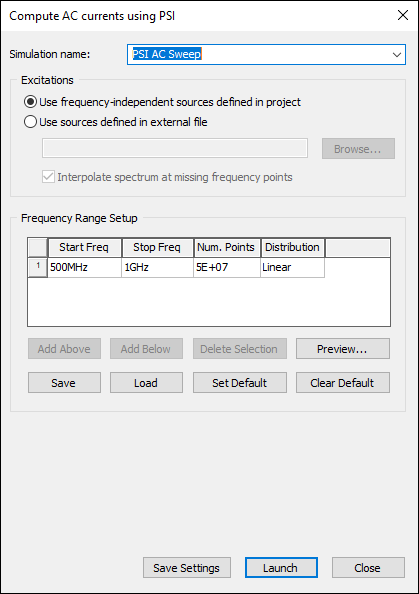
The Compute AC currents using PSI window appears.
- From the Simulation name field, enter a name for the simulation or leave the default.
- From the Excitations area:
- Use frequency-independent sources defined in project – by default, excitations are defined by the current project.
- Use sources defined in external file – allows you to browse and select an external excitations file.
- When using an external excitations file, you can select the option to Interpolate spectrum at missing frequency points.
- PSI only understands frequency-independent current and voltage sources and time-domain piecewise linear current sources (not frequency-domain sources).
- If you push excitations from Ansys Electronics Desktop, the external file option is automatically selected and the file field populated.
Note: - From the Frequency Range Setup table:
- From the Start Freq text box, enter the starting frequency of the frequency sweep.
- From the Stop Freq text box, enter the ending frequency of the frequency sweep.
- From the Num Points box, enter the number of points.
- Use the Distribution drop-down menu to select either Linear or By Decade.
- Linear – the difference between the start frequency and the stop frequency is calculated and is divided by the number of solution points.
- By Decade – distributes the number of points specified logarithmically, over each decade.
- You can add and remove rows at your appropriate locations using the Add Above, Add Below, and Delete Selection buttons.
- Click Preview to see the frequency range in the Frequency List Preview window.
- Click Save to save the grid values to a SIwave Frequency Sweep Distribution File (*.sfsdf). You can also load a previously saved *.sfsdf file.
- Click the Set Default button to set the current grid settings as a default value for that simulation type.
- Click the Clear Default button to remove the default setting and return the population of the grid to its normal behavior.
SIwave solves the solution beginning with the frequency entered in the Start box and ending with the frequency entered in the Stop box.
- If appropriate, click Save Settings to keep the simulation settings.
- Click Launch to begin the simulation.
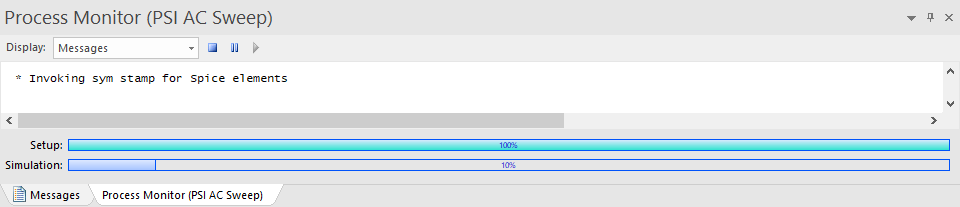
The Messages window updates with a Process Monitor tab that displays the progress.