
Viewing AC Simulation Results
To view AC simulation results in SIwave:
- Click Results.
- From the PSI area, select AC Currents > [Simulation Name].
- Plot Probe Voltages
- Plot Currents
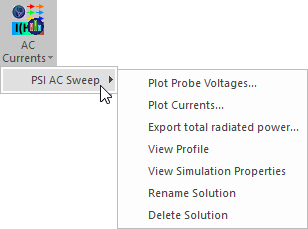
Result options include:
Plotting Probe Voltages
From the AC Sweep Results menu:
- Click Plot Probe Voltages.
- Select an appropriate options.
- Click Create Plot.
The Voltage Probe Plot Generation window appears.
Plotting Currents
From the AC Sweep Results menu:
- Click Plot Currents.
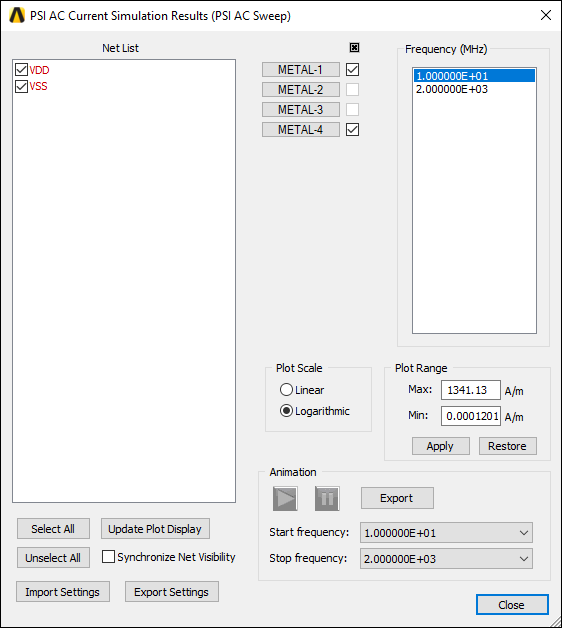
- Use the Net List to select net visibility.
- Use the layer check boxes to select layer visibility.
- Use the Frequency list to select a frequency. The Modeling workspace updates to show that frequency's current information.
- Select your appropriate Plot Scale and Plot Range options.
- To view the currents as an animation:
- Use the drop-down menus to select a Start Frequency and Stop Frequency.
- Click the Play and Pause button to control the animation.
- Click Export to save the animation as either an *.avi or *.gif file.
- If appropriate, you can Import Settings or Export Settings for net visibility, plot scaling and plot range. These settings are saved in XML format.
The PSI AC Current Simulation Results window appears, and the Modeling workspace updates to display AC currents.
From the AC Sweep Results menu, you can also access additional menu options.