
Introduction to SI Xplorer (Beta)
SI Xplorer is a standalone application based on the Layer Stackup Wizard implemented in SIwave and HFSS 3D layout. For help with Layer Stackup Wizard in the context of those applications, please consult the SIwave or HFSS 3D Layout documentation.
SI Xplorer has all of the capabilities of Layer Stackup Wizard, as well as:
- Dynamic computation and update of Z0/Zdiff value stackup parameters (signal layers only)
- Persistent view of conductor cross-section defined in the w-element panel
- Persistent view of impedance and w-element plots
- Ability to define sweeps for impedance plots
- Support for project variables
- Ability to define and edit padstacks
- Ability to define new via breakouts as independent 3D Layout designs
- EDB cell view for visualization, editing padstack instances, and defining backdrills
- Ability to run HFSS simulation setups
- Network Data Explorer workspace for visualizing results
SI Xplorer also supports the use of variables.
Launching SI Xplorer
Launch SI Xplorer from its executable file AnsysSIXplorer.exe from the Windows or Linux installation folder:
AnsysEM\[Release#.#]\Win64AnsysEM/[Release#.#/Linux64
The SI Xplorer Window
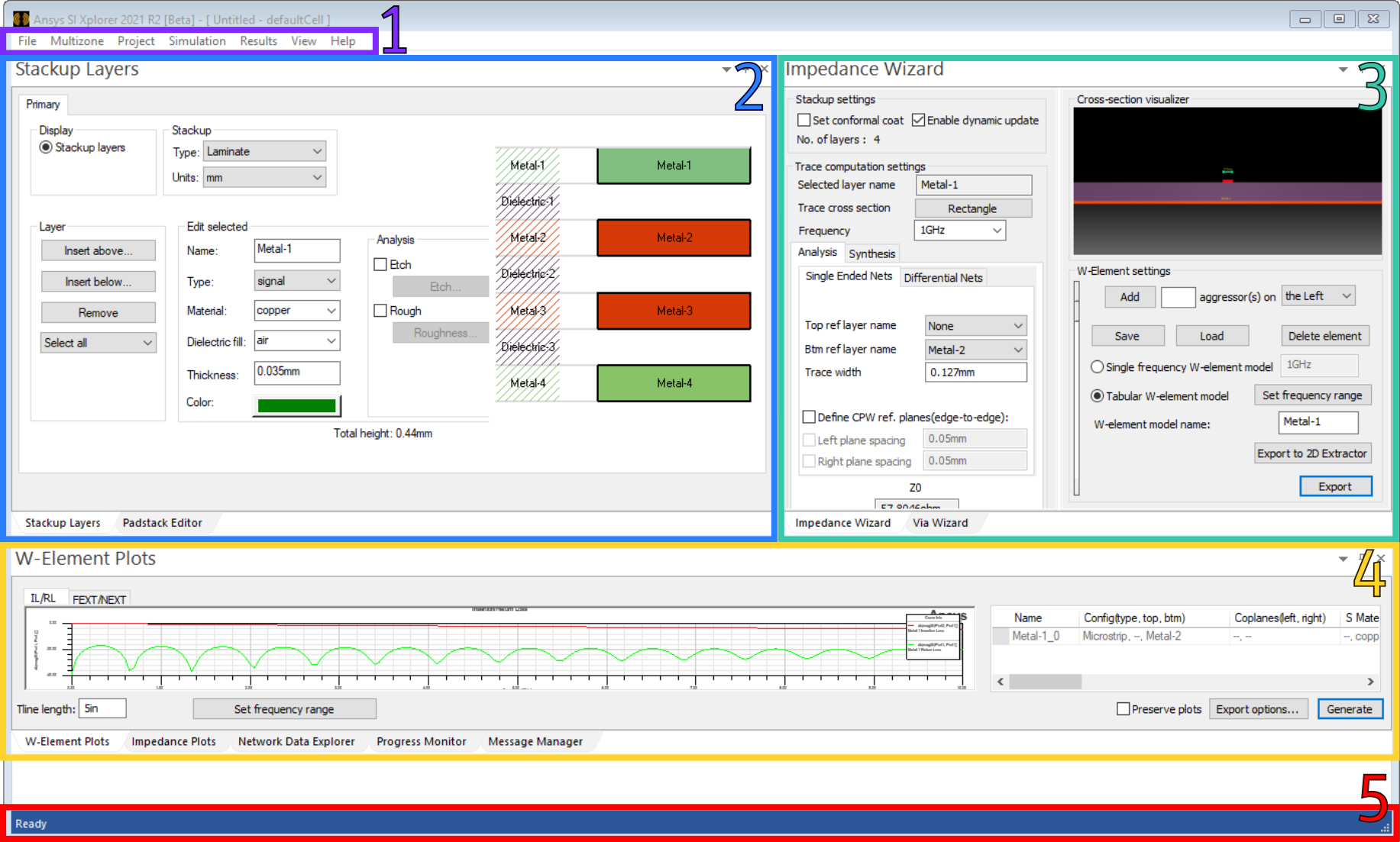
The SI Xplorer window contains the following areas:
- Menu Bar – provides access to options for importing and exporting files, defining multizone stackups, performing a simulation, viewing results, and customizing the view. See: SI Xplorer Menu Bar Options.
- Stackup / Padstacks – displays a visual of the layer stackup and allows you to edit layer properties. Selecting a layer in the list also selects it for analysis in the Impedance Wizard.
- Impedance / Via Wizard – use the tabs to select either the Impedance Wizard or Via Wizard.
- The Impedance Wizard contains a calculator for impedance, differential impedance, and trace width/pitch. It also allows you to change w-element settings and export w-element information. Changes made in the Impedance Wizard display in the Plots and Messages area as W-Element Plots and Impedance Plots.
- The Via Wizard allows you to define, visualize, and edit padstacks.
- Plots and Messages – depending on which tab is selected, displays w-element plots, impedance plots, the Network Data Explorer, a progress monitor, or the message manager. The plots update dynamically as you make inputs, and can be exported.
See: Viewing and Exporting Plots in SI Xplorer. Note:
Impedance Plots only update dynamically when Enable Dynamic Update is selected in the Impedance Wizard area.
- Status Bar – displays a progress bar while actions are in progress.
You can resize each area as appropriate by dragging its borders. Each area is explained in further detail in the topics below.