
Working with Nets and Terminals in Q3D Extractor
A net is a collection of touching conductor objects separated by non-conducting materials or by the background material. A terminal can be a source or a sink.
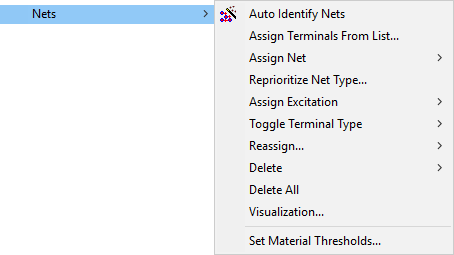
Nets and Terminals can be modified using the Q3D Extractor > Nets submenu.
Nets can be assigned only to conductive materials. If you want to include a drawn/imported object as part of a net, you must assign it a conducting material.
Assigning Nets and Terminals
Nets can be assigned manually or automatically.
Terminals can be assigned from a list.
Showing and Hiding Nets and Terminals
To show or hide nets or terminals:
- Select Q3D Extractor > Nets > Visualization.
The Visualization Options dialog box appears.
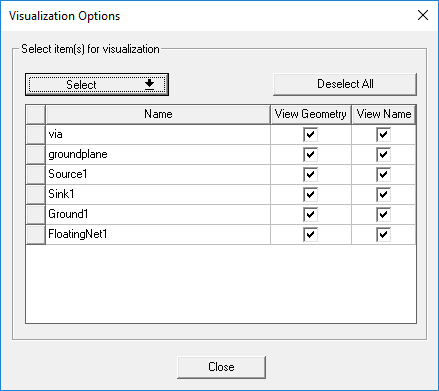
- Select an object to see it highlighted in the Modeling Workspace.
- Select the check boxes for geometry and names you want visible. Deselect the check boxes or those you want to hide.
- If desired, click Select to select by type:
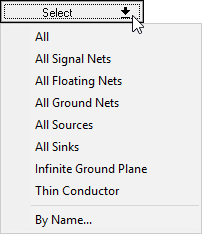
By Name allows you to find objects using regular expressions.
- Click Close.
Zooming to Nets and Terminals
The Zoom To command zooms the view in the Modeling Workspace in or out to show the selected net or terminal. This can be useful in looking at problem areas.
To zoom to a net or terminal, right-click it in the Project Manager and select Zoom To.
Reassigning Nets and Terminals
To reassign a previously assigned net or terminal:
- In the Modeling Workspace, select the new object you want to be a net or terminal.
- Right-click the net or terminal in the Project Manager and select Reassign.
The net or terminal is removed from the original object and reassigned to the new object.
Deleting Nets and Terminals
To delete a net or terminal, right-click it in the Project Manager and select Delete.
To delete all nets, do one of the following:
- Select Q3D Extractor > Nets > Delete > All Nets.
- Right-click Nets in the Project Manager and select Delete > All Nets.
To delete all terminals, do one of the following:
- Select Q3D Extractor > Nets > Delete > All Terminals.
- Right-click Nets in the Project Manager and select Delete > All Terminals.
To delete all nets and terminals, do one of the following:
- Select Q3DExtractor > Nets > Delete All.
- Right-click Nets in the Project Manager and select Delete All.