
Plotting Field Overlays
Field overlays are representations of basic or derived field quantities on surfaces or objects for the current design variation. The Electronics Desktop allows for the display of existing field overlays in the Layout Editor view.
Set the design variation via the Set Design Variation dialog box. This dialog box is accessible from the Solution Data window via by clicking the ellipsis button on the right of the Design Variation field, and via the [solver] > Results > Apply Solved Variation command.
To Plot Fields
To plot a basic field quantity:
- Select a point, line, surface, cutplane, or object to create the plot on or within.
- Click Icepak > Fields, or right-click Field Overlay in the Project Manager and select Plot Fields, or right-click in the modeler window, and select Plot Fields from the context menu.
- On the Plot Fields menu, click the field quantity you want to plot. The Create Field Plot dialog box appears. The Specify Name field shows a name based on the field quantity you selected, and the Quantity list shows the field quantity selected. See Icepak Post Processing Quantities for more information.
- To specify a name for the plot other than the default, select SpecifyName, and then type a new name in the Name text box.
- Select the solution to plot from the Solution drop-down menu.
- To specify a folder other than the default in which to store the plot, select Specify Folder, and then click a folder in the Plot Folder drop-down menu, or type the name you wish to use. Plot folders are listed under Field Overlays in the project tree. Plot folders let you group plots with the same quantity together. All field plots under the same folder share the same color key.
- Under Intrinsic Variables, select the frequency and phase angle at which the field quantity is evaluated.
- If desired, you can select a differentfield quantity to plot from the Quantity list.
- Select the volume (region) in which the field will be plotted from the In Volume list. This selection enables you to limit plots to the intersection of a volume with the selected object or objects. You can select and deselect any items in the In Volume list. You can mix model objects with non-model boxes. For example you might want to see a plot from part of two model objects by restricting the region to a non-model box overlapping those parts.
- If you selected a 3D object in object-selection mode, you can select Plot on surface only to display the data on only the surface of the object.
- If desired, for 2D geometry or the faces of 3D geometry, select the Adjacent side check box. See Reporting Sides for information on the data displayed.
- Click Done.
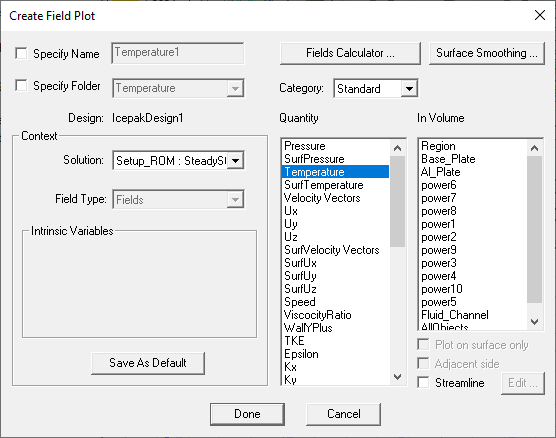
The available selections depend on the solved solution.
If you select a scalar field quantity, a scalar surface or volume plot will be created. If you select a vector field quantity, a vector surface or volume plot will be created. If you select a vector quantity, you will be able to specify a Streamline plot. If the quantity you want to plot is not listed, see Named Expression Library.
Multiple selection should be used when there is a discontinuous field on a surface. If not, the field on both sides of the surface is plotted and each interferes with the other.
For joule heating cases, if no results for electric potential are displayed, enable Adjacent sides to display the data.
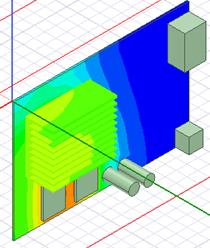
The field quantity is plotted on the surfaces or within the objects you selected. The plot uses the attributes specified in the Plot Attributes dialog box.
The new plot appears in the view window. It
is listed in the specified plot folder in the project tree. If you have
created a field plot on a simulation in progress, the field plot is updated
after the last adaptive solution. Each category of plots (such as Temperature)
are listed separately in the Project Manager.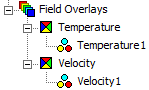
If you want to update the field overlay, select the Field icon in the Project tree that contains the field plot of interest, right-click to display the short cut menu, and select Update Plots.
To turn off the display of the plot, right-click on the plot and select Plot Visibility from the short-cut menu. Unchecking Plot Visibility turns off the plot display.