
3D Component Library
The 3D Modeler lets you access predefined 3D component
libraries
- Geometry (objects and coordinate systems)
- Component parameter, including variables used by geometries, design data, and material properties
- Optional encryption with password definition or internal key as a password
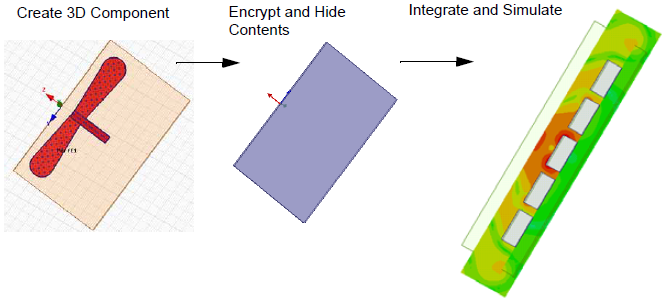
The ability to create components from models lets you easily share and reuse components. You can add components to a library and share components with other users. Once you insert a component into the target design, you can directly manipulate whole components.
In HFSS 3D Layout, custom 3D components must be created in HFSS and then imported into HFSS 3D Layout. 3D components appear in the 3D tab of the Components window. Once in HFSS 3D Layout, the 3D components cannot be edited except for changes to their parameters. HFSS 3D Layout only supports 3D components with Driven Terminal solution types. In HFSS, this solution type is Terminal in the Solution Type dialog box.
Local variables can be assigned to a 3D component's parameters in HFSS 3D Layout and then used in parametric simulations. Change the parameters in the Param Values tab of the Properties window.
HFSS 3D Layout supports encrypted 3D components and 3D components with hidden content. If a 3D component has hidden content, it appears as Encryption Settings on the 3D tab. Use the 3D tab to select a 3D component when all contents of its component are hidden. If possible, keep something such as the bounding box visible in the 3D component. If nothing is visible, you can still select the bounding box, however you won’t be able to see any part of the component. The parameters and excitations of a 3D component are visible even when all contents of the component are hidden.
The documentation includes the following sections:
Using the Component Libraries Window