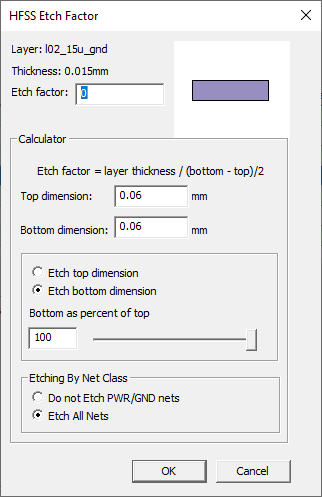
Substrate manufacturing does not create exact geometry. The actual geometry of substrate manufacturing often results in different thicknesses in the dimensions of each geometry within a layer — and that difference is represented by an “etch” or “etch factor”. HFSS geometry allows the presence of an etch factor in the design and modeling of different substrate layers. The specific etch factor that applies to a particular layer is usually available from the manufacturer, but is generally calculated by taking the ratio of etch depth to the undercut, where the undercut is defined as being the part of the wafer that is etched away under the photoresist. The etch factor is configurable on the HFSS Etch Factor window.
Accessing the HFSS Etch Factor Window
Complete these steps to access the HFSS Etch Factor window.
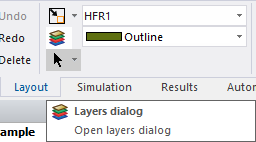
From the Layout tab, click the Layers dialog button to open the Edit Layers window.
Select a row in the layer table that has a check box in the Etch column.

Navigate to the Edit selected area > Analysis area.
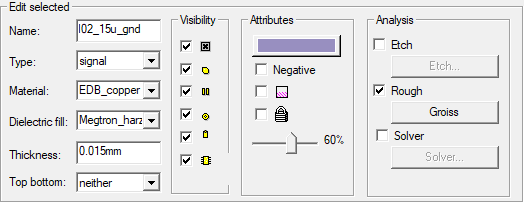
Ensure the Etch box is checked to activate the button beneath it.
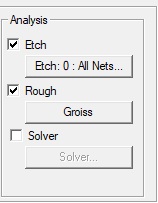
Click the button to open the HFSS Etch Factor window.
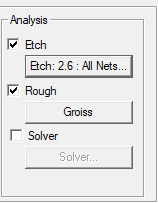
Make any adjustments as chosen. Then click OK to close the window and apply the etch factor parameters to the selected layer.
Entering a New Etch Factor
The Etch factor value may be entered as a number or may be parameterized as a project variable.
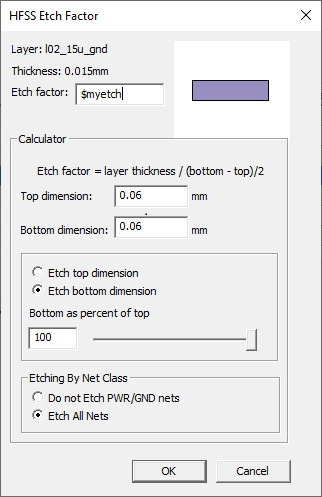
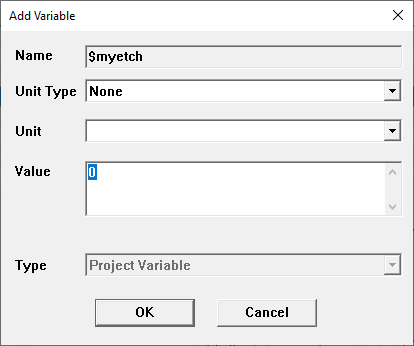
If the variable has not yet been created, an Add Variable window will appear when users navigate away on the Etch factor field. Refer to Working with Variables.
If the input to that control is a number, the calculator controls are available; otherwise, the calculator controls are deactivated.
The Calculator Area
The purpose of the etch factor calculator is to give you a way to calculate an etch factor based on layer thickness. By default, the Top and Bottom dimension fields are populated with values that correspond to the value in the Etch factor field. However, the values are representational and do not correspond to a particular geometry in the layout.
To alter the etch factor, either enter new values in the Top and Bottom dimension fields, or enter a percentage into the Top/Bottom as percent of top field directly or by adjusting the slider to set the value of one dimension to a percentage of the other. As the Top and Bottom dimensions change, the etch factor and subsequently the layer drawing are modified to reflect the change.
The Etching By Net Class Area
By default, Etch All Nets is selected. Select Do not Etch PWR/GND nets, and any power/ground nets in the selected layer will not be etched.
Change the Etch All Nets/Do not Etch PWR/GND nets option for multiple layers simultaneously by using Ctrl+click to highlight multiple rows in the layer table.

The choice is also reflected on the Edit Layers window > Etch button.