
Ports for Transmission Lines
HFSS ports for transmission lines can be set up as single-line or multi-line edge ports. Edge ports (i.e., vertical lumped ports) can be added to any primitive. By default, the edge ports are port boundaries. However, you can make boundaries that are perfect electrical conductors (PEC) or RLCs, or change an existing edge port to a PEC or RLC. Edge ports are listed under Excitations in the Project Manager window. Boundaries are listed under Boundaries.
Creating Edge Ports
Complete these steps to create an edge port.
- To begin, do any of the following:
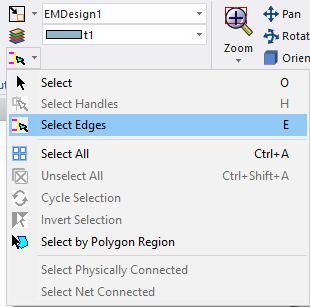
- Press E to enter Select Edges mode.
- From the Layout tab, click Select edges > Select Edges.
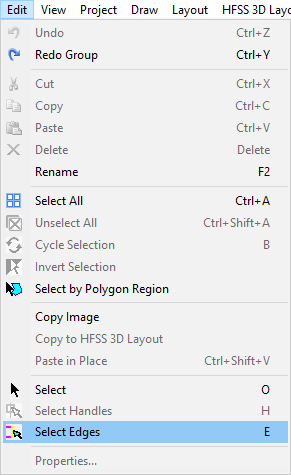
- From Edit, click Select Edges.
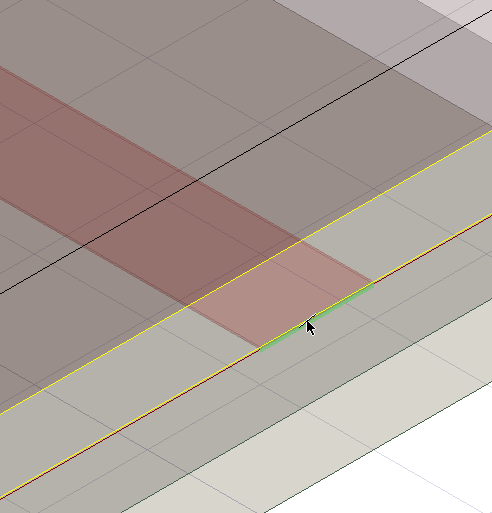
Note:Once Select Edges is chosen, the cursor changes: a diagonal line crosses the tip of the arrow. Refer to the following step.
- Click the primitive at the appropriate location to add a port.
- To create the edge port, do one of the following:
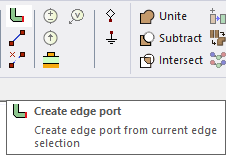
- From the Layout tab, select Create edge port.
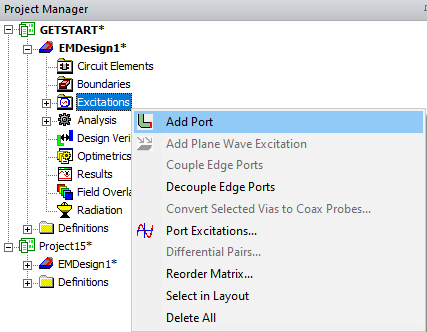
- From the Project Manager window, expand the Project Tree and active design folder (e.g., EMDesign1. Then right-click Excitations and select Add Port.
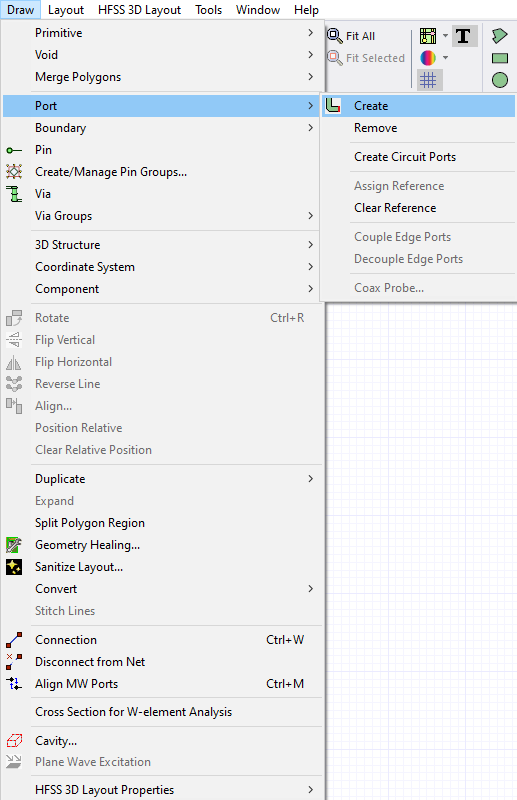
- From Draw, select Port > Create.
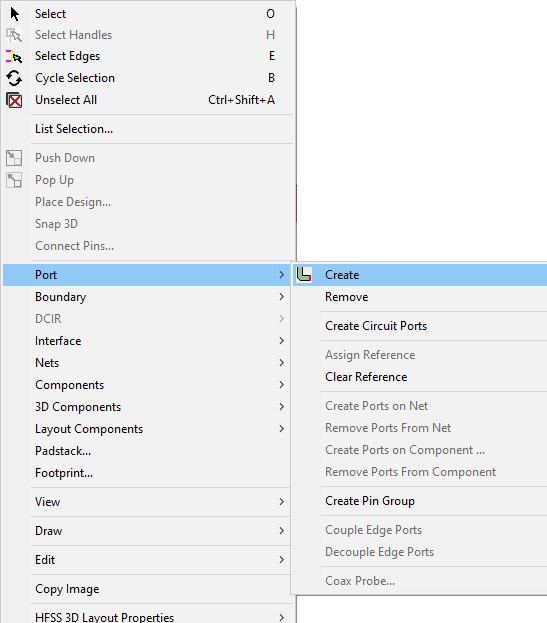
- Right-click in the Layout Editor and select Port > Create.
Note:Once a port is created, it appears in the Project Manager > Project Tree > [active design folder] > Excitations folder.
The port appears in the Layout Editor.
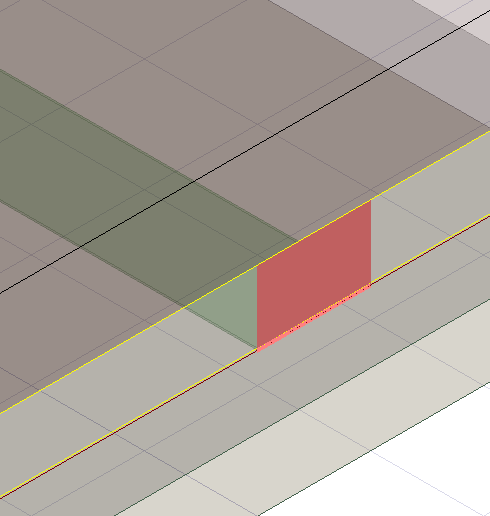
While the port is selected, the Properties window populates with its parameters.
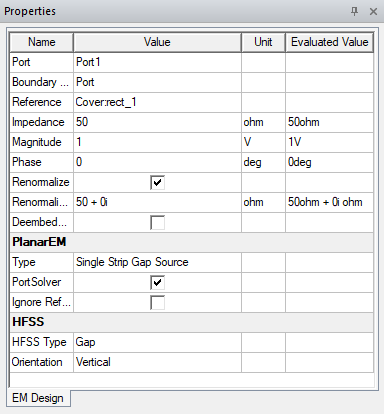
The Reference surface automatically defaults to the closest signal layer (with geometry) or negative layer, above or below the primary terminal. If the port abuts two possible reference surfaces (i.e., two planes), users can select either surface or both (i.e., dual reference surfaces).
- From the Layout tab, select Create edge port.
- From the Layout Editor, select an edge of the primitive that has the edge port.
- Either:
- Click Draw > Boundary > Create PEC.
- Right-click and select Boundary > Create PEC.
Creating RLC Edge Ports
- From the Layout Editor, select an edge of the primitive that has the edge port.
- Either
- Click Draw > Boundary > Create RLC.
- Right-click and select Boundary > Create RLC.
- From the Properties window, open the EM Design tab.
- Set the resistance, capacitance and inductance values in the R, L, and C rows.
Changing the Type of Port or Boundary
- From the Layout Editor, select the port or boundary.
- From the Properties window, open the EM Design tab.
- From the Boundary Type row, select the new type.