
Plotting Field Overlays in HFSS 3D Layout
Field overlays are representations of basic or derived field quantities on surfaces or objects for the active design variation. In Electronics Desktop, these overlays display in either the 3D Modeler window or the Layout Editor. Any existing field overlays are listed in the Project Manager window, under Field Overlays.
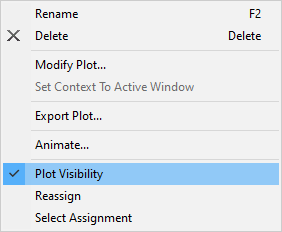
To toggle an overlay's visibility:
- From the Project Manager window, expand the Project Tree and [Active Design Folder]. Then navigate to the chosen field overlay, right-click and select Plot Visibility.
Creating Field Overlays
In HFSS 3D Layout, field overlays can be created by selecting combinations of Nets, Layers, and Clip Planes. To create a field overlay, follow these steps.
- Analyze an HFSS simulation. During simulation setup, ensure the Save Fields option is selected.

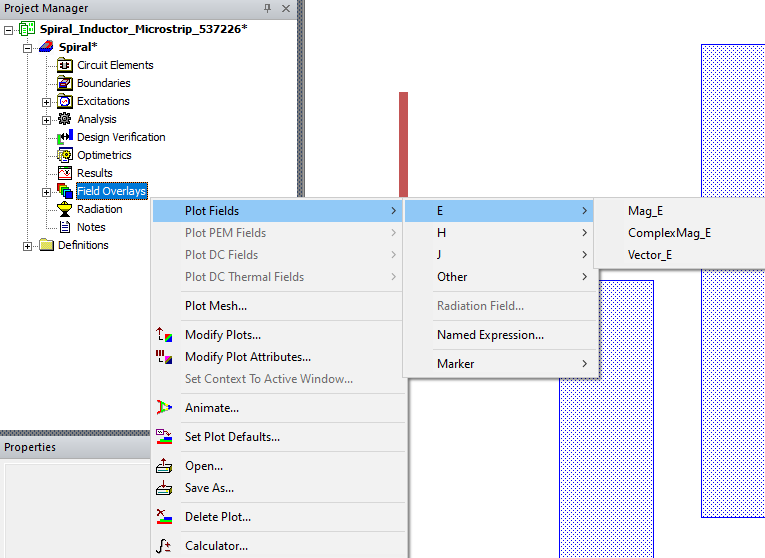
- From the Project Manager window, expand the Project Tree and [Active Design Folder]. Then right-click Field Overlays and select Plot Fields. Navigate to the chosen field overlay.Note:
The available overlay options vary, depending on the simulation. For a list of quantities, see: Field Quantities.
-
Once a field is selected, the Create Field Plot window opens.
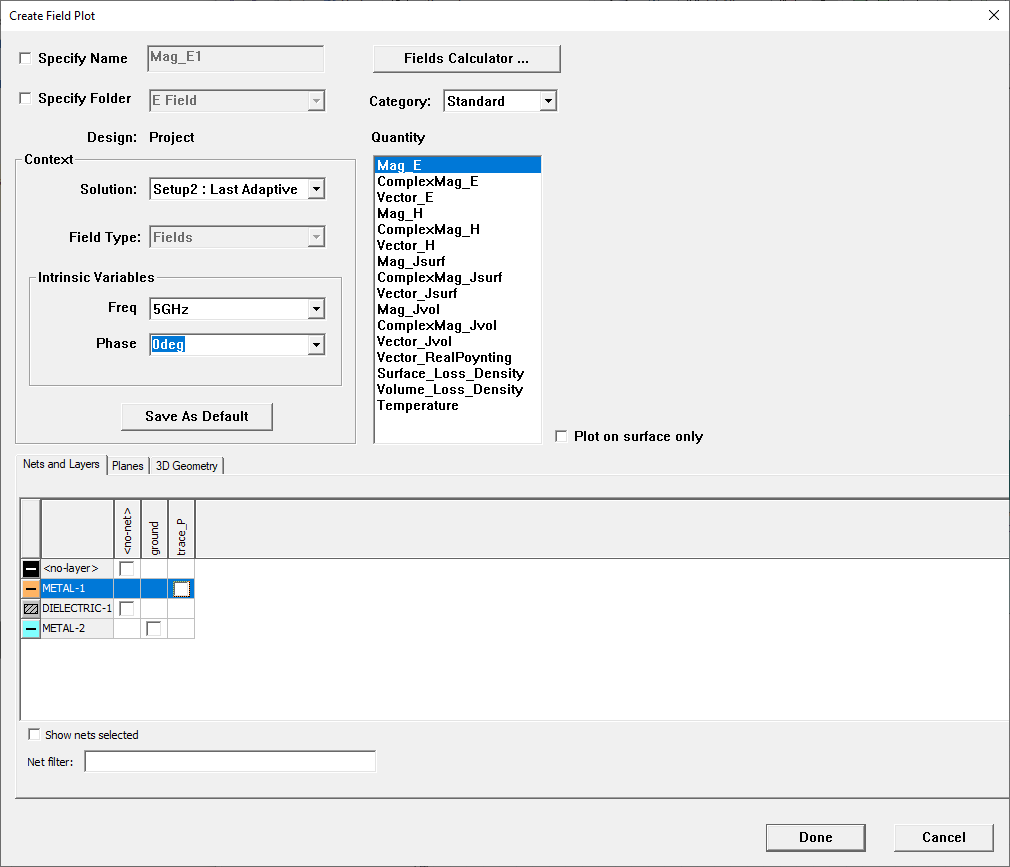
In this window:
- Specify Name – name the field overlay.
- Specify Folder – specify the subfolder in which the overlay is placed in the Project Manager window.
- Category – select Standard for default quantities, or Calculator to use the Fields Calculator.
- Context Area– choose which Solution, Field Type, and Intrinsic Variables to apply to the field overlay.
- Quantity – specifies the quantity being overlaid.
- Plot on surface only – select to plot on the surface only.
-
Select Geometry tabs – on the Nets and Layers tab, select nets/layers by checking the appropriate boxes. If the design contains clip planes, an additional Planes tab is available, listing the clip planes for the selection. If the design contains 3D geometry, there will also be a 3D Geometry tab. Use the check boxes to select the nets, layers, clipping planes, and/or 3D geometry on which to apply the overlay.
-
Choose the chosen configuration and click Done. The field overlay appears in the Layout Editor, and is listed in the Project Manager window, under Field Overlays.
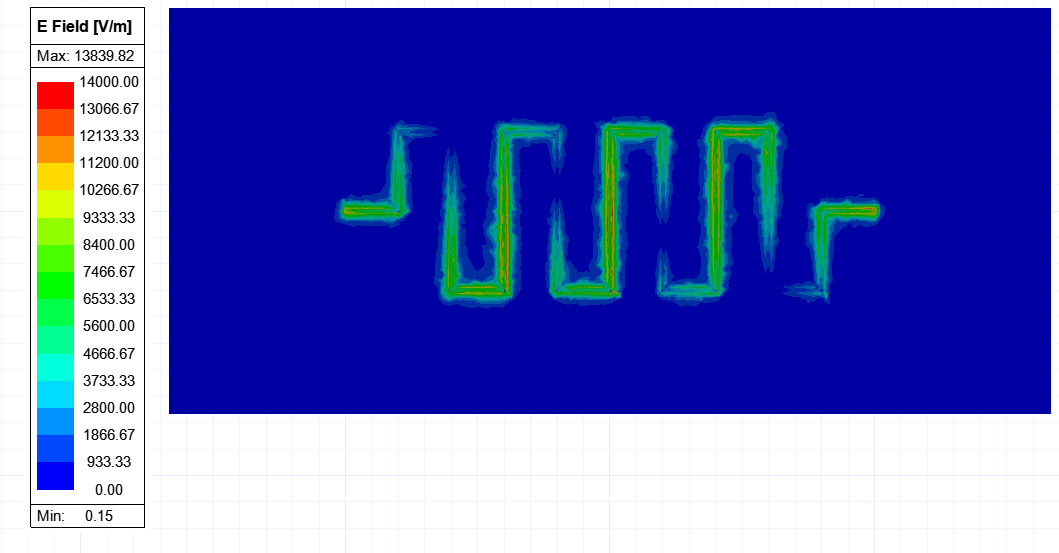
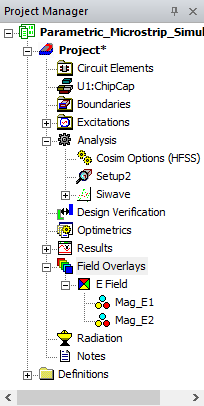
If a field plot is created on a simulation in progress, the field plot is updated after the last adaptive solution. To update the field overlay before the last adaptive solution, select the Field Overlays subfolder that contains the field plot of interest, right-click to display the shortcut menu, and select Update Plots (e.g., right-click E Field to update any E Field overlays (ComplexMag_E, Mag_E, and Vector_E)).