
PinToPin Window Utility
The PinToPin utility contains up to five tabs. Click a tab's name to learn more:
Nets Tab
The Nets tab allows you to select nets for import, and quickly denote ports, power/ground nets, and floating nets. Also filter the nets using regular expressions.
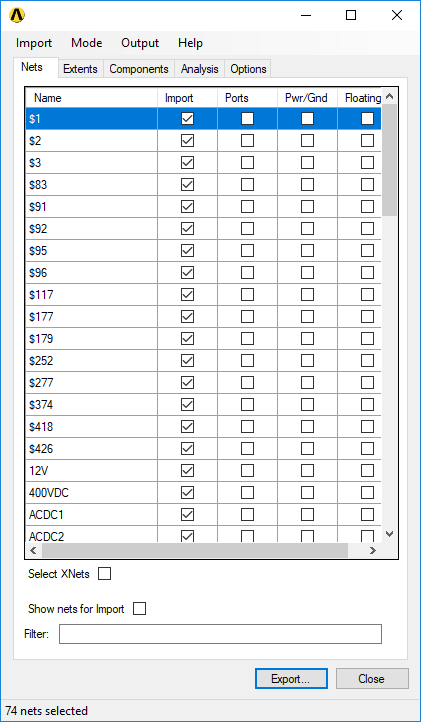
The bottom of this tab shows the number of nets currently selected.
Options include:
- Import – use the check boxes to select nets for import.
- Ports – use the check boxes to identify nets for which ports are created at component pins of class IO, IC, or Other.
- Pwr/Gnd – use the check boxes to identify power or ground nets. When clipping the model region, nets in this class are not used to calculate the boundary. Nets included but not assigned Pwr/Gnd are preserved by the clipping operation.
- Floating – use the check boxes to identify floating power or ground nets. Nets assigned as floating are not tied into reference planes at component interfaces.
- Select XNets – when this option is enabled, selecting a net also includes any extended nets. Nets are in the same extended net if they have a serial connection through an R, L, or C component.
- Show nets for Import – when this option is enabled, the net list displays only nets selected for inclusion.
- Filter – enter regular expressions in this field to search for nets. Only those that satisfy the regular expression are shown.
Extents Tab
The Extents tab allows you to specify cutout, airbox, and dielectrics settings. It appears only in HFSS mode.
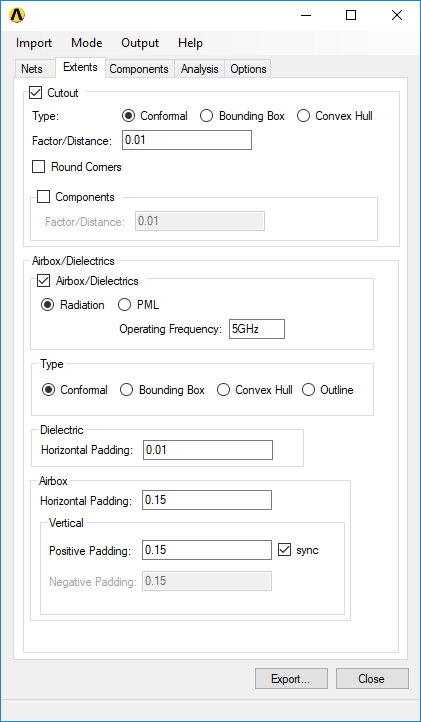
For more information about extent settings, see: HFSS 3D Model Extents.
Components Tab
The Components tab allows you to change component part types, and set model, solderball, die, and port properties.
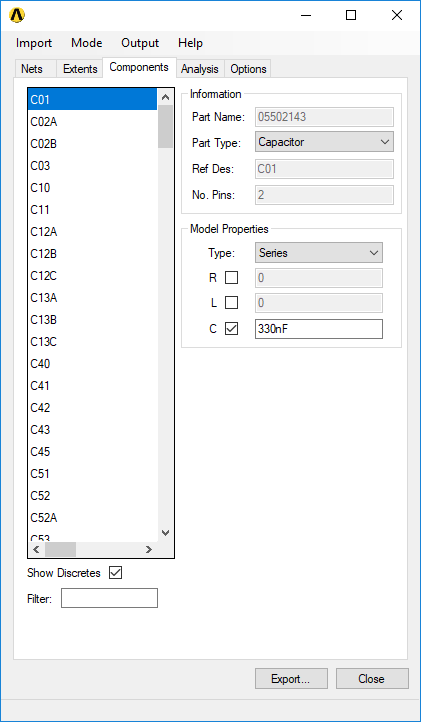
Options include:
- Show Discretes – enable to display resistor, capacitor, and inductor component types.
- Filter – enter regular expressions in this field to search for components. Only those that satisfy the regular expression are shown.
Select a component on the list at the left to view its Information and Properties. Options vary based on the Part Type, which change. Generally, you can alter model properties, die properties, solderball properties, and port properties.
Analysis Tab
The Analysis tab allows you to set simulation and frequency sweep options. Options vary based on whether you are in HFSS or SIwave mode.
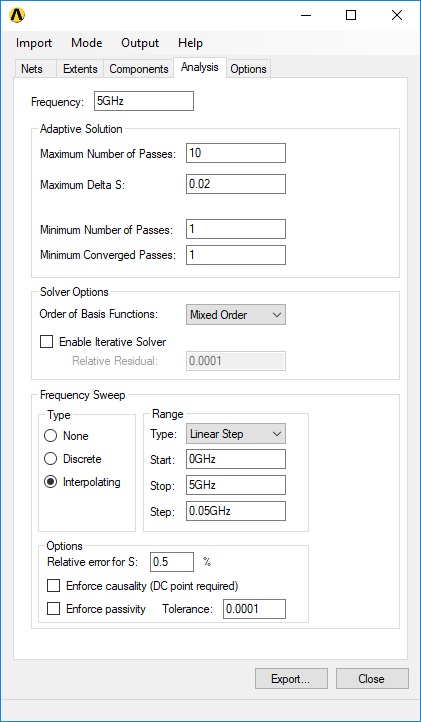
For information about setting up an SIwave simulation, consult the SIwave online help.
For information about setting up an HFSS simulation, see: Adding a Solution Setup.
Options Tab
The Options tab allows you to alter the port naming convention or bondwire definitions.
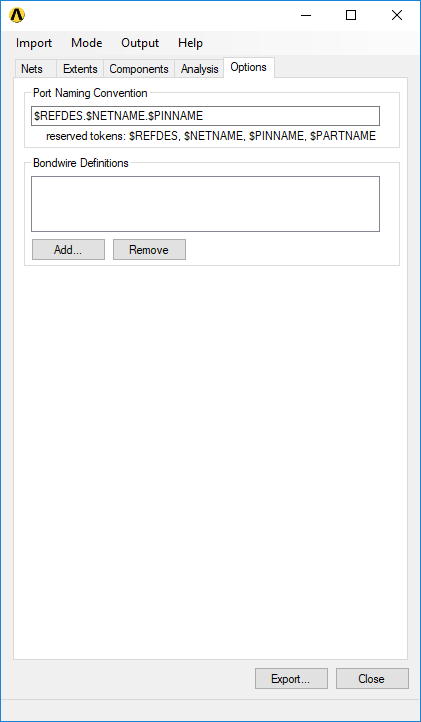
From the Port Naming Convention field, use the reserved tokens to designate a port naming convention. For example, entering $REFDES_$PINNAME_$NETNAME results in ports such as U37_A10_DQ7.
From the Bondwire Definitions area, click Add to upload an XML bondwire definition file.