
PinToPin Utility
The PinToPin automation module can be used to quickly extract HFSS or SIwave models for specified nets of package and PCB geometries. It is intended to establish a repeatable process for robust geometry extraction, port configuration, and passive model assignment. Process execution can be driven using a minimal GUI interface, or non-graphically from an XML template. The data flow is modular, created using the Ansys Electronics Database (EDB) .Net API and can be customized or extended to satisfy specific and unique modeling requirements.
The PinToPin Utility contains the following:
Launching PinToPin Utility
To launch the PinToPin utility in non-graphical mode, type:
- PinToPinSetup <workingDir> <path to XML control file> <path to chosen EDB or XML output>
To launch the PinToPin utility from within Electronics Desktop:
- From the Automation tab on the ribbon, click PinToPin Setup
The PinToPin utility launches in a window labeled HFSS Setup.
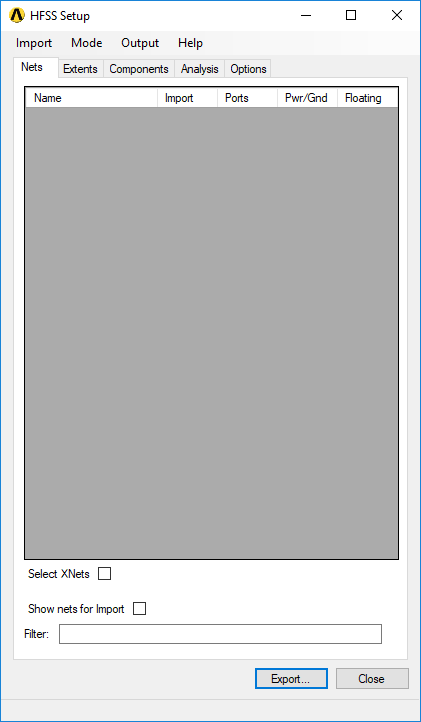
Importing a File
To import a file into PinToPin utility, click Import and select a file type.
Supported file types are:
- Cadence Allegro/APD/SIP (*.brd, *.mcm, *.sip)
- ODB++ (*.tgz)
- IPC2581 (*.xml, *.cvg)
- Ansys EDB (*.def)
- XML configuration file (*.xml)
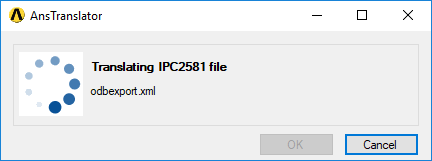
For Cadence, ODB++, and IPC2581 files, the AnsTranslator window appears and alert you of translation progress:
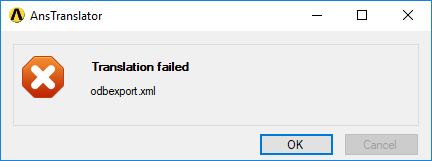
It then lets you know whether translation has succeeded or failed.
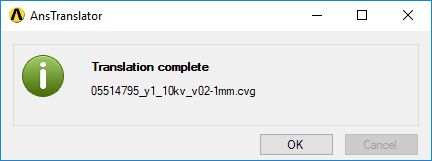
Once the file has been loaded, the window name changes to the file name.
Selecting a Simulation Mode
Click Mode and select HFSS or SIwave.
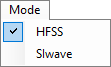
The contents of the Analysis tab change based on this selection, and the Extents tab appears only for HFSS mode.
Exporting a File
Click Output and select one of the following:
- HFSS 3D Layout – *.aedb folder that can be imported into either Electronics Desktop or SIwave.
- XML – *.xml file that can be used in subsequent calls to PinToPin. This is a good way to save a configuration or create a template that can be called repeatedly to create multiple models on the same file.
Click Export to generate the selected file type.
Troubleshooting PinToPin Utility
PinToPinSetup writes log files to the working directory. These log files may provide useful information about warnings or errors encountered during model generation.