
Follow the steps in these sections to export and import a design element with a rigid-flex bend as a component.
Components with defined rigid-flex bends can be imported into a project as long the project does not already contain rigid-flex data.
Exporting a Flexed Design Component
Select the design element(s) to export.

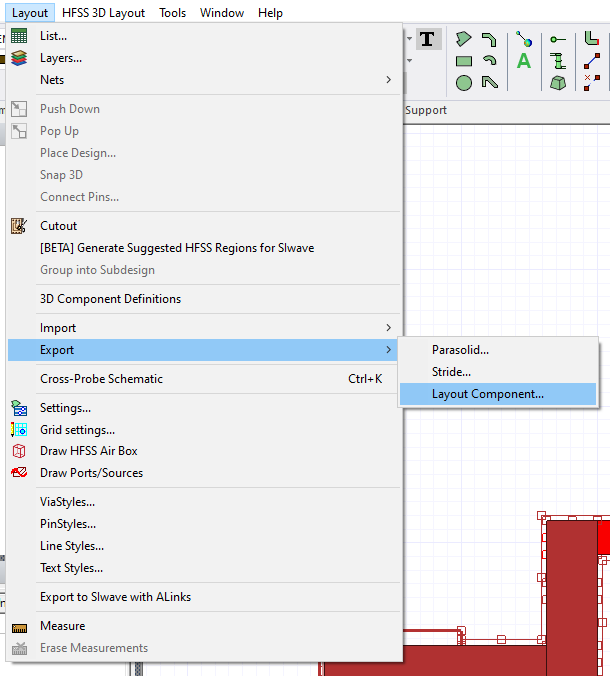
Navigate to Layout and select Export > Layout Component to open an explorer window.
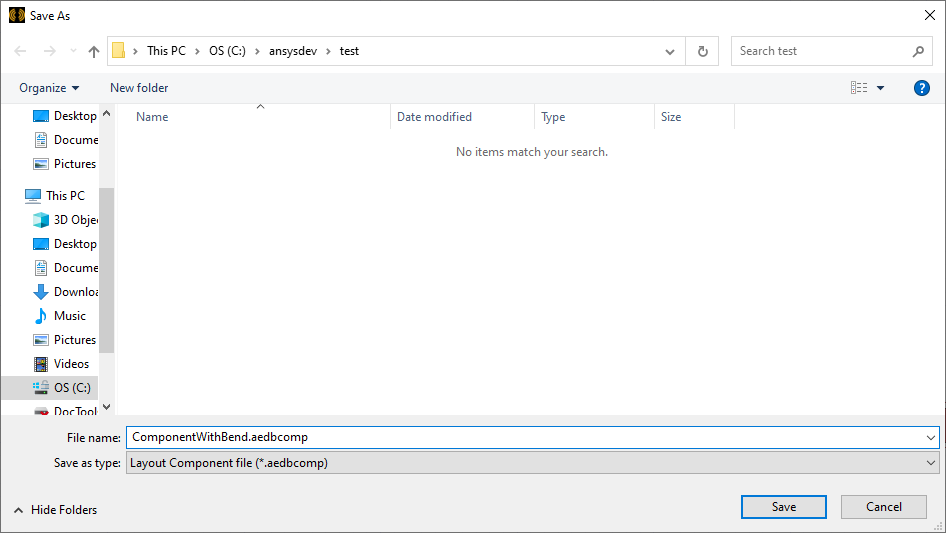
From the explorer window, enter a File name for the component (e.g., ComponentWithBend.aedbcomp). Then click Save to open the Create Layout Component window.
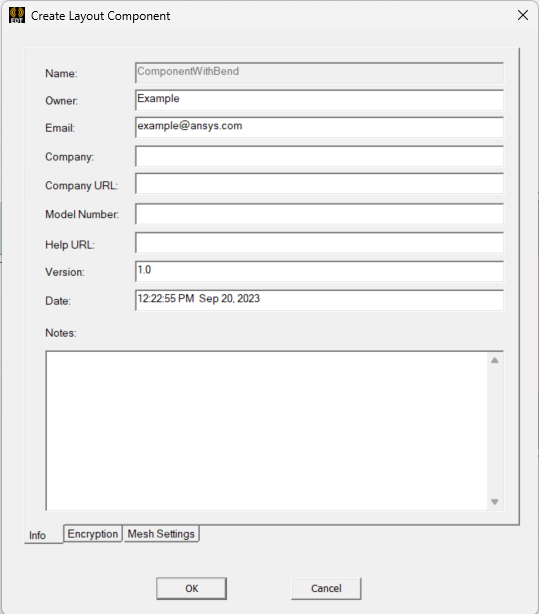
The Create Layout Component window allows users to add meta data, encryption, and mesh settings to an HFSS 3D Layout design component before exporting it. From the Info tab, enter any metadata into the Owner, Email, Company, Company URL, Model Number, Help URL, Version, Date, and Notes fields. The Name field automatically populates with the component's file name.
 Note:
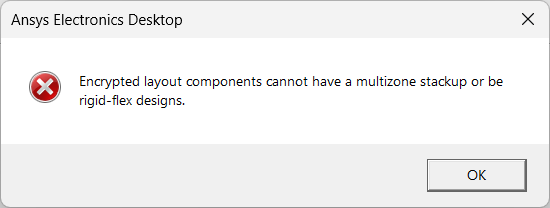
Note:The Encryption tab is accessible but does not function if the design contains a rigid-flex bend. Attempting to set up encryption results in the following error message.
Refer to the Create Layout Component Window page for more information about the Encryption tab.
Navigate to the Mesh Settings tab. From the Mesh Settings tab to export solve settings on the original component. To do so, check the Select mesh settings from box and make a selection on the drop-down menu.
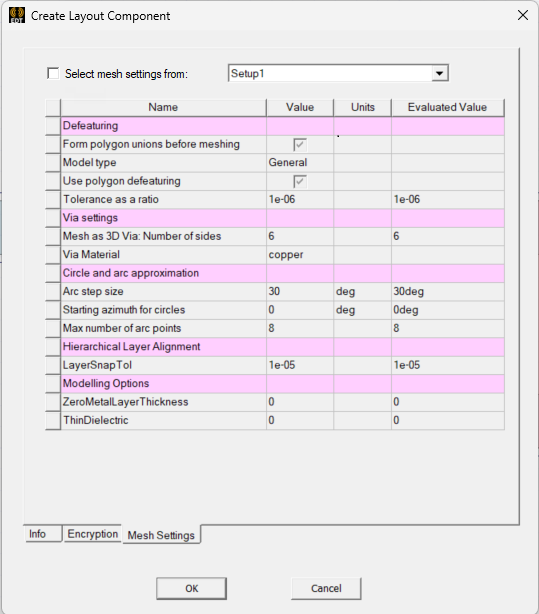
Click OK to export the component.
The procedure is complete.
Importing a Flexed Design Component
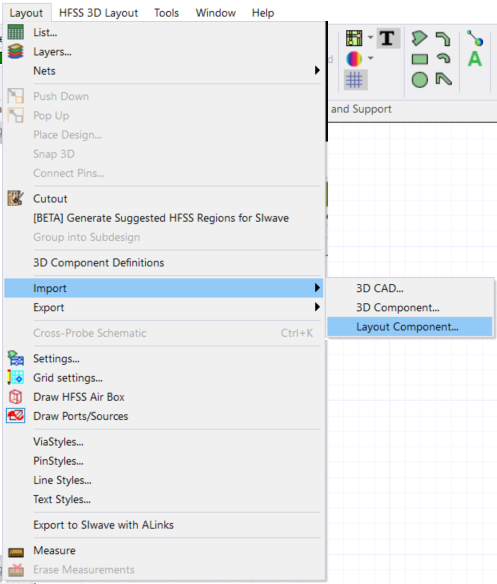
Navigate to Layout and select Import > Layout Component to open an explorer window.
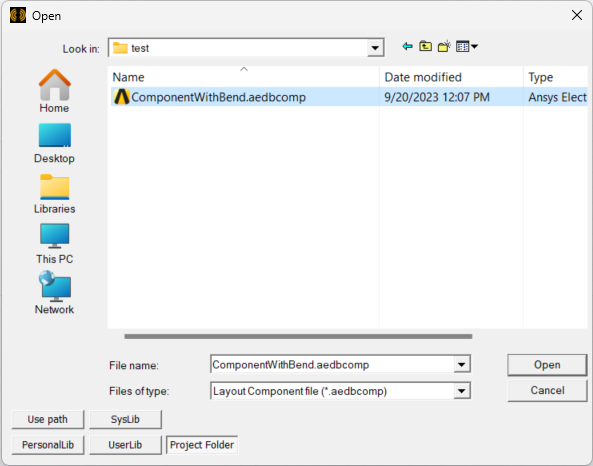
From the explorer window, navigate to an appropriate file (e.g., ComponentWithBend.aedbcomp). Select it, then click Open to import the component.
The new component appears in the Layout Editor attached to the cursor.
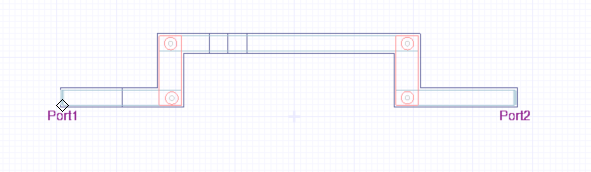
Navigate to an appropriate location to place the component, then click to set it.
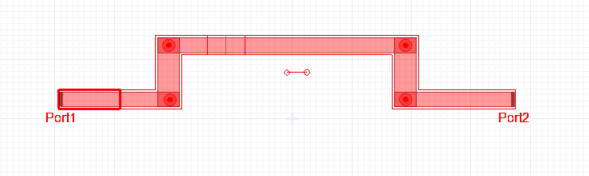
While the component is selected, navigate to the Properties window.
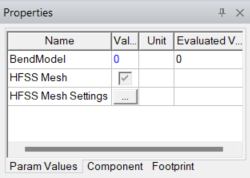
Enter 1 in the BendModel field.
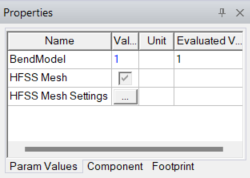
Press Enter to apply the rigid-flex bend to the design.
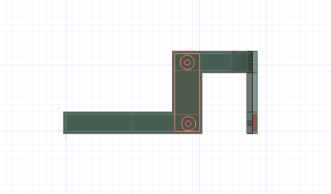
Enter 0 in the BendModel field and press Enter to revert the component to its unbent state.
If appropriate, make changes to the component. Refer to Editing a Component Definition.
The procedure is complete.