
Creating a Circuit Element
Complete these steps to add an RLC circuit element to a design.
-
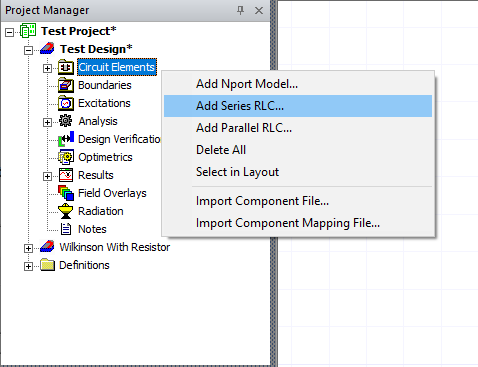
From the Project Manager window, expand the Project Tree > [Active Design Folder]. Then right-click Circuit Elements and select Add Series RLC or Add Parallel RLC.
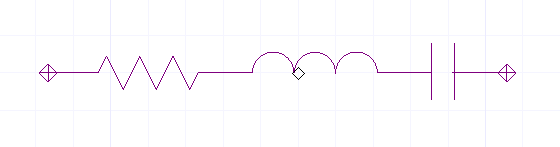
The selected element appears in the Layout Editor fixed to the cursor.
-
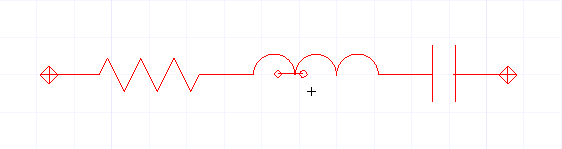
Click in a chosen place in the design to place the element.
Modifying a Circuit Element's Properties
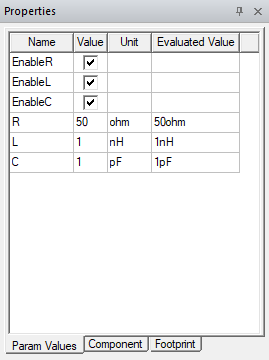
Modify a circuit element's properties by doing either of the following from the Layout Editor:
-
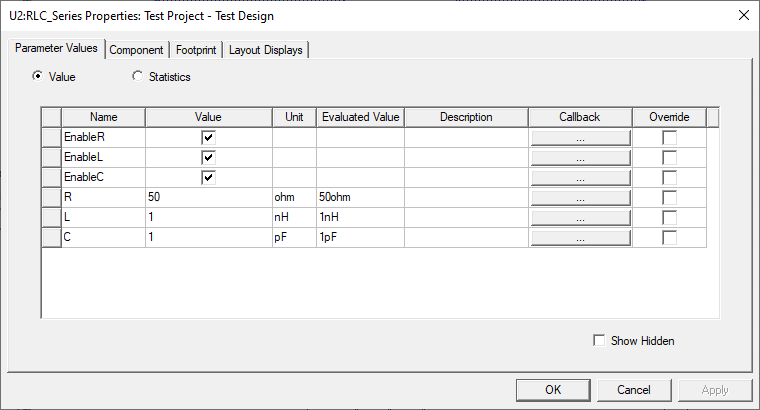
Select the circuit element and change the chosen values in the Properties window.
-
Double-click the element to open the Properties window.
Connecting a Circuit Element
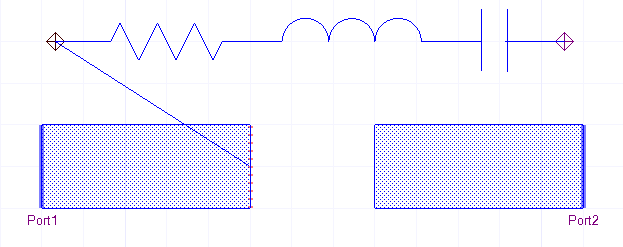
Complete these steps to connect a circuit element to an existing design element.
-
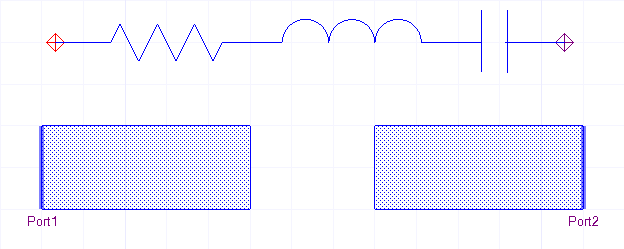
Select the outside edge of one of the circuit element's terminal ports. If the entire circuit element is selected, press B to switch between the selectable regions of the circuit element (i.e., the entire circuit element or only the terminal port).
-
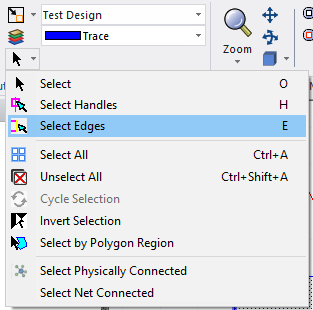
To enter Select Edges mode, either type E or navigate to the Select elements drop-down menu and click Select Edges.
-
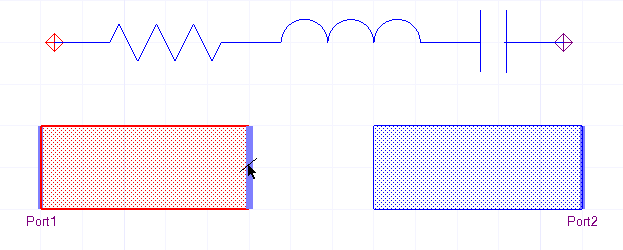
Click an unused edge of the design to ready it for port entry.
-
From the Layout ribbon, select Connection.

The circuit element is immediately connected to the existing design element.
 Note:
Note:If the connection is not visible, ensure visibility is selected for Rats in the Layout Editor. Repeat the same procedure to define a connection for the second terminal.
-
Repeat steps 1-4 to connect the circuit element's second terminal port to the existing design element.