
Auto Scale of Circuit Elements
When Auto Scale is enabled for a circuit element and two or more of the circuit element's pins are connected, the circuit element is automatically scaled to fit the smaller of the dimensions of the bounding box of the connections.
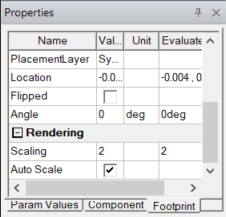
The following figure is a circuit element with one connection.
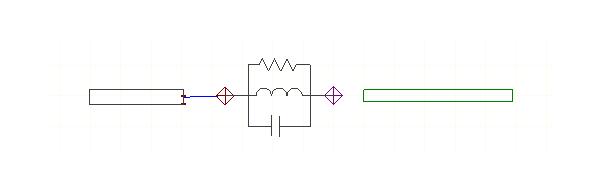
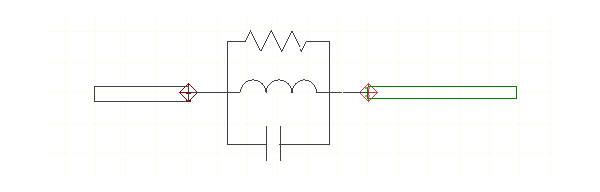
Auto Scale is enabled (checked), so when the second connection is made, the circuit element is scales to fit, as shown in the following figure.
Turn Off Auto Scale
The circuit element does not move, so manually adjust the components as appropriate to match the pins to the connected location.
Auto scale is enabled by default. Complete these steps to deactivate Auto scale or adjust the scale factor (Scale factor is 0.1 by default).
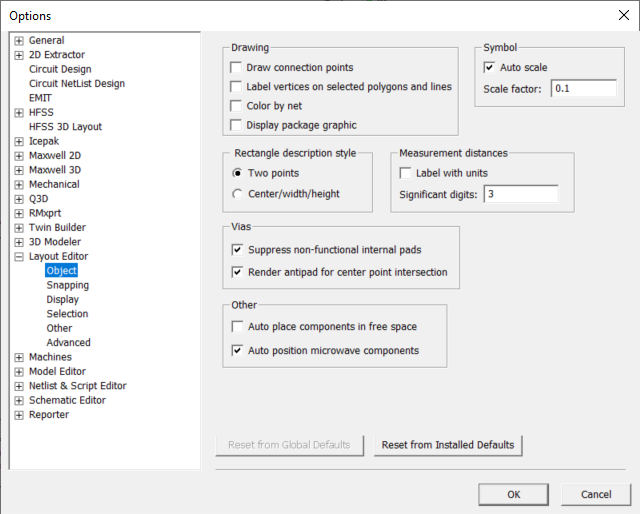
Navigate to Tools > Options and select General Options... to open the Options window.
Expand Layout Editor and select Object to see the associated options in the Symbol area.
Click the Auto scale check box to remove the check mark and deactivate Auto scale. If appropriate, type a new number in the Scale factor field to change the scale factor.
The process is complete.