Creating Geometry Animations
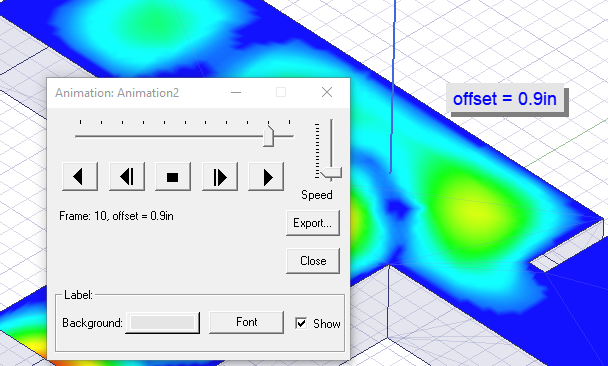
You can create geometry animations to evaluate the effect of varying geometry variables on the model. You can also create more complex animations by creating time variables associated with object locations. This section describes the general procedure for geometry animation, and shows a geometry animation with a field overlay, and a second animation for an HFSS Antenna Example project that includes multiple objects moving with respect to a time variable.
Prerequisites
You must define at least one variable associated with the geometry before you create a geometry animation.
If you want to overlay a Field Solution on a geometry animation you must have solved fields for an Optimetrics setup using the same variable.
Procedure:
Following is the general procedure for creating an animation that varies a part of the model geometry.
- Right-click in the Modeler window, and click to View> Animate... or
Select the View tab of the ribbon, and click the Animate icon.

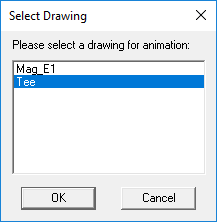
If multiple geometries can be varied in the design, the Select Drawing dialog box appears; proceed to step 2. If only one geometry is variable, proceed to step 3.
- In the Select Drawing dialog box, select the object that you want to animate.
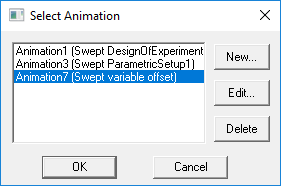
If previous animations have been created for this project, the Select Animation dialog box will appear. Selecting an existing animation from that list starts it when you click OK. Click Edit... to open the Modify Animation Setup dialog box. You may choose an animation setup from the list if one is associated with the geometry variable of interest, and the animation will start. If no existing animation setup is acceptable, select New and continue at Step 3 below.
The Create Animation Setup dialog box appears:
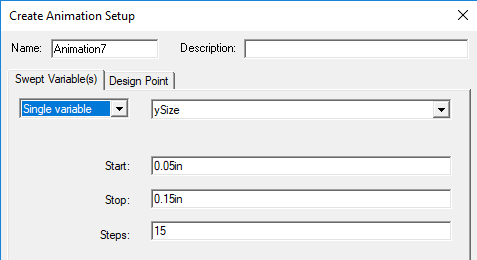
- For single variable:
- Select the geometry variable that you want to animate from the Swept Variable list.
- Specify the Start, Stop, and Steps values to include in the animation.
- If your have created one or more Parametric Sweeps for
one or more geometric variable, you can select, Parametric setup, the setup to use, and the variable values to animate.
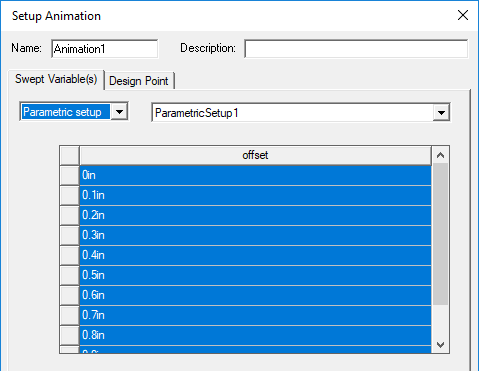
- If you have created a Design of Experiments setup, you can select to define an animation based on that setup and values.
- If the design has multiple project or intrinsic variables, you use the Design Point tab to set the values of the non-animated variables.
- Click OK.
The animation begins in the view window. It will display one frame for each variable value.
The Animation control panel lets you stop, restart, and control the speed and sequence of the frames.
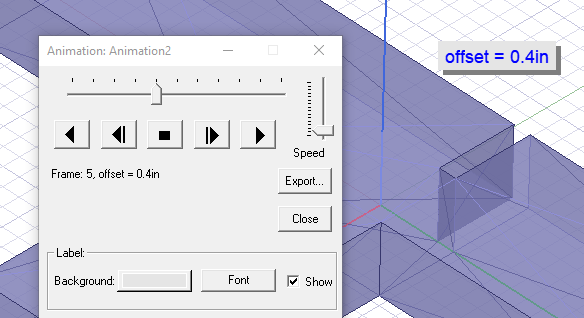
If the geometry animation is based on a single value or parametric sweep, you can also turn on other field plots.