
Creating Design of Experiments Animations
Animations can be based on Design of Experiments setups. Following is the general procedure for creating an animation of a geometry model using a Design of Experiments setup.
Prerequisites
- For animation of geometry solving Design of Experiments setup is not required.
Procedure:
- Right-click in the Modeler window, and click View> Animate..., right click on the Design of Experiments setup in the Project tree and click Animate... in the short-cut menu, or select the View tab of the ribbon, and click the Animate icon.

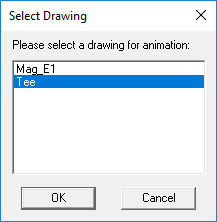
If multiple geometries can be varied in the design, the Select Drawing dialog box appears, proceed to step 2. If only one geometry is assigned variable(s), proceed to step 3.
- In the Select Drawing dialog box select the drawing for animation. The drawing should be appropriate for geometry animation:
 Note:
Note:If previous animations have been created for this project, the Select Animation dialog will appear. You may choose an animation setup from the list if one is associated with the geometry variable of interest and the animation will start.

If no existing animation setup is acceptable, select New and continue at Step 3 below.
The Create Animation Setup dialog box appears.

- If your have created one or more Design of Experiments setups for one or more geometric variables, you can select, DOE setup to filter existing DesignOfExperimentsSetups, and the setup to use, and the variable values to animate. With All variations checked, the variable table is not selectable. If you uncheck All variations, you can use select from the available setup values. All variations are selected [highlighted] when you uncheck All variations.

If you check Sort variations, the values are sorted. You can click to select the variations you want.
- Click OK.
The animation begins in the view window. It will display one frame for each variable value.
The Animation control panel lets you to stop, restart, and control the speed and sequence of the frames.
