
Using the Component Libraries Window
Select the Symbols Tab of the Component Libraries Window to place components in the Schematic Editor. Components can be placed by selecting a component symbol , then clicking in the Schematic Editor. The Component Window can also be used to filter the components to be placed.
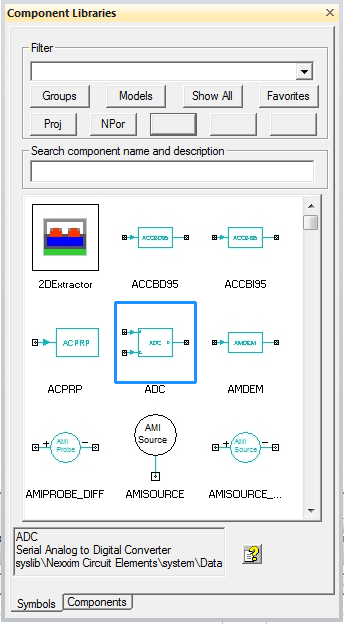
Filter Pane
The Filter pane consists of two elements: a Filter Combo Box that contains a drop-down arrow, and the Filter Preset buttons beneath. Clicking the drop-down arrow of the Combo Box shows available filter choices.
The Filter pane allows you to filter and choose from components to be placed, either by using filters listed in the drop-down menu presets, or by typing text into the edit area of the Combo Box. These filtering tools then show the names of components that match. For example, typing "Mi" into the edit area shows the following:
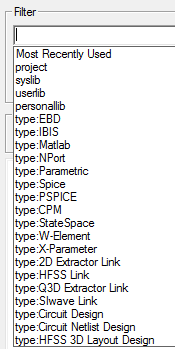
You can also click the drop-down selection list in the Filter pane and select one of the filter choices that are available:
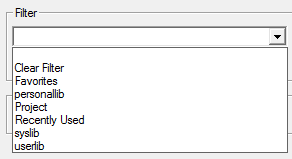
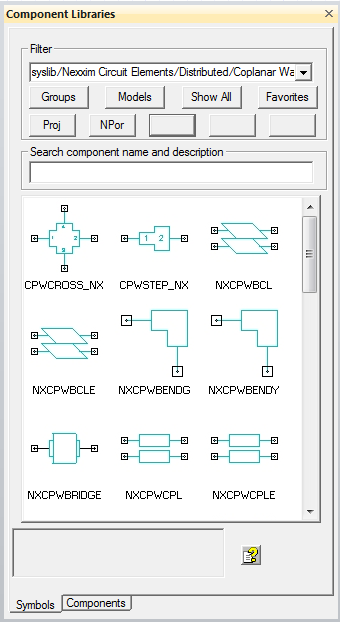
- Choosing a filter on the list applies it to the symbols shown in the Listbox, and only components that satisfy the filter is shown. For example, choosing "Favorites" shows only the components that you explicitly marked as Favorite, and choosing "userlib" shows only those components that are in the userlib location on disk. For example, here is the Symbols tab display when the "syslib/Nexxim Circuit Elements/Distributed/Coplanar Waveguide" filter is chosen:
Types of Filters
The following types of filters are available:
- A fully qualified library file name, e.g., syslib/Nexxim Circuit Elements/Distributed/Coplanar Waveguide/Transmission Lines. This shows only the components in that component library
- Any folder in a library (which in turn can contain other folders and component library files, e.g., syslib/Vendor Elements/vendors. This shows all components in all libraries in that folder.
- A component type. Supported types are:
— Spice
— IBIS
— EBD
— W-Element
— X-Parameter
— 2D Extractor Link
— HFSS Link
— Matlab
— NPort
— Parametric
— Q3D Extractor LInk
— SIwave Link
— StateSpace
— Circuit Design
— HFSS 3D Layout Design
— Circuit netlist Design
- A special category. Supported categories are:
— Project
— Favorites
— Recently Used
Filter Preset Buttons
The Filter Preset buttons are listed under the Combo Box:

The top row of preset buttons are not user-configurable. They allow quick access to important filters. The Models button is particularly useful (See Selecting a Model to Import). The Groups filter button is described in Using Component Groups.
- The second line of filters are user-configurable and show the first four letters of the filter string. You can see the entire filter string by hovering the mouse pointer over a button.
- To configure a button, choose a filter string so it shows in the Combo Box, then click and hold for three seconds on a Preset button. When the text on the button changes, release the mouse button and the Preset is programmed with the filter string.
- The first two buttons come pre-programmed to show the Project and NPort filters, but change them to whatever you want.
Search Pane
The Search box allows you to search for components within the filtered Components. Text entered into the search box matches component words in the component name or words in the component description. For example, filtering on "microstrip" and searching on "ms_b" shows the following:
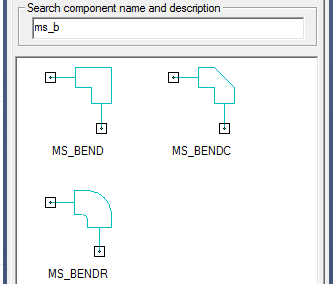
Listbox
The Listbox is located beneath the Search Pane and shows the symbols that correspond with each matching component, along with the component ID string. A blue selection-rectangle appears when you hover over a component in the Listbox. Clicking on a component in the listbox selects it and sets up for placing the component in the active editor (schematic or layout). Click to select a component, then click to place it in the active editor. The blue selection-rectangle disappears when the component placement is completed.
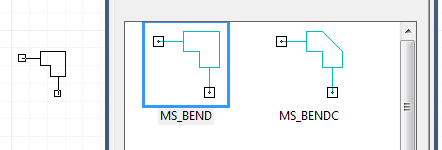
To add or remove a component on the Favorites list, right-click the component in the listbox.
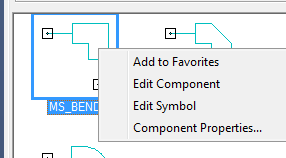
Right-click the component in the listbox to show its drop-down menu. These commands allow you to add (or remove) a component from Favorites, edit the component or its symbol, and quick access to the component's property window.
Information Area
Under the Listbox is the Information Area. Hovering over a component in the Listbox displays its information in this area.

The Information Area shows the ID name of the component, the path to its library, and any text that was entered into the Description field for the component — all searchable using the Search Box as described above. Clicking Info opens Electronics Desktop Help and show the information page for the selected component.
For more information, see Selecting a Model to Import.