
Using Component Groups
Click Groups in the Component Libraries window shows one component choice for each category of component (e.g., resistor, TRL, source).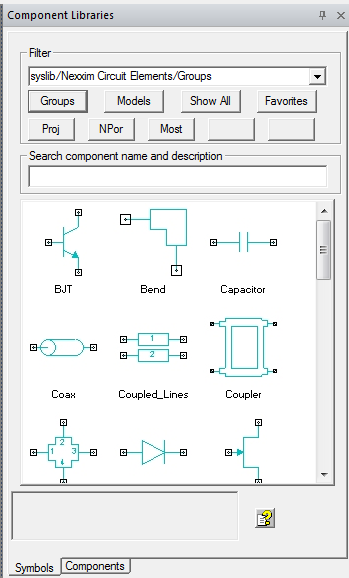
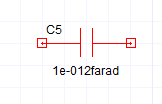
Choosing a group component and clicking in the schematic places the top choice in that group. For example, here is a capacitor placed in the schematic on the Groups filter.
Here is its Properties window showing the Param Values tab. Parameter values are netlisted and tell the solver what to do.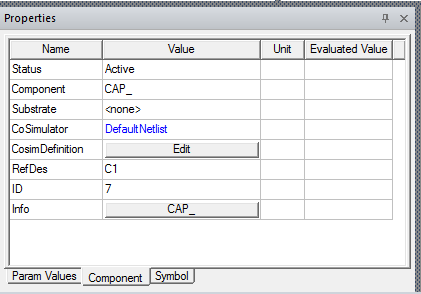
Component Tab
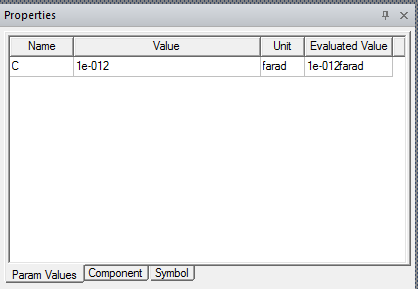
Switching to the Component tab, the following Properties that are not parameters appears. But the Properties control many features of this Component.
- InstanceName — The customizable identifier for this Component Instance; it must be unique in the Circuit Design.
- Status — A menu with three choices: Active, Inactive Open, and Inactive Short (See Editing Operations).
- Component — A menu that has other choices for the Capacitor Group and the <none> substrate; in this case it shows nine choices.
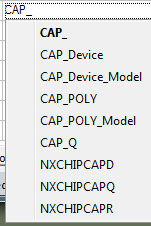
The choices shown in the Component drop-down menu are controlled by the Group (the Resistor, Substrate property, and an optional third property that depends on the Group). For example, here are the CompInstance tab properties for a Coupled Line.

The Component, MS_MCPL04, is for microstrip substrates only and also shows 4 coupled lines because of the setting of the Numlines property. Editing the Numlines property and entering “8” specifies 8 lines and therefore change the Component to MS_MCPL08. Other Component Groups, like FET and source have an additional property named “Type”. Here is the Type property choices for FET.
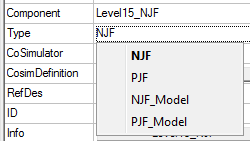
- The order of entries in the Component menu changes as you place more components of that type, such that the most-placed components are always shown at the top of the list.
- If there are too many Component choices to list, the last menu command is "more… ". Clicking "more… " opens a list box that shows all the choices. Clicking an entry in the listbox chooses that component.
- When switching between components, the Param Values tab can show different parameters for each Component. If you override a parameter and switch to another component, the override is applied to the new Component choice. Switching back to a previous Component, you finds that overrides have not changed.