
Generating a COM Analysis Report From the SPISim User Interface
Channel operating margin (COM) analysis generates a .csv report file and binary waveform plots from analyzed data in a streamlined format. Electronic Desktop 23.2 supports COM keywords up to V3.40 (with some experimental flags excluded, listed at the bottom of this page).
A COM analysis report can also be generated outside of the SPISim User Interface. Refer to Generating a COM Analysis Report Using a Non-GUI Batch Command Line and UDO/UDS-Based COM/ERL Calculations for HFSS-Based Solutions for details.
To begin the process of generating a COM analysis report via the SPISim User Interface, complete the following steps to open the Config. and generate COM report ... window. Alternatively, refer to the animated demonstration following these instructions.
From Electronics Desktop
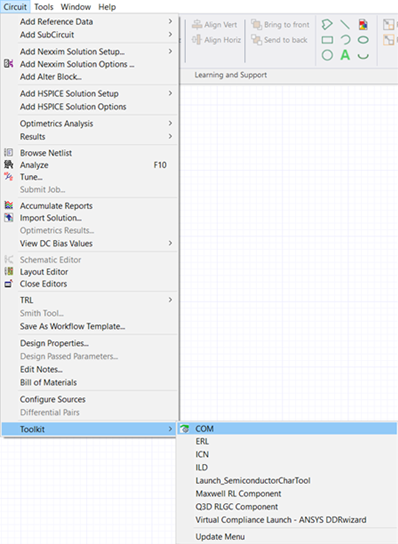
From the Circuit menu, select Toolkit > COM.
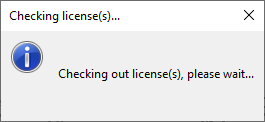
Before the Config. and generate COM report ... window opens, a Checking License(s) ... window opens.
From SPISim
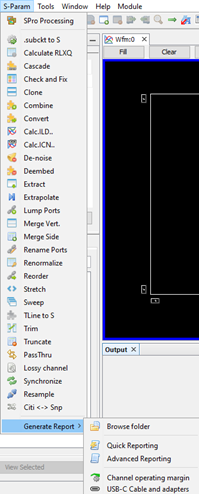
From the S-Param menu, select Generate Report > Channel operating margin to open the Config. and generate COM report ... window.
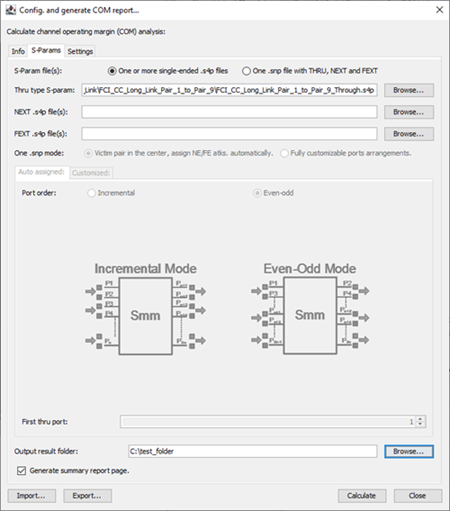
Follow the steps below to configure and then generate a COM analysis report.
-
Click the Browse ... button in line with the Thru type S-param field to open an explorer window.
-
Navigate to and choose an .sNp file to include it in the COM analysis report. Then click Open.
-
Click the Browse ... button in line with the Output result folder field to open an explorer window. Choose a location to save the COM analysis report output files, which includes .raw, .csv, and .png files that remain accessible to the user outside of the context of the COM analysis report.
-
Click Open.
-
Before continuing, ensure that the Generate summary report page. check box, beneath the Output result folder field, is checked (checked by default).

-
Click the Settings tab to view the current configuration of the analyzed data.
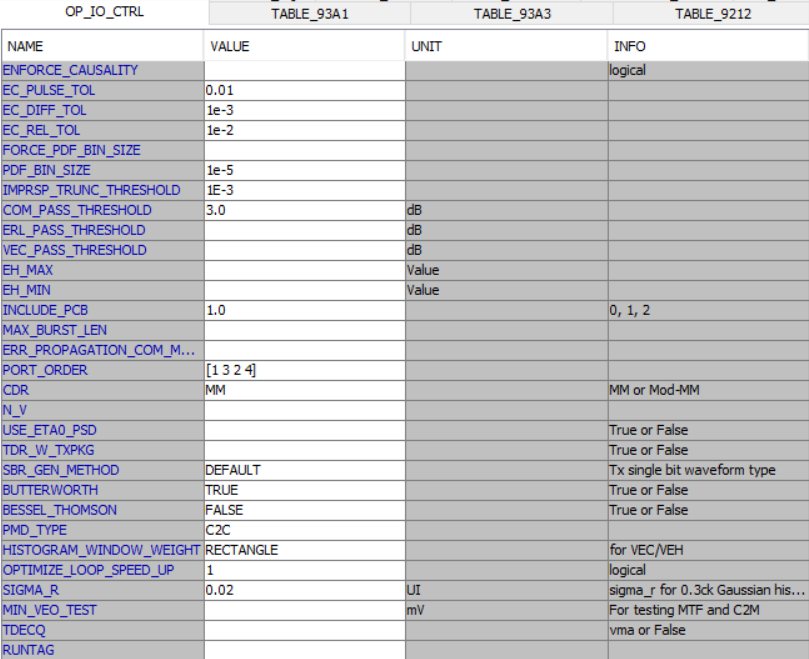
If necessary, choose another baseline configuration on the Spec drop-down menu, or select Customized to make individual changes to each field.
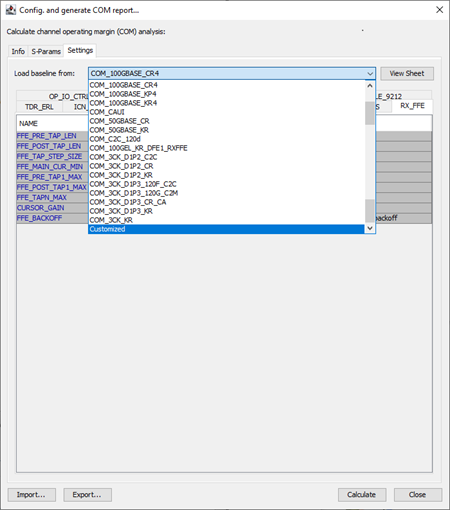
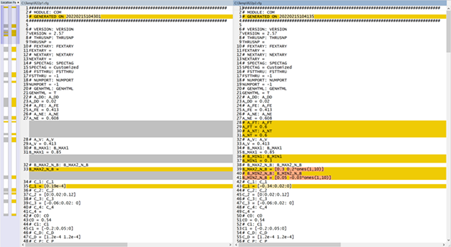
For more information, refer to the IEEE 802 LAN/MAN Standards Committee website and the IEEE P802.3ck 100 Gb/s, 200 Gb/s, and 400 Gb/s Electrical Interfaces Task Force Home Page.
-
Click Calculate and the output folder selected in Step 3 populates with .raw (i.e., Berkley spice), .csv, and .png files.
-
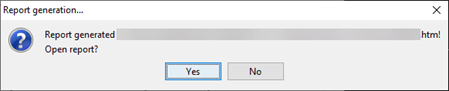
When the report is ready, a Report generation ... window appears. Click Yes to open the COM analysis report in the system's default browser.
Continue to COM Analysis Report Summary
Animated Demonstration