Generating a COM Analysis Report Using IBIS-Based Transition Data
Channel operating margin (COM) analysis generates a .csv report file and binary waveform plots from analyzed data in a streamlined format. While AMI configuration data (e.g., Tx and Rx package data) can be entered manually, follow the steps in this section to generate a COM analysis report using data parsed from an IBIS file and then easily selected from drop-down menus.
Complete the following steps to open the Config. and generate COM report ... window.
From Electronics Desktop
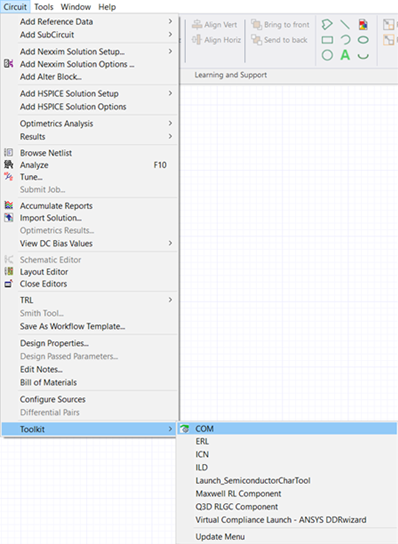
From the Circuit menu, select Toolkit > COM.
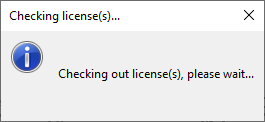
Before the Config. and generate COM report ... window opens, a Checking License(s) ... window opens.
From SPISim
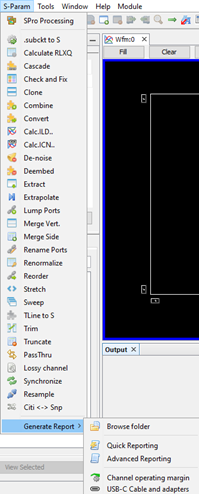
From the S-Param menu, select Generate Report > Channel operating margin to open the Config. and generate COM report ... window.
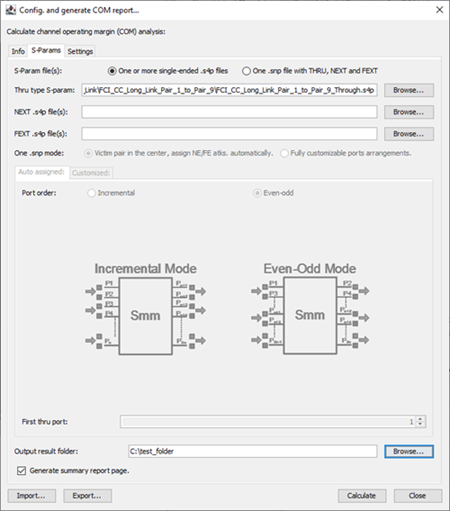
Follow the steps below to configure and then generate a COM analysis report.
-
Click the Browse ... button in line with the Thru type S-param field to open an explorer window.
-
Navigate to and choose an .sNp file to include it in the COM analysis report. Then click Open.
-
Click the Browse ... button in line with the Output result folder field to open an explorer window. Choose a location to save the COM analysis report output files, which includes .raw, .csv, and .png files that remain accessible to the user outside of the context of the COM analysis report.
-
Click Open.
-
Before continuing, ensure that the Generate summary report page. check box, beneath the Output result folder field, is checked (checked by default).
-
Click the Settings tab to view the analyzed data's current configuration.
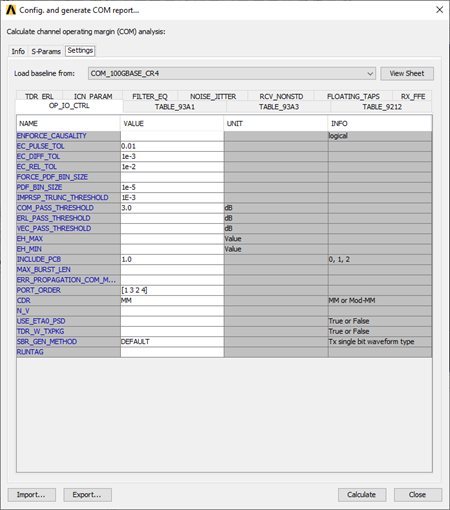
The settings are divided in eleven subtabs (i.e., TDR_ERL, ICN_PARAM, FILTER_EQ, NOISE_JITTER, RCV_NONSTD, FLOATING_TAPS, RX_FFE, OP_IO_CTRL, TABLE_93A1, TABLE_93A3, and TABLE_9212). Beside each parameter NAME is a configurable field, UNIT field (if applicable) and useful INFO field.
Note: For more information, refer to the IEEE 802 LAN/MAN Standards Committee COM 2.51 with rxFFE Updates presentation files. -
If necessary, choose another baseline configuration on the Spec drop-down menu, or select Customized to make individual changes to each field.
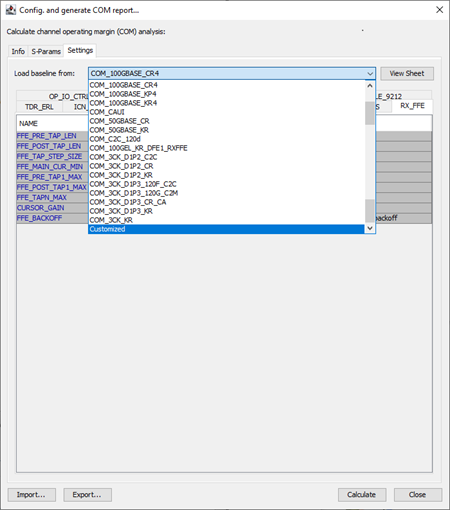
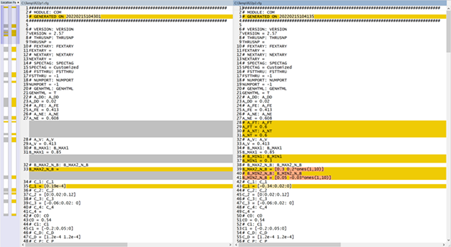
For more information, refer to the IEEE 802 LAN/MAN Standards Committee website and the IEEE P802.3ck 100 Gb/s, 200 Gb/s, and 400 Gb/s Electrical Interfaces Task Force Home Page.
-
Navigate to the OP_IO_CTRL subtab. Then click the field adjacent to SBR_GEN_METHOD to reveal the ... button.

-
Click the ... button to open the TX single bit response... window.
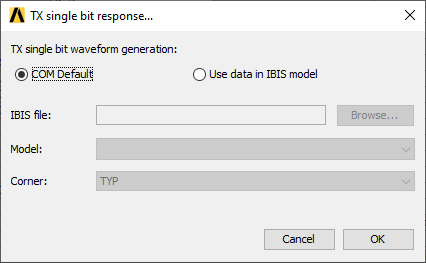 Note: If COM Default is selected, the user must enter Tx/Rx IBIS data (e.g., Tx and Rx package data, and amplitude) manually.
First, navigate to the RCV_NONSTD subtab to enter Tx/Rx values in the T_R field.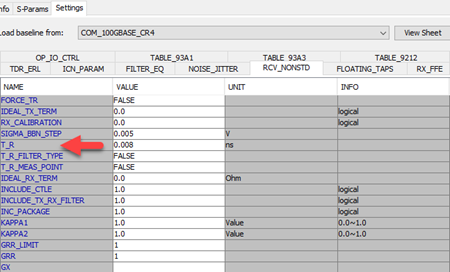
Then navigate to the TABLE_93A1 subtab to enter amplitude values in the A_V field.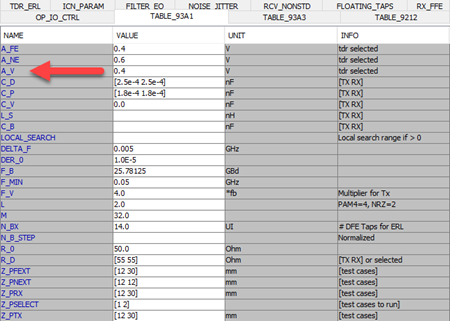
-
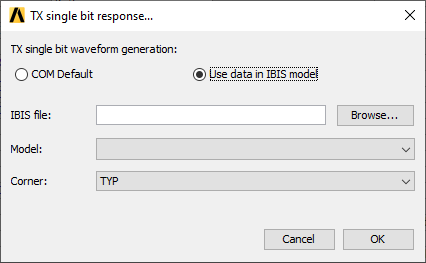
To use an IBIS file (i.e., *.ibs file) to create a COM analysis report, select the appropriate TX single bit waveform generation option (i.e., Use data in IBIS model).
-
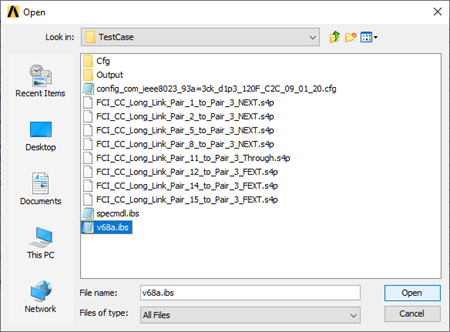
Click Browse... to open an explorer window. Then navigate to and select the appropriate IBIS file (e.g., v68a.ibs).
-
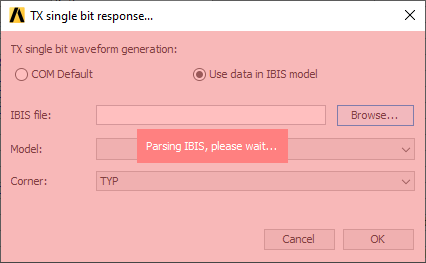
Click Open to close the explorer window and return to the TX single bit waveform generation window. SPISim immediately parses the selected IBIS file, scales based on the IBIS model's voltage range and the amplitude specified in the A_V field. The updated value is used in the final report calculation and present in the Output window as IBIS Tr Time. Depending on the size of the IBIS file, the TX single bit waveform generation window may be momentarily inaccessible. In that case, the following message may appear.
-
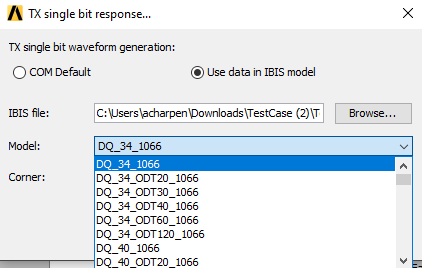
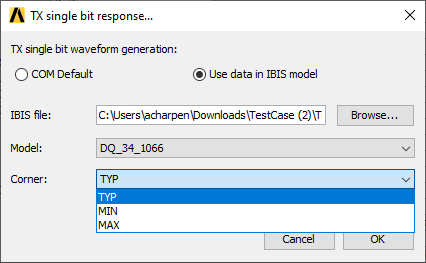
Once the IBIS file is parsed, select the appropriate Model and Corner from the adjacent drop-down menus.
-
Click OK to return to the Config. and generate COM report ... window.
-
Click Calculate and the output folder selected in Step 3 populates with .raw (i.e., Berkley spice), .csv, and .png files. The Output - SPIPro window will display relevant data, including the IBIS Tr Time (e.g., 0.316393 ns).
 Note: To test the data reported in the method described in this section, enter the IBIS Tr Time value in the Config. and generate COM report ... > Settings tab > RCV_NONSTD subtab > T_R field.
Then set the OP_IO_CTRL > SBR_GEN_METHOD > TX single bit response... window > TX single bit waveform generation option to Default.
Click OK to close the TX single bit response... window, and then click Calculate. The resulting data should match. -
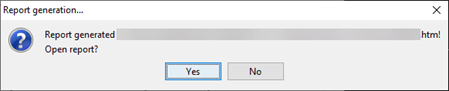
When the report is ready, a Report generation ... window appears. Click Yes to open the COM analysis report in the system's default browser.