
Spectra Configuration
To configure the Spectra library:
- Run an EMI scan.
- Click Results.
- Use the EMI Scan drop-down menu to select [Simulation Name] > Analyze with iQ-Harmony to open the Violation View Limiter window.
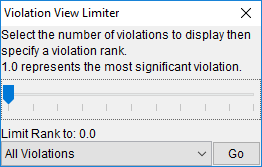
- Use the drop-down menu to select the number of violations to display. The default is All Violations.
- Use the slider to select a minimum violation rank to display. 0.0 is the least severe and 1.0 is the most severe.
- Click Go to open the EMI Scanner window.
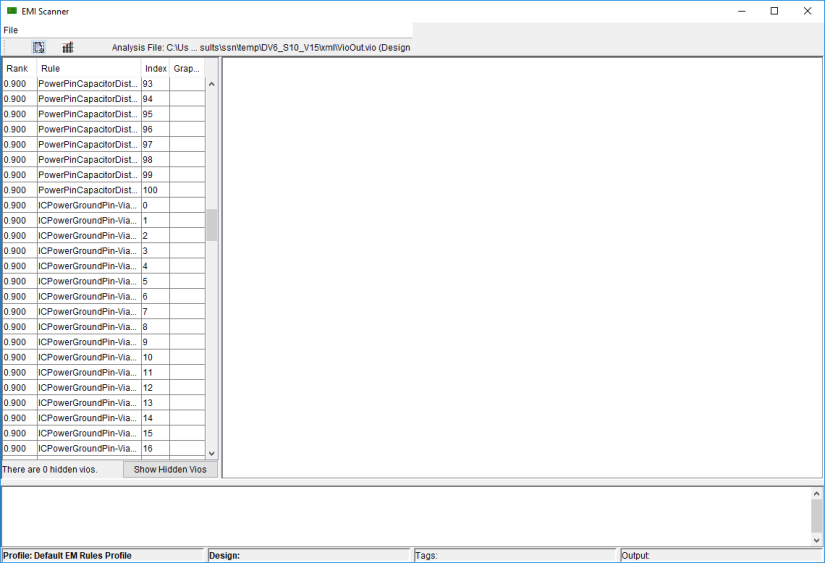
- Click the Current Spectra Library (
 ) icon to open the Spectra Configuration window.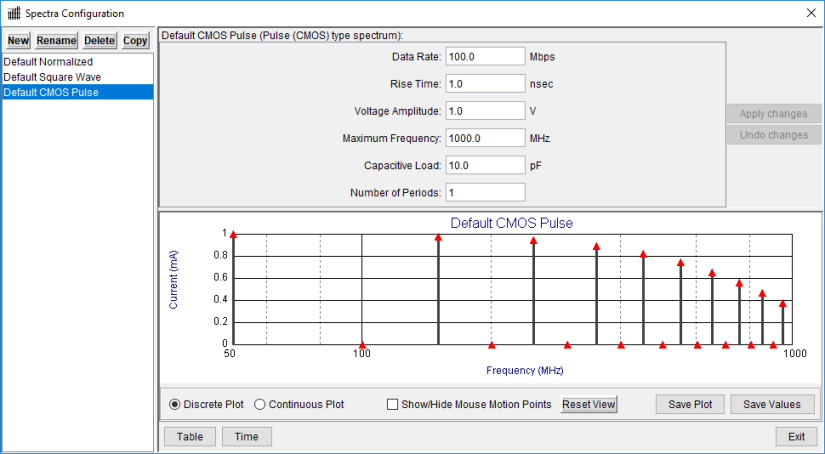
Select a spectrum in the left pane to view its settings and plot to the right. You can edit fields directly, then Apply changes or Undo changes.
By default, a Frequency/Current plot appears. The plot can be viewed as a Discrete Plot or a Continuous Plot.
You can Save Plot as a *.png or *.jpeg image, or Save Values in plain text format.
Click Table to view information as a table instead of a graph.
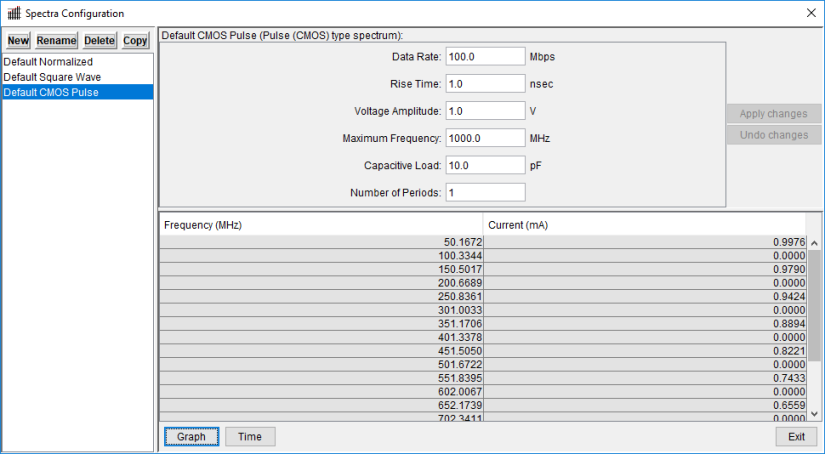
Table becomes Graph. Click it again to restore the plot view.
Click Time to view Current/Time information instead of Current/Frequency.

Time becomes Freq.. Click it again to return to Current/Frequency.
From the Spectra Configuration window, you can also perform the following actions:
- New – create a new spectrum.
- Rename – change a spectrum name.
- Delete – remove a spectrum.
- Copy – create a copy of an existing spectrum with a new name.
- Click Exit to return to the EMI Scanner window.
Any changes you made are now available in the Violation Investigation window.