
Analyzing EMI Scanner Results Using iQ-Harmony
iQ-Harmony receives violations on the EMI Scanner and, based on signal characteristics, makes predictions on the seriousness of the violations. This offers meaningful comparison between rule limits and violations, and allows you to make "what if" comparisons and determine impacts.
To analyze EMI Scanner results:
- Run an EMI scan.
- From the Project Manager window, right-click EMI Setup and select Results > Analyze with iQ-Harmony to open the Violation View Limiter window.
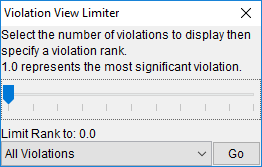
- Use the drop-down menu to select the number of violations to display. The default is All Violations.
- Use the slider to select a minimum violation rank to display. 0.0 is the least severe and 1.0 is the most severe.
- Click Go to open the EMI Scanner window.
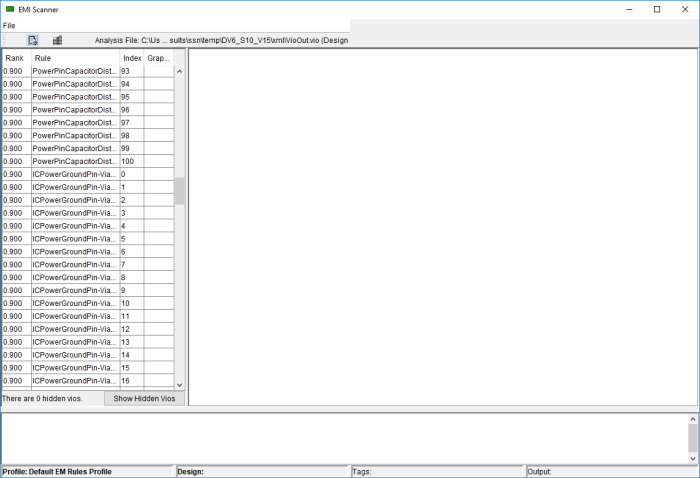
Violations are listed in the left-hand pane. By default, they are sorted by rank, with the most severe violations at the top of the list. Click the column headings to change the sorting.
Hovering the cursor over a violation offers more information about the violation.
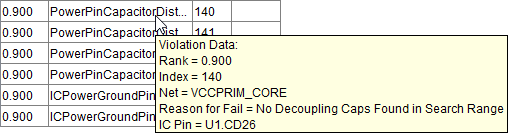
If there are any hidden violations, text at the bottom of the pane notes this, and offers you the option to Show Hidden Vios.
The File menu allows you to save the violations list as a *.vio file, or open an existing *.vio file.
Also open an existing *.vio file by clicking the Open Analysis File (
 ) icon.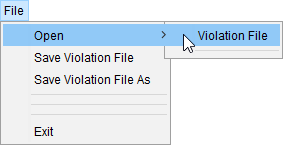
The Current Spectra Library icon (
From the left pane, either double-click a violation, or right-click it and select Open Violation Investigation Window(s) to open the Violation Investigation window. ) opens the Spectra Configuration window.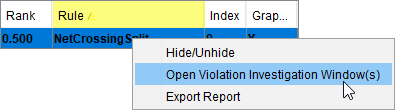
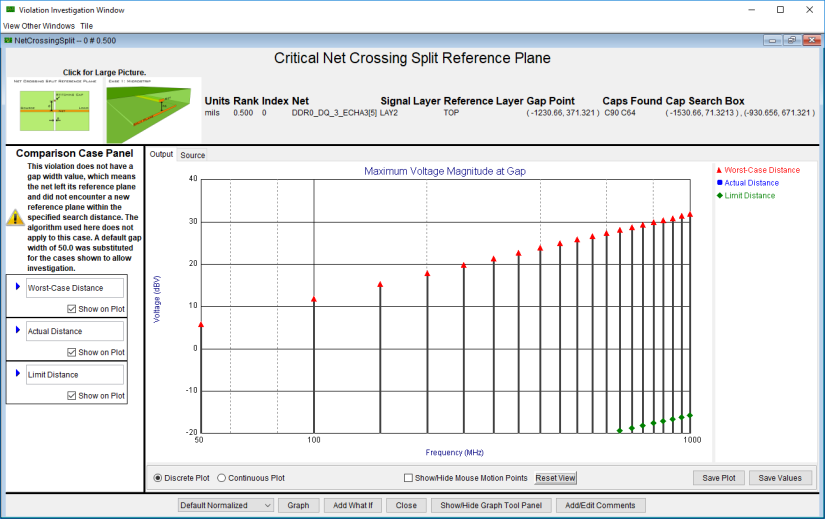
The top of the Violation Investigation window displays information about the violation's location and severity, and graphic representations of the type of violation. Click a graphic to enlarge it for easier viewing.
The left pane is the Comparison Case Panel. The default cases vary depending on the type of violation, and can include: Worst-Case Distance, Actual Distance, Limit Distance, Search Limit Distance. Click the blue triangles to expand the cases and view their display options. You can add a comparison case by clicking Add What If.
The comparison cases allow you to see how changes in signal characteristics affects the violations. Use the Show on Plot check boxes to determine which cases are displayed. You can rename a case by typing into its name field.
The bottom of the Violation Investigation window allows you to make additional changes.
Options include:
- Choose A Spectrum – allows you to select a default spectrum or one you have added via Spectra Configuration.
- Graph – after you change data, click this button to refresh the graph.
- Add What If – adds a new comparison case to the Comparison Case Panel.
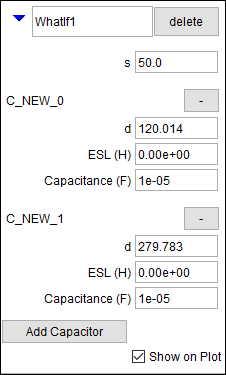
You can change the settings and rename the case just as with default comparison cases. Also delete the custom case.
- Close – closes the Violation Investigation Window and returns you to the EMI Scanner window.
- Show/Hide Graph Tool Panel – toggles the display of the Graph Tool Panel:
- Add/Edit Comments – opens a blank text window to type comments. These are saved with the *.vio file.
- Analyze the data as chosen.
- If you wish to save the plot as a *.jpeg or *.png image, click Save Plot.
- If you wish to save the values in plain text format, click Save Values.
- Click Close to close the
Violation Investigation window closes, and the EMI Scanner window displays your analysis in the right pane.

- When you are finished analyzing, click File > Save Violation File or File > Save Violation File As to save your analysis in *.vio format.