


You can display the following information about a material in the Engineering Data Material view:
The material name
A short description of the material
The source library and labels for the material
The properties of the material
Displaying Material Data
To display a detailed view of material data. do one of the following.
Click a material object under the Materials folder in the Outline pane.
Click the name of a material in the left-hand side of the Engineering Data Material View to select it. This applies to favorite materials, recent materials, and returns from material searches.
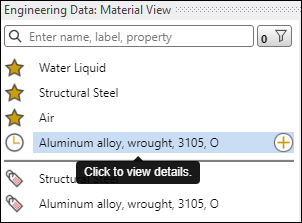
The Material View window then displays detailed information about the selected material. The example below shows detailed information for Aluminum alloy, wrought, 3105, O.
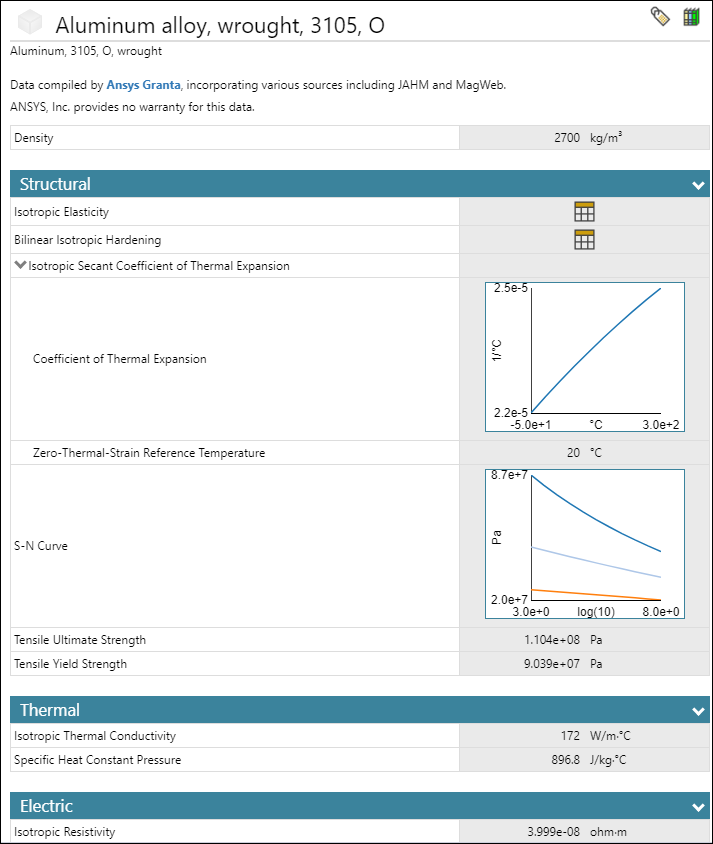
Engineering Material Detailed View
The detailed view shows the following information for the material you selected:
- Color Block
The color of the block indicates the color that will be used to display this material in a model. An imported material that does not have a color will be assigned a random color.

- Name
The name of the material. In the example above, the material name is Aluminum alloy, wrought, 3105, O.
- Description
(Optional.) A short description or notes about the material. In the example above, the material description is Aluminum, 3105, O, wrought. Data compiled by Ansys Granta, incorporating various sources including JAHM and MagWeb. ANSYS, Inc. provides no warranty for this data.
- Label
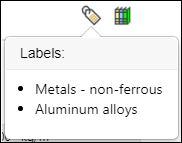
Hover the mouse over the tag icon in the upper right-hand corner of the window to view the labels associated with a material. The labels for Aluminum alloy, wrought, 3105, O are Metals - non-ferrous and Aluminum alloys.
- Library
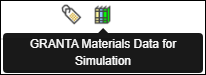
Hover the mouse over the library icon in the upper right-hand corner of the window to display the library to which the material belongs. The library for Aluminum alloy, wrought, 3105, O is GRANTA Materials Data for Simulation.
- Material Model Properties and Plots
Displays the properties for the selected material model. This data can be a scalar value (such as Density), a plot of field variables (such as S-N Curve), or a table icon (such as Gasket). Material properties are organized under collapsible headings by physics type (such as Structural, Thermal, or Magnetic).
Displaying a Larger Plot and Related Material Information
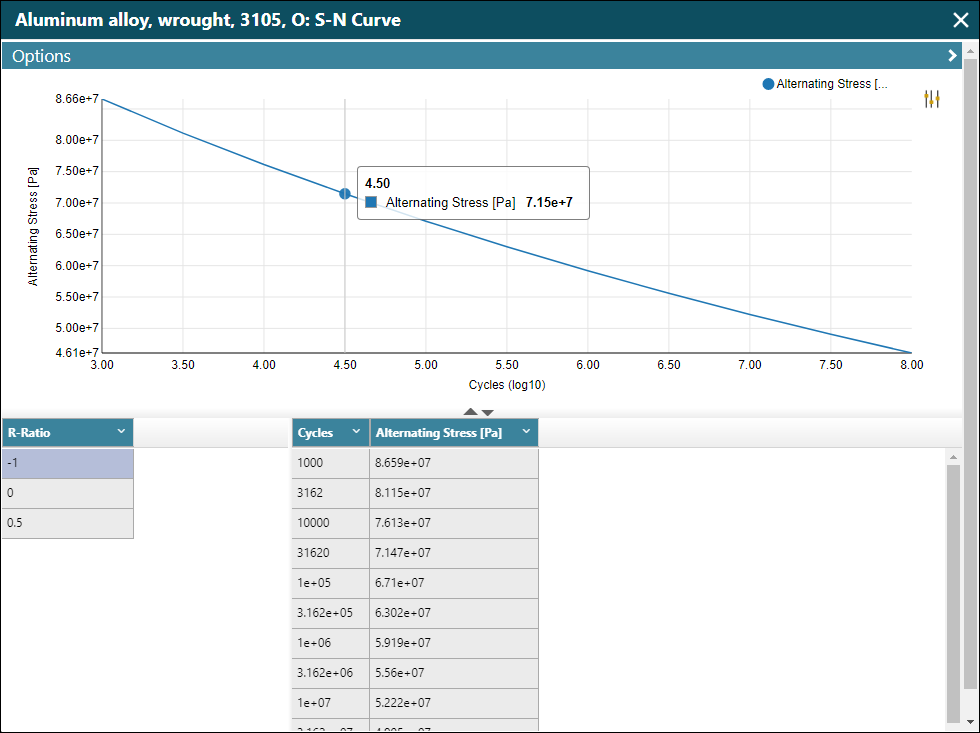
Click a plot to display a larger version of the graph and information such as its associated tabular data. The following example shows a larger version of the Aluminum alloy, wrought, 3105, O: S-N Curve. It includes the R-Ratio and a table of the plotted Cycles and Alternating Stress values.
Material Object Details Pane
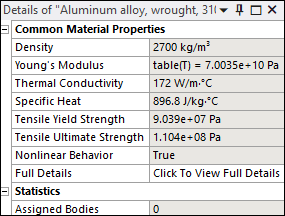
The Details pane appears when you select a material object under the Materials folder (that is, a material that was added to your project).
- Common Material Properties
A read-only list of the common material properties for the selected material.
- Assigned Bodies
The number of bodies in the model that have been assigned this material.