


You can create a copy of the current project and working directory without loading the new copy into optiSLang.
From the menu bar, select > > .
In the File name field, enter a name for the project.
Browse to the location where you want to save the project.
Click .
The Project preparation wizard opens. To use this wizard, click . To close the wizard and copy the project as-is, click .
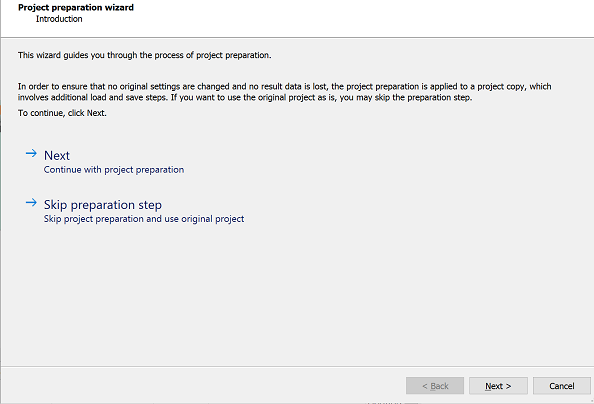
Configure how to handle working data by selecting if the project should be reset and how to store the working directory contents.
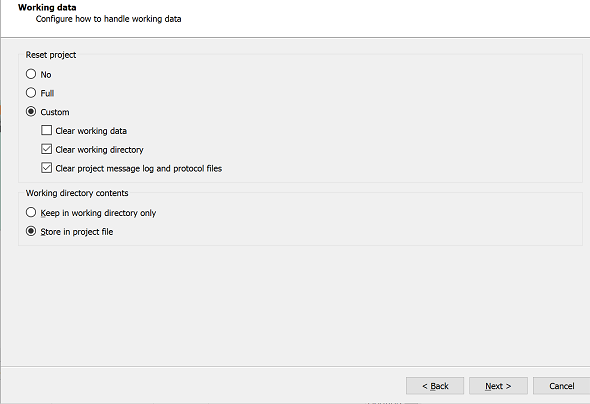
Click .
Review and edit registered files as required.
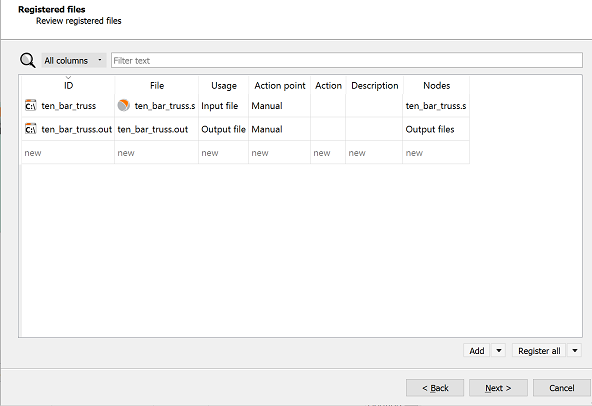
Click .
Review and edit placeholders as required.
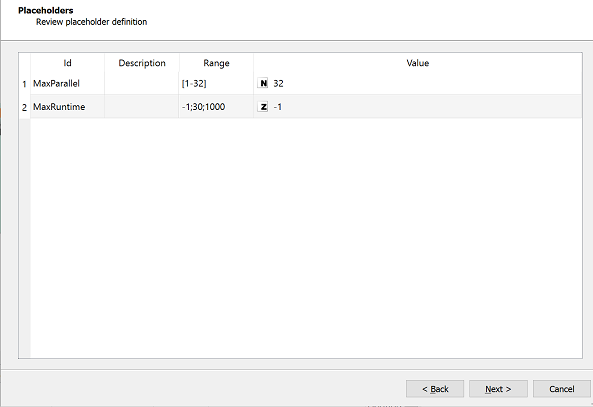
Click .
Review the files referenced in the project to identify potential problems with missing or absolute file paths. You cannot change file paths in this window.
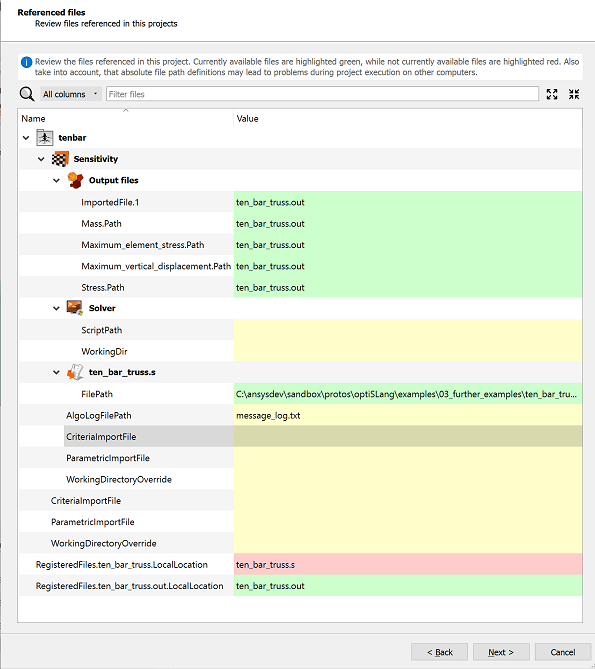
Click .
Select the check boxes to export the project settings and/or placeholder file along with the project.
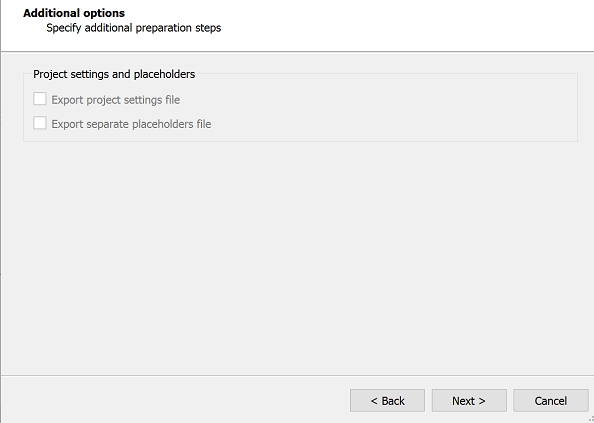
Click .
Check the summary to ensure you have selected the appropriate preparation settings.
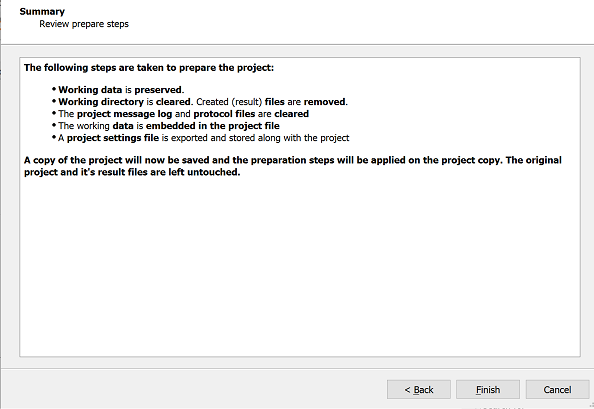
Click .