Import Touchstone Files for Circuit Elements in HFSS
To create a circuit element, you can import Touchstone files to create the definition for a Single Port Model or a Multi-Terminal Model:
For a single Terminal Model:
- Right click on a Lumped port in the Project tree and click Create Single-Port Model,
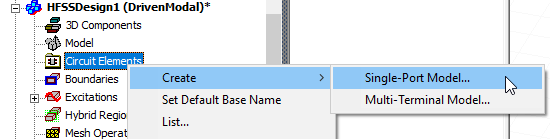
or right click on the Circuit Elements folder and select Create>Single Port Model....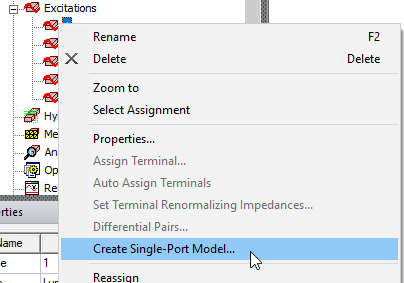
The Create N-port Circuit Element dialog opens. If you selected the port menu, the dialog shows the HFSS Port assignment. If you selected from the Circuit Element menu, you can click on the HFSS Ports cell to select from available ports.
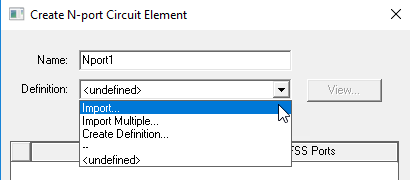
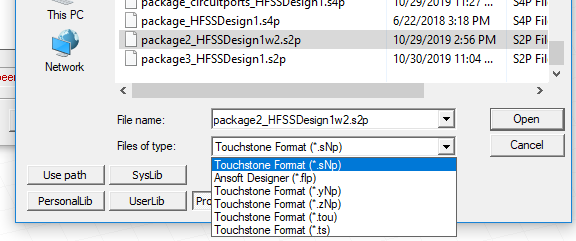
Selecting Import... automatically opens a browser window. You can select the Touchstone format and an appropriate file.
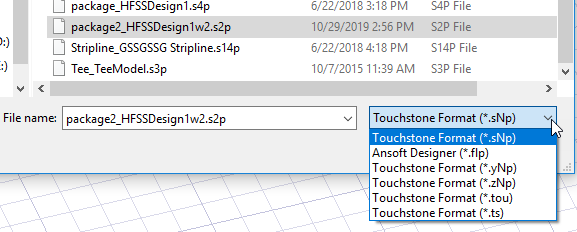
If the Touchstone file is consistent with the design and selection, the Create N-port Circuit Element dialog shows where you can make port assignments.
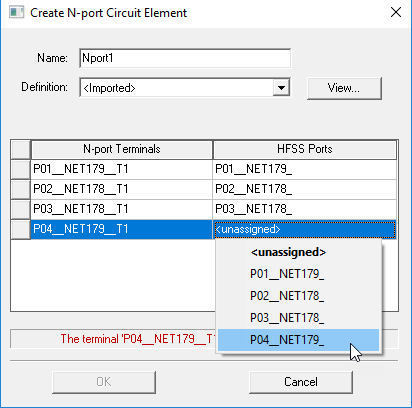
When you can competed Port/Terminal assignments, the Message field changes to a green OK.
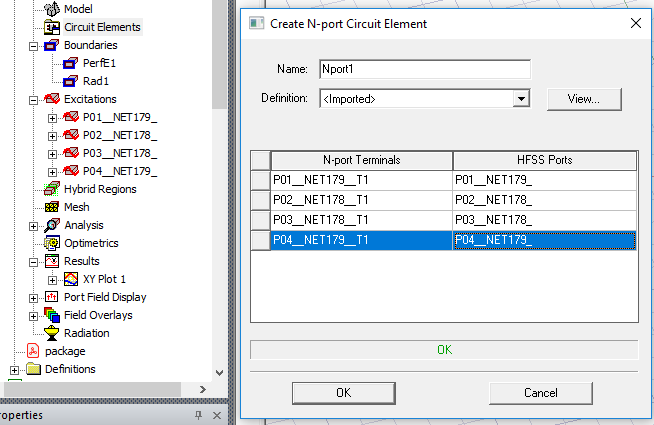
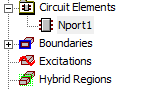
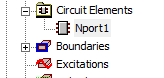
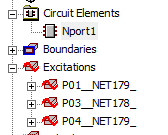
When click OK, the dialog closes, and the in Project tree, the Excitations are removed an Nport appears under the Circuit Elements.
- The View... button in the Create N Port dialog opens the circuit port in ndExplorer
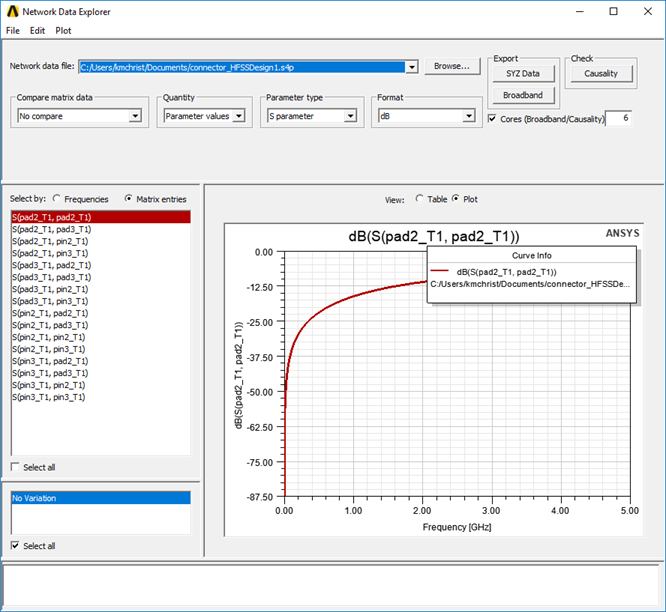
For a description of ndExplorer, see Network Data Explorer.
Using Import Multiple ... for Touchstone files.
If you select Import Multiple... in the Create N-port Circuit Element dialog box, the Circuit Element Imported Solutions dialog opens.
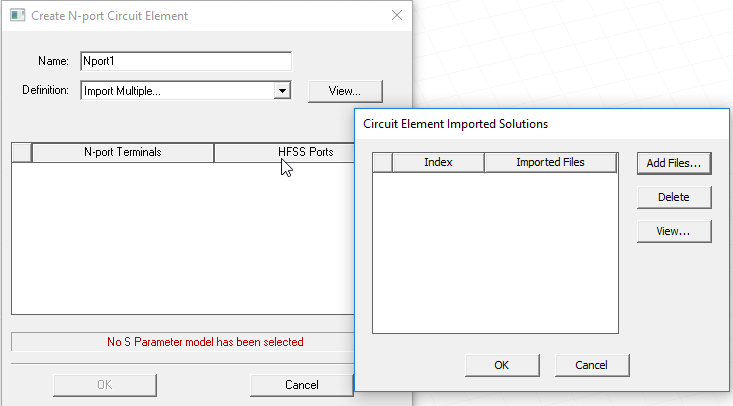
If no imported files are listed, you can click Add Files to open a file browser to add suitable touchtone solution files, such as those created when you Export Matrix data from the Solutions dialog.
Added files are then listed as Circuit Element Imported Solutions. The View... button opens the selected solution file in NDExplorer.
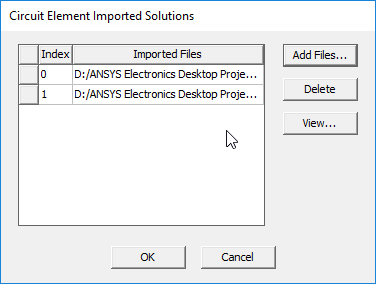
Click OK to close the dialog box. The Create N-port Circuit Element dialog shows an HFSS Port assignment, based on the solution file.
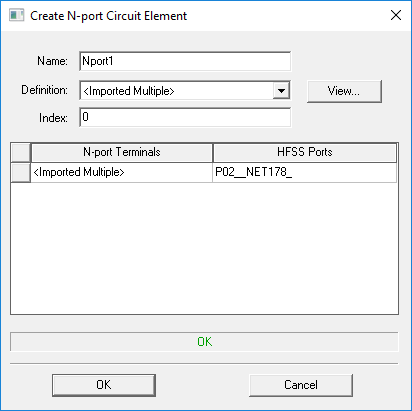
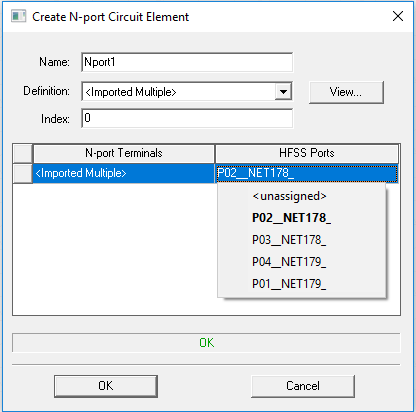
If the Solution files contains information for multiple ports, you can change the assignment by selecting from the drop-down menu.
Click OK to close the dialog box. The Project tree will show the nPort listed as a Circuit Element, and the Excitation that corresponded to the assignment is not listed.
If you select Multiple Terminal Model, and the selected Touchstone file contains solution information for all N-port Terminals, the Create N-Port Circuit Element dialog allows you to make assignments for all available HFSS Ports.
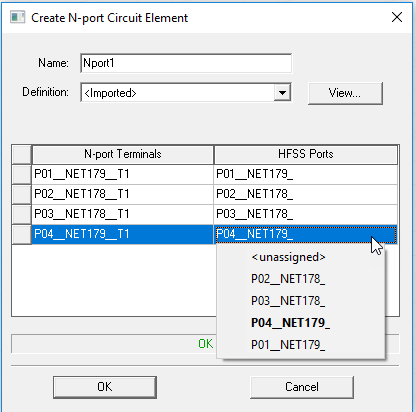
In this case, the click OK to close the dialog box. In this case the N Port replaces all assigned HFSS Ports.