Creating Circuit Models and Managing Libraries in HFSS
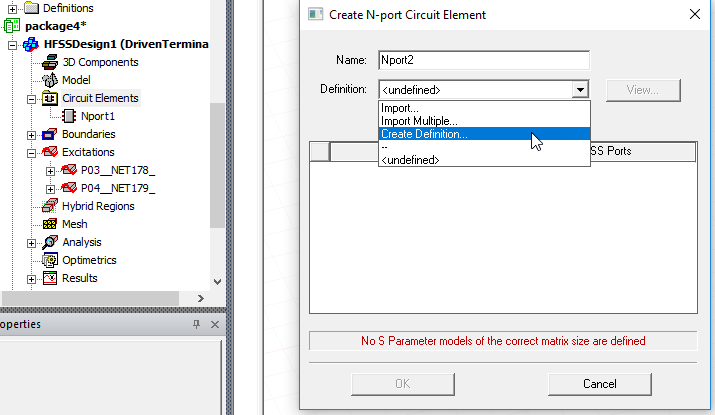
The Create Definition... command appears as a definition option on the Create N-port Circuit Element dialog.
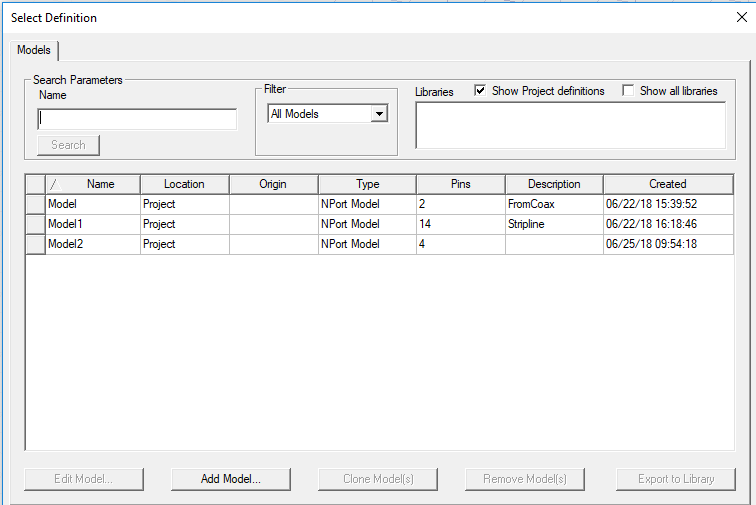
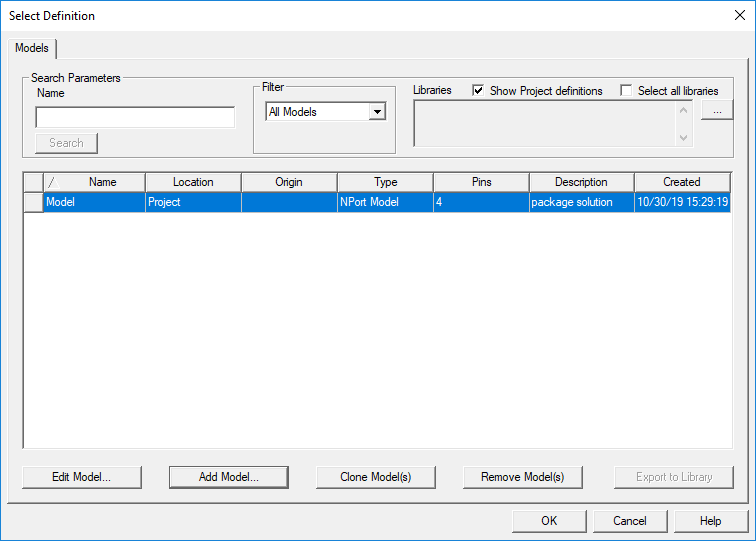
Selecting Create Definition... opens the the Select Definition dialog allows you to view, create, edit, filter and remove circuit models for the Circuit Elements feature in HFSS. It shows existing models in your library, and allows you add and organize your models.
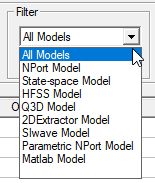
The dropdown menu in the Filter menu lets you display the models in your present library according to their original source.
Click Add Model... to include additional models in your library. This opens the Add Model Dialog.
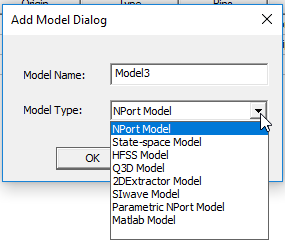
The Add Model Dialog contains a Model Type menu. Each selection leads to a dialog with options appropriate to that selection. For example, NPort Model or State space menu choices opens N-Port Data.
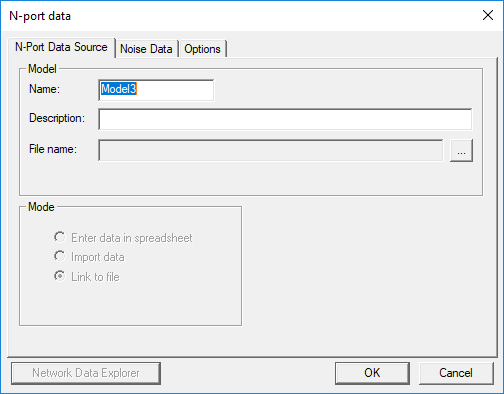
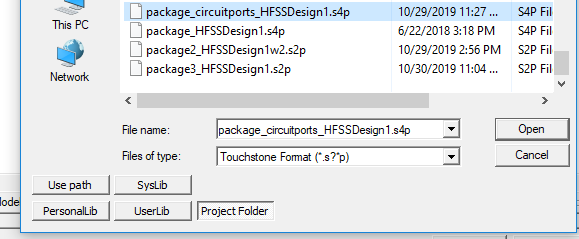
Here you can use the ellipsis button [...] to open a file browser to select a Touchstone file.
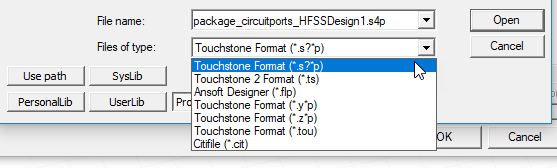
The Files of Type field includes a drop down listing the supported import formats.
When you have selected the file, and clicked OK to close the browser, you can enter a description in the N-port data dialog.
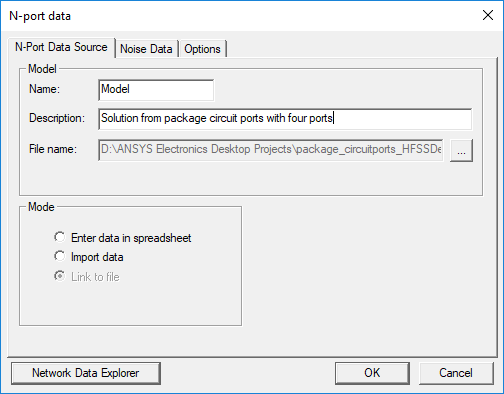
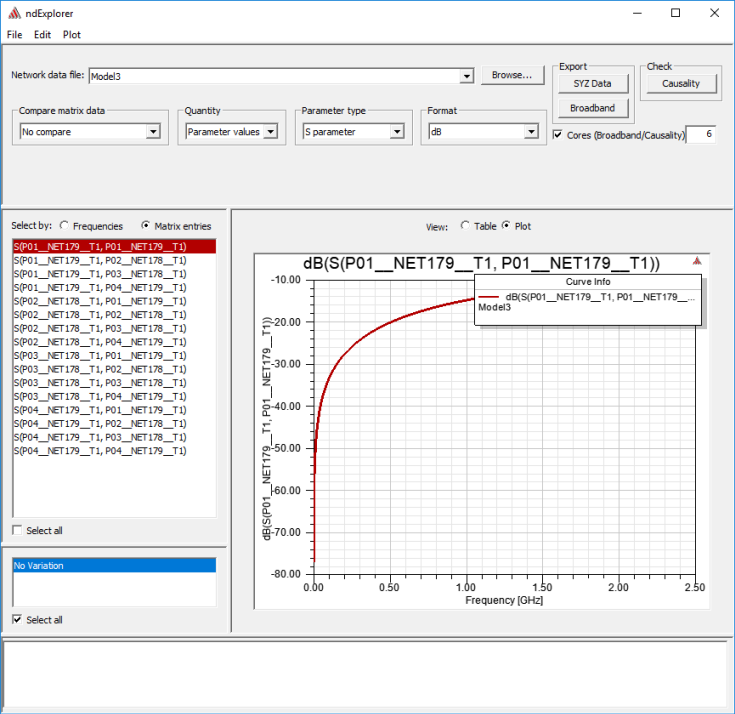
The Network Data Explorer button is enabled. You can use ndExplorer to view tables or plots of the matrix data.
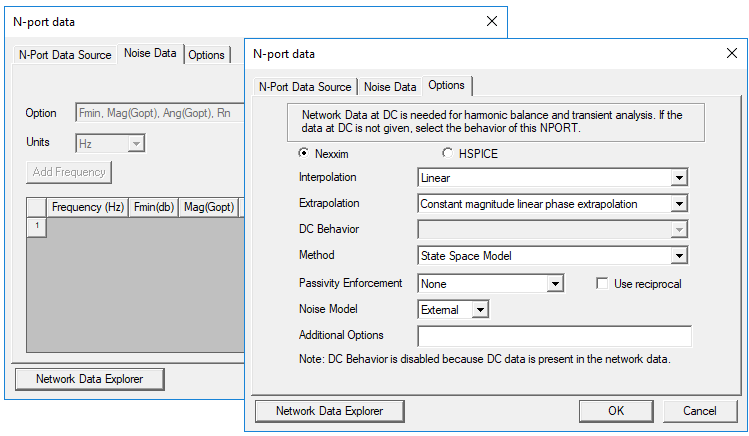
When you have selected a Touchstone file for the N-port Data dialog box, the Noise Data and Options tabs are enabled as well.
When you close the N-port data dialog box, the Select Definition window lists the newly added model.
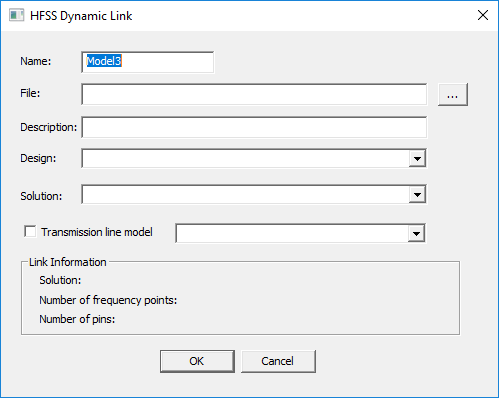
Add Model dialog choices for HFSS, Q3D, 2D Extractor, or SIwave open a Dynamic Link dialog box, that lets you select the project file, as well as the Design and Solution to use. If one or more transmission lines is available, you can optionally enable selection:
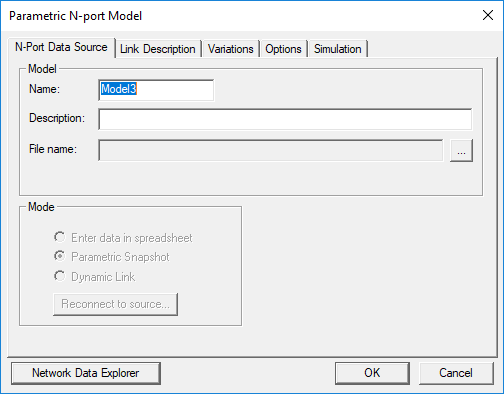
Add Model dialog choice for Parametric N-port Model opens a dialog with tabs for N-Port Data Source, Link Description, Variations, Options, and Simulation.
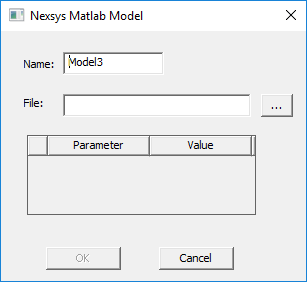
Add Model dialog choice for Matlab Model opens a Nexys Matlab Model dialog that lets you select a file by opening a browser with the ellipsis button [...].