
Creating a Single Port Circuit Element in HFSS
To create a single port Circuit Element:
- Right click on a Lumped port in the Project tree and click Create Single-Port Model,
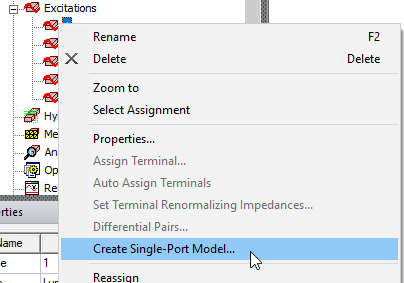
or right click on the Circuit Elements folder and select Create>Single Port Model....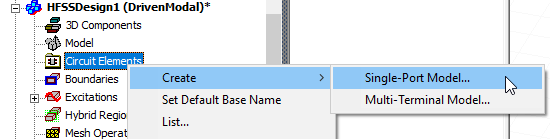
The Create N-port Circuit Element dialog opens. If you selected the port menu, the dialog shows the HFSS Port assignment. If you selected from the Circuit Element menu, you can click on the HFSS Ports cell to select from available ports.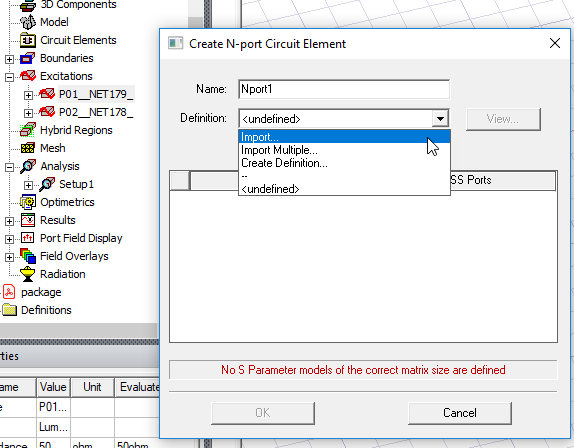
The Definition menu allows you to Import... for Touchstone information contained in a single file. The first example follows that choice.
Select Import Multiple... Option if you want have access to multiple Touchstone files Indexed for selectable port definition (discussed below).
Select Create Definition, or, if you have previously accessed appropriate models, select from models listed. If you select Create Definition... you will see the Select Definition window where you can select and create circuit models and manage libraries.
If you have previously created Touchstone files of the correct matrix size you can use Import... to open a File browser to select one.
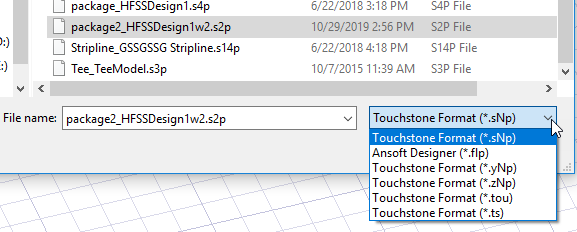
If the model has the corresponding Matrix size, the Create N Port Circuit Element dialog can assign the HFSS ports, and shows that the assignment is valid with a green OK. If a valid assignment cannot be made, the field has a red text describing the issue. With valid assignments, the View button ins enabled lets you open the port definition in Network Data Explorer. .
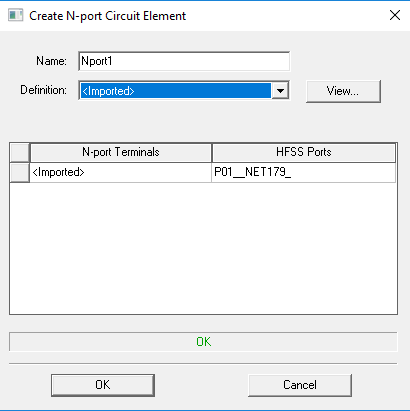
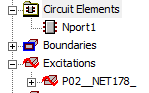
- You can OK the dialog box, and see the Circuit Element listed in the Project tree.
Import Multiple... Option
If you select Import Multiple... in the Create N-port Circuit Element dialog box, the Circuit Element Imported Solutions dialog opens.
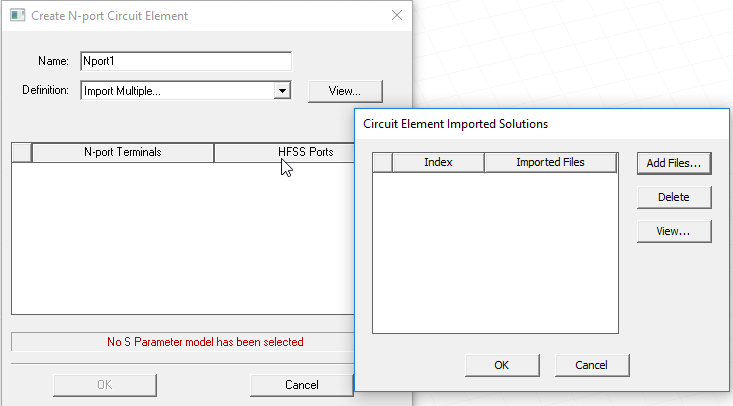
Click Add Files... to open a browser to add suitable Touchstone models. When you have added the models they are listed as Imported Files and you can OK the browser. The View... button opens the selected file in Network Data Explorer. Note: Each file you select has an Index assigned here that you can use to identify which file to use for the Circuit Element.
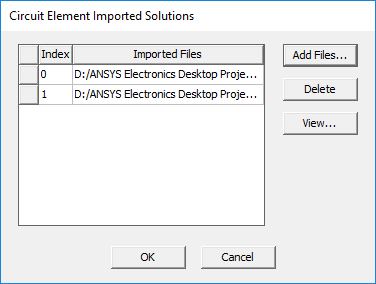
OK to close the dialog box. You then make HFSS Port assignments in the Create N-port Circuit Element dialog box. The View... button allows you to use Network Data Explorer for the selected Touchstone file.
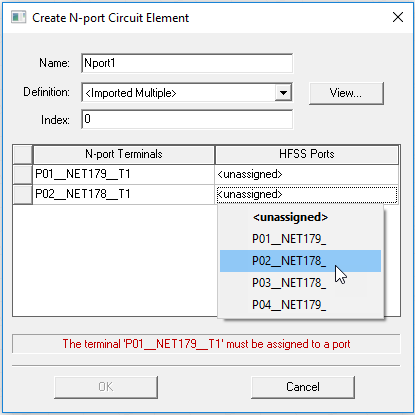
When you have made the assignments, the message field reports OK in green. The View... button allows you to use Network Data Explorer for the selected Touchstone file.
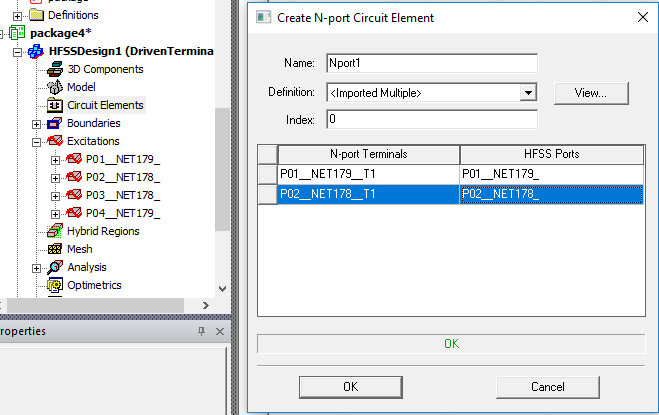
Notice that the Index value can control which touchstone file listed in the Circuit Element Imported Solutions dialog is used in the simulation by index. The Index value can be parameterized, that is, defined as a variable so to be used in a parametric study or exposed as a component parameter when included in a 3D component.