


Using the M2Doc extension in medini analyze together with a custom Microsoft Word template, you can output content from your Ansys medini analyze project in a formatted Microsoft Word file. The template contains M2Doc fields that correspond to project data in medini. The M2Doc feature processes the template, fills the fields with the corresponding data from medini, and generates the output document.
Before you can generate a report, you must set up the configuration. The basic setup process is:
In medini analyze, create an M2Doc configuration checklist.
Add the Microsoft Word template file (DOCX or DOCM) to the medini analyze project and update the configuration checklist to point to the template file.
Run an M2Doc report generation to have the template variables appear in the configuration checklist. Then assign specific elements in your medini project to the variables.
These processes are described in more detail below.
After you have successfully prepared the report configuration, you can generate the report manually or automatically, or even all reports at once automatically.
You will need a DOCX or DOCM template filled with M2Doc fields. See the VTOL sample project in medini analyze for an example. For more information about creating M2Doc templates, see the medini analyze M2Doc Template Creation guide in the Ansys Help Portal.
The M2Doc configuration checklist is similar to other checklists in medini. It lists the template file, the variables in the template, and any related artifacts and notes.
To create the M2Doc configuration checklist in medini, complete these steps.
In the Model Browser, select your project, and in an appropriate folder, such as one called "Reporting", right-click and choose > .
In the dialog, enter a name for your configuration checklist and click .
The report window opens, showing the standard report configuration. You will add variables and fill the "Related Artifacts" and "Note" fields later.
Save your project.
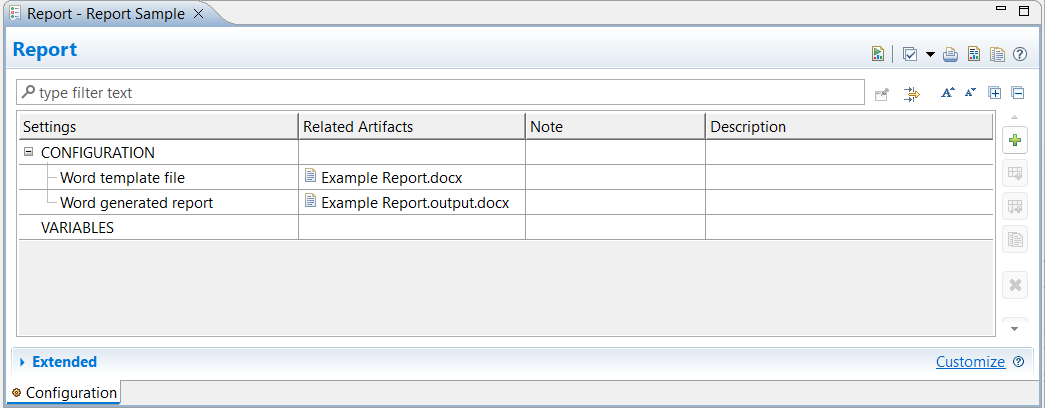
To generate a report, you supply medini analyze with a DOCX or DOCM template that is readable with M2Doc. Use Microsoft Word or a compatible product to create and format the template, for example with sections and tables. Insert dynamic fields that generally contain variables. During report generation, medini writes data from your project into these fields.
Note: More information about preparing a template file for M2Doc report generation, see the medini analyze M2Doc Template Creation guide in the Ansys Help Portal.
To add the template to your project, complete these steps.
In medini analyze, in your project, select the folder that contains the M2Doc configuration.
Right-click and select > and browse to your template file.
Select the file and click .
Medini analyze adds your file to the project. Note that you can continue to add fields to the document after it is in the medini project.
To link the template to the configuration, drag the template file from the Model Browser to the Configuration window, under in the "Word template file" cell.
Using an External File as a Template
Typically you generate an M2Doc report from a DOCX or DOCM template that you have stored in medini analyze as the template file. You can also link to template files that are stored outside of medini analyze.
To use an external file as your M2Doc template, complete these steps.
In your file system, find the template file you would like to use as the template.
Click the file and drag it to medini analyze. Before dropping the file to the package containing your report, press the Alt key.
When you see the arrow representing a shortcut appear over the file, drop the file in the package.
The external file is listed in the package with an arrow icon. This means it is a link to your external file. You can now drag the template file from the Model Browser to the Configuration window, under in the "Word template file" cell. In the view, you can see the complete link URL.
After you have added the template to the project, generate the report one time to populate the configuration with the variables in the template.
To add variables to the configuration, complete these steps.
In the Model Browser, select the M2Doc configuration. Right-click and select > .
In the dialog, make sure that the configuration checklist appears under and the correct template appears under .
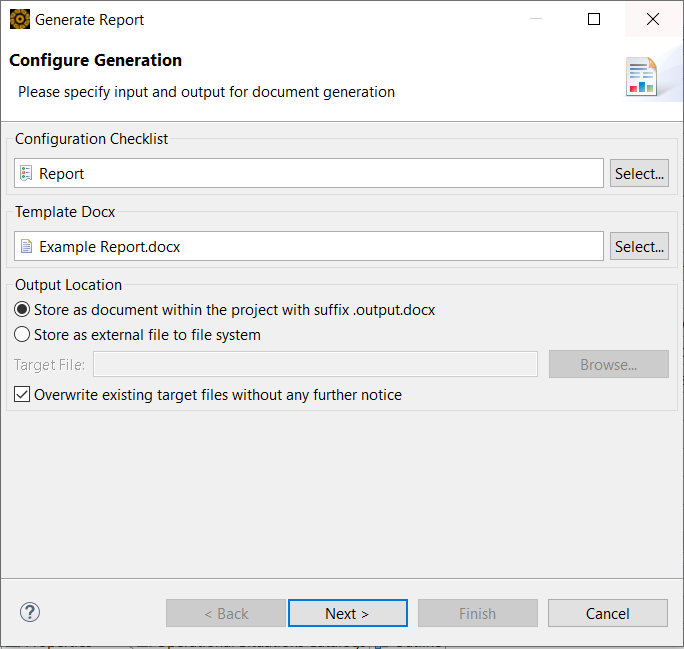
To define the output location, under , select whether the output will be stored in the project or externally.
For external locations, browse to the desired location.
For reports generated to external locations, the icon appears with a small arrow indicating a link to a file outside of medini analyze.
Note that the output format is the same as the input format, DOCX or DOCM.
Optional. Select whether existing output files will be overwritten with no warning.
Click .
On this first run of the M2Doc report generation, the dialog warns that the variables found in the template are not yet in the configuration.
To add them to the configuration, click .
You now see the variables listed in the configuration dialog under . Next you assign a project element to each variable.
The variables in the configuration take their values from objects in the Model Browser, or from text strings that you add in the configuration.
To assign a project element to a variable, in the Model Browser, find the element and drag it to the corresponding cell in the column.
You can add multiple elements to some variables. For example, you can assign a collection of hazards to a single variable.
To add a text string to a variable, enter the text in the corresponding cell in the column.
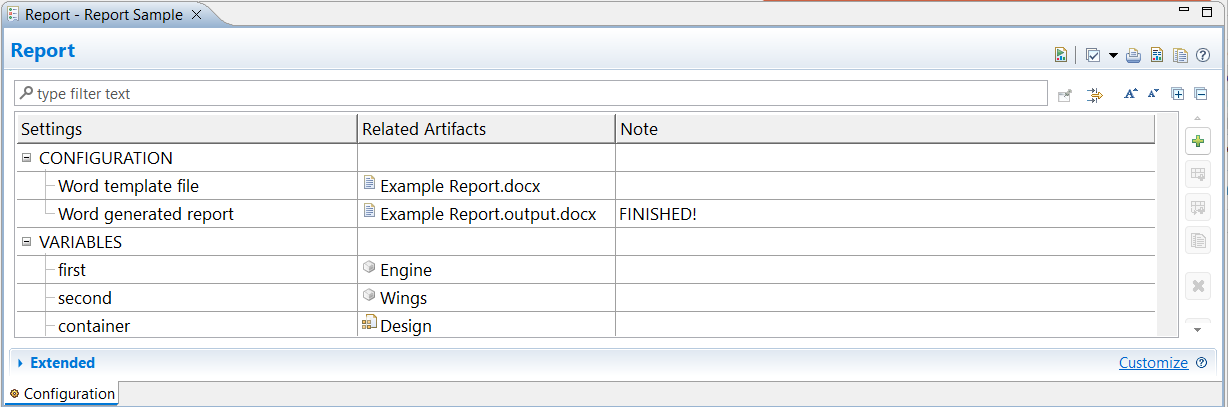
After you have set up the report in medini analyze, you can generate it.
If you want to make changes to the configuration, such as a different name for the output file, use the manual report configuration.
To run the report without any configuration changes, use the auto-generate button.
Generating the Report Manually
To generate the report manually, complete these steps.
In the Model Browser, select the M2Doc configuration. Right-click and select > .
In the dialog, you can edit these parameters.
Configuration checklist file
M2Doc template file
Output location
Target output file
Whether or not to overwrite an existing target output file.
When finished, click the button.
In the dialog, the system lists any errors.
Optional. Select the box to open the report upon configuration.
Optional. Click the link to copy the status list to the clipboard for future use.
When you are done, click the button.
The report is generated.
Important: Click if you get the following message while opening the output file:
"This document contains fields that may refer to other files. Do you want to update the fields in this document?"
Generating the Report Automatically
After you have successfully generated the M2Doc report one time, you can use the auto-generate feature to generate reports more quickly.
To quickly generate a single M2Doc report, in the configuration checklist window, in the top-right corner, click the button (
 ).
).To quickly generate reports for all M2Doc configuration checklists in your project, in the main project node, right-click and select > .